
Managing Rules
Editing a Custom Rule Configuration
- In the rules table on the Monitoring page, click a rule.
- In the details drawer, in the header, click the Edit
 icon.
- Update fields and settings, as required. Refer to Creating a Rule for field and setting explanations. The Save Changes button becomes enabled.
- Modify the external action or remove the external action, if required. See Adding an External Action.
- Click Save Changes.
Note
- When you modify a rule's configuration, it might begin triggering alerts on different assets than before. For example, when you configure the rule with a different query.
- When you pivot from the latest alert in the Alerts History tab to the list of assets that triggered the alert, it opens the list of assets resulting from the alert based on the original rule (i.e., before the rule was modified). This is because the asset list is based on a historical snapshot of the assets at the time of the alert .
Modifying the External Action
In a custom rule, you can choose an alternate Enforcement Action for an external action or modify the configuration of the existing one.
To modify the external action:
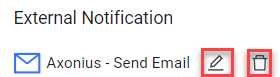
- Hover over the defined external action, and click the
 Edit icon that appears (see figure below).
- Modify the configuration of the external action by doing one of the following:
- In Select Action, choose another enforcement action and fill in the required fields.
- Modify the configuration of the current enforcement action.
- Click Apply.
Removing the External Action from a Custom Rule
-
Hover over the defined external action, and click the
 Trashcan icon that appears (see figure below). The external action is removed.
-
Click Apply. The external action is removed from the Findings Notification Enforcements folder in the Enforcement Center.
Updating the Status of a Rule Alert
In the row of a rule in the rules table, you can manually change the status of its latest alert. Learn how to change the alert status. You can also change the status of a rule's alert in the Alerts History table - Status column.
Deleting Rules
Note: Only custom rules can be deleted.
-
In the rules table on the Monitoring page, click on the More Actions menu at the end of the row and click
Delete Rule, or select the checkboxes of one or more rules, and then on the top right of the table, click the Delete Rule action.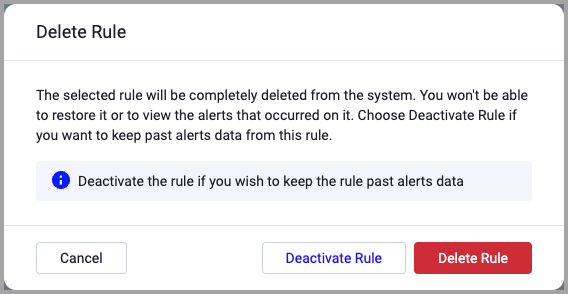
-
In the Delete Rule box, click Delete Rule. The selected rules are totally removed from the system, they are deleted from the rules table and Total decreases accordingly.
Deactivating Rules
You can deactivate one or more custom rules from the rules table or deactivate a single custom rule from its configuration drawer. A deactivated rule stops running in the system, but keeps past alert data.
To deactivate a rule from its configuration drawer:
- In the rule details drawer, toggle off Activate (default).
- Click Save Changes. The Finding's Activity Status changes to Inactive.
To deactivate one or more rules from the rules table:
- In the rules table on the Monitoring page, click the More Actions menu at the end of the row, and clickDelete Rule, or select the checkboxes of one or more rules, and then on the top right of the table, click Delete Rule.
- In the Delete Rule box that opens (see above), click Deactivate Rule. The Finding's Activity Status changes to Inactive.
Activating a Rule
A rule runs only while it is activated. You can activate a single custom rule from its configuration.
To activate a rule:
- In the rules table on the Monitoring page, click a rule, and in the details drawer that opens, toggle on Activate (default).
- Click Save Changes. The rule's Activity Status changes to Active.
Exporting Rules
Use Export Rules to save the configuration of rules to a JSON file. You can then import the rules on another Axonius system.
You need the Monitoring Modify permission to export rules.
To export rules
- In the rules table on the Monitoring page, select the checkboxes of the rules one by one. You can export 1 to 500 rules at a time.
- Click Export Rules.
- Your browser downloads a JSON file named
axonius-monitoring-rules_<date and time>.json. A message shows the number of exported rules.
- When you select all rows with the checkbox in the table header, Export Rules is disabled. Select the rules one by one.
- The file keeps the name of each saved query (and calculation) that a rule uses, not its ID.
- The file keeps the description, severity, category, schedule, mute settings, labels, and trigger condition of each rule.
- The file doesn't keep the activity status of a rule or its external action.
- Axonius doesn't export system-managed rules (Behavior Analytics) or rules without a trigger condition. The message after the export shows the number of skipped rules.
- The export adds an entry to the Activity Log.
Importing Rules
Use Import Rules to create rules from a JSON file that you exported from Axonius.
You need the Monitoring Modify permission to import rules. Without it, Import Rules is disabled.
Before you begin: Make sure that the system has saved queries with the same names and asset types as the saved queries that the rules use on the source system. Import never creates a saved query.
To import rules
- On the Monitoring page, click Import Rules.
- Select the exported JSON file. The file must be 1 MB or smaller.
- In the Monitoring Rules Imported dialog, read the report, and click OK.
- Open each imported rule, add an external action if you need one, and activate the rule.
- Axonius finds each saved query by its name and asset type, in the saved queries that you can see.
- Axonius imports all rules as inactive and without an external action, so nothing runs and nothing is sent until you review and activate the rules.
- When a rule with the same name exists, the imported rule is named Copy of followed by the name of the rule.
- Axonius skips a rule when its saved query or calculation isn't found, or when its settings aren't valid on the system. The report lists each skipped rule with the reason.
- The import adds an entry to the Activity Log.
For example, you export the 12 rules that have the label PCI from a test system, and import the file on your production system. The report shows that 11 rules were imported as inactive, and lists one skipped rule because no saved query on the production system has the name that the rule uses.
Updated 7 days ago