
Deploying the Active Directory Adapter
To deploy the Active Directory Adapter, perform the following steps:
1. Create Active Directory credentials with the appropriate permissions
You can connect Axonius to Active Directory using a Service Account with a username and password or via Kerberos
Service Account
Prerequisites: Sign in with an account that can create users and modify group membership in the domain (Domain Admin or delegated equivalent).
- Open Active Directory Users and Computers (
dsa.msc). - Create (or choose) an OU for service accounts (e.g., OU=Service Accounts).
- Right-click → New → User.
- Enter User logon name (UPN): e.g.
axonius-svc@<your-domain>. - Enter User logon name (pre-Windows 2000): e.g.
axonius-svc. - Set a strong password.
- Uncheck “User must change password at next logon.”
- Check “Password never expires.”
- Enter User logon name (UPN): e.g.
- Finish creating the user.
- Create or edit a GPO to deny interactive logon. Go to Computer Configuration → Windows Settings → Security Settings → Local Policies → User Rights Assignment.
- Add the service account to Deny log on locally.
- Add the service account to Deny log on through Remote Desktop Services.
- Link the GPO to the appropriate scope (e.g., Domain Controllers OU or Workstations/Servers OUs).
- Add the service account to the Builtin → Account Operators group.
- Add the service account to the Remote Management Users local group on each target computer (preferably via GPO Preferences).
Kerberos
Prerequisites: Service Account with appropriate permissions (follow the Service Account steps if needed).
- Confirm a Key Distribution Center (KDC) is available. Every AD domain controller functions as a KDC by default.
- Ensure the realm name (your AD domain in uppercase, e.g. CONTOSO.LOCAL) is known and matches the value you enter in Axonius.
- Verify DNS resolution for the DCs/KDCs. Active Directory automatically creates the required A and SRV records; just confirm that Axonius or the Axonius Gateway can resolve them.
- Confirm that port 88 (Kerberos) is reachable from Axonius or the Axonius Gateway to the domain controllers.
2. Set up the Active Directory adapter in Axonius
Create the Adapter connection in Axonius. Based on the authentication method (Service Account or Kerberos), fill out the specific fields and configure optional settings.
Add a New Connection
- From the Adapters page, search for Microsoft Active Directory(AD) and select the adapter.
- Click Add Connection. The Create Connection drawer opens on the Connection Configuration tab.
- Fill in the sections below, then save the connection.
To check that Axonius can reach the source before you enter credentials, click Check Network Connectivity. For more details, see Adding a New Adapter Connection.
Environment
The instance this connection reads from.
- DC Address (required) - Specify the IP address of a single domain controller, or an FQDN that resolves to a single domain controller in an Active Directory Domain. It is recommended to enter a domain controller with DNS and Primary (PDC) roles.
- Port
- Service Account - LDAPS (LDAP over SSL): 636 (LDAPS default, refer to the Required Ports table if you setup differently)
- Service Account - LDAP: 389 (LDAP default, refer to the Required Ports table if you setup differently)
- Kerberos: 88 (Kerberos default, refer to the Required Ports table if you setup differently)
- Fallback DC Address, Fallback Port - Enter a secondary DC address and port as a secondary server to be connected if the first one fails.
Access
How Axonius authenticates to the instance. Select one of the authentication methods.
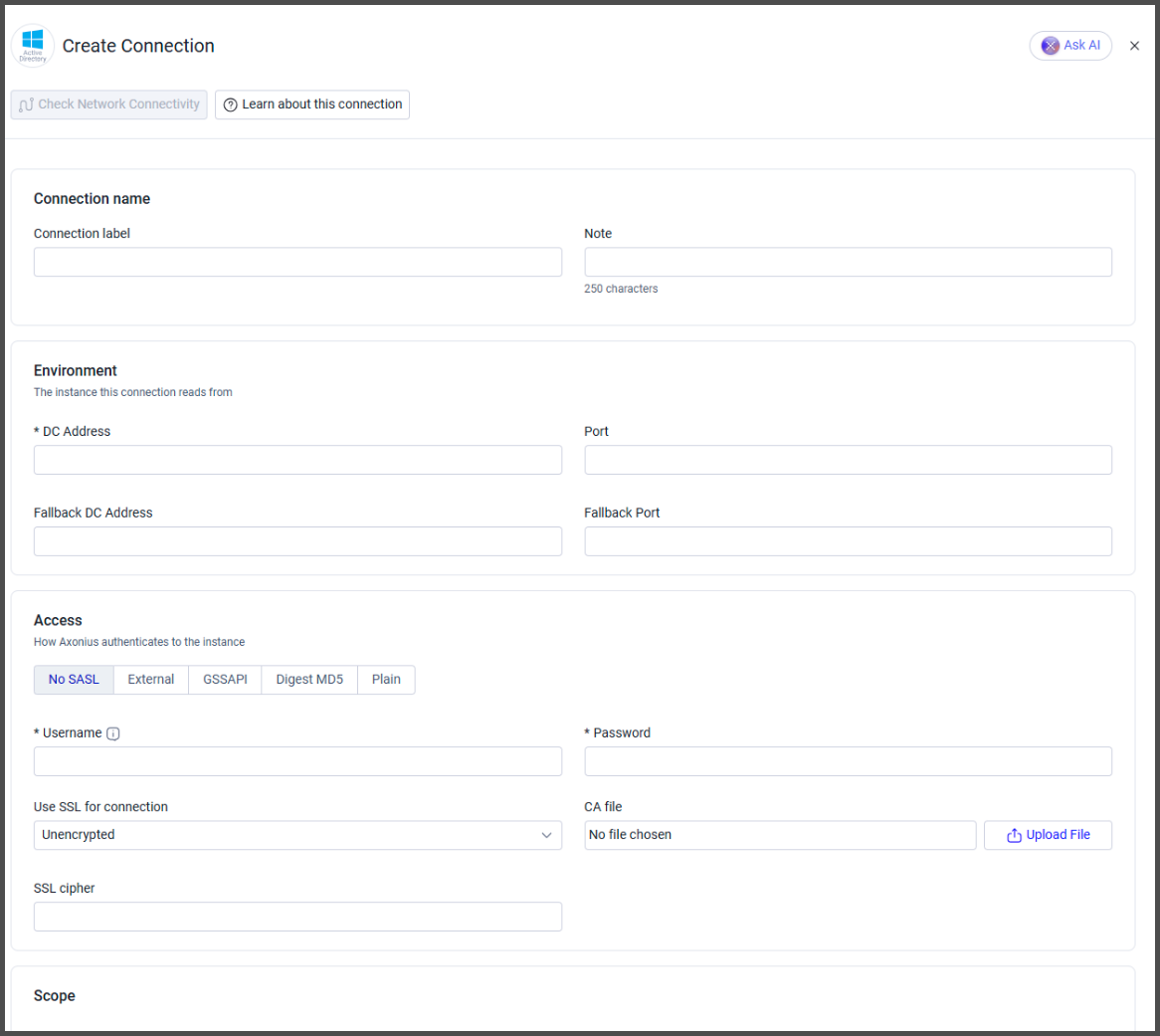
- SASL Mechanism (required, default: No SASL) - No SASL
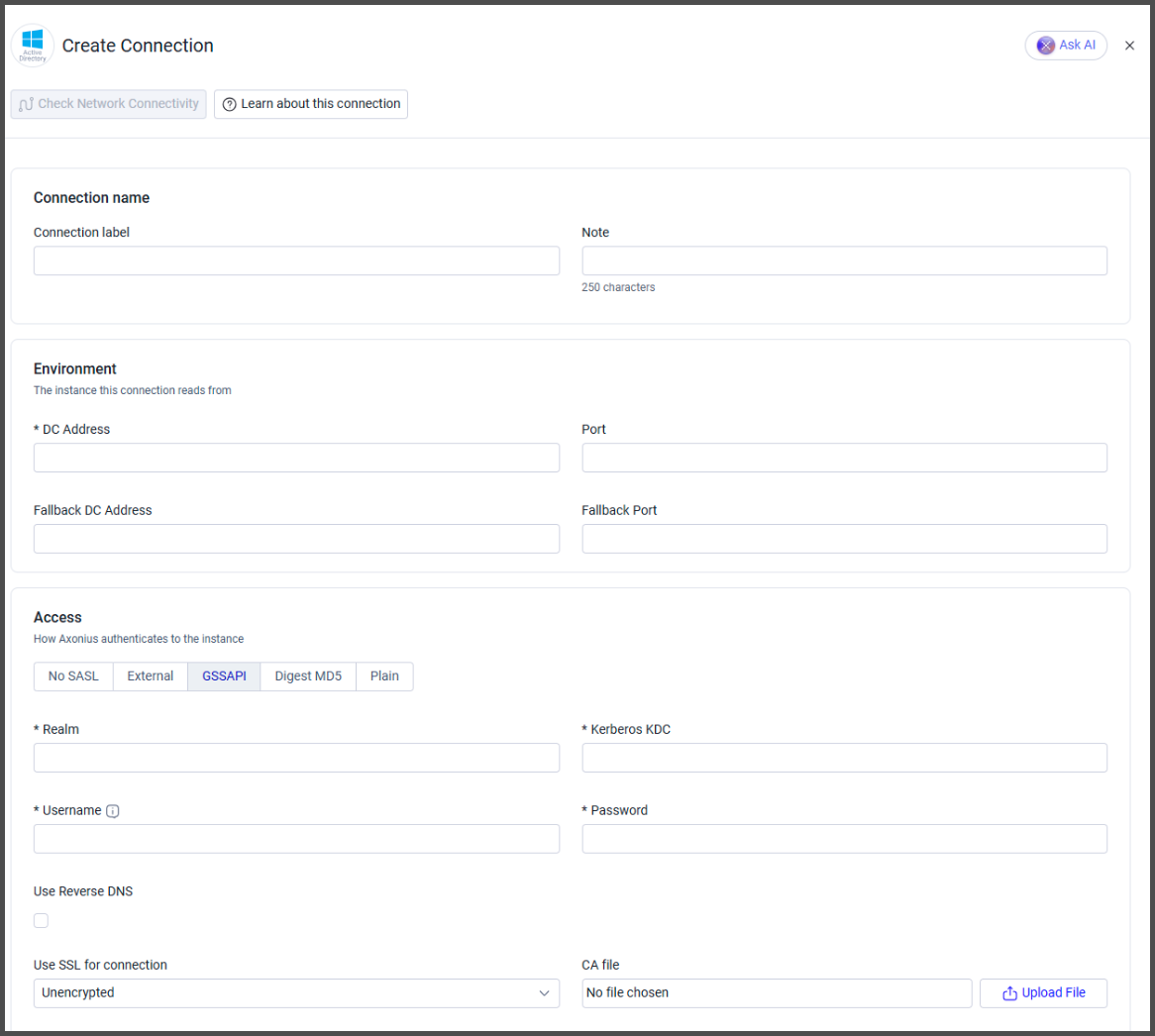
- GSSAPI - Kerbero's default mechanism. (
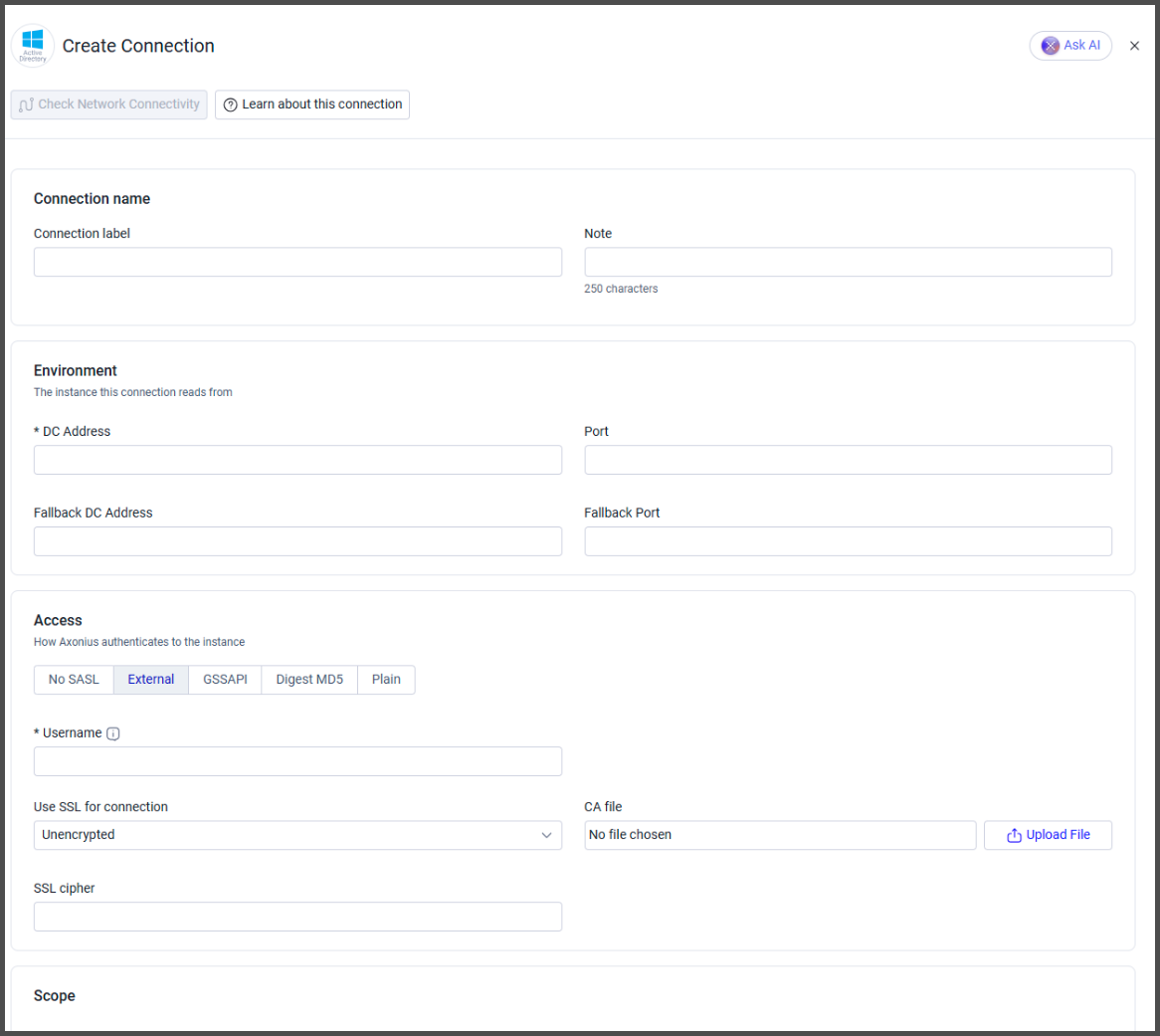
Realm/Kerberos KDCfields required) - External - Authenticate using User Name
- Digest MD5 - Authenticate using Username, Password, Enable signing, and Realm Authorization ID (
Realm/Authorization ID (authzid)fields required) - Plain - Authenticate using Username/Authentication ID and Password and Authorization ID (
Authorization ID (authzid)fields required)
- GSSAPI - Kerbero's default mechanism. (
-
Username and Password (required) - A Service Account with appropriate permissions and its password.
- Username format -
username@domainORdomain\username
Note:
When connecting over SSL, the username must be in the format
username@domain - Username format -
-
Username (required)
- Username format -
username@domainORdomain\username
Note:
When connecting over SSL, the username must be in the format
username@domain - Username format -
-
Realm (required) - The LDAP Realm, it must match the realm configured on your DCs (which is your AD DNS domain in uppercase - e.g.,
EXAMPLE.COM). -
Kerberos KDC (required) - The hostname or IP address of a Domain Controller that issues Kerberos tickets (e.g.,
dc01.example.com). -
Username and Password (required) - A Service Account with appropriate permissions and its password.
- Username format -
username@domainORdomain\username
Note:
When connecting over SSL, the username must be in the format
username@domain - Username format -
-
Use Reverse DNS (default: disabled) (only when using a Kerberos authentication) - When a Kerberos client connects to a server, it needs to build the SPN (service principal name; for example,
MSSQLSvc/server.domain.com:1433). However, If you only know the IP address of the server, you can try a reverse DNS lookup to resolve the IP back into a hostname. This hostname will then be used in the Kerberos ticket request. If the reverse DNS is misconfigured, Kerberos might generate the wrong SPN, and the authentication will fail.
-
Realm - The LDAP Realm, it must match the realm configured on your DCs (which is your AD DNS domain in uppercase - e.g.,
EXAMPLE.COM). -
Username and Password (required) - A Service Account with appropriate permissions and its password.
- Username format -
username@domainORdomain\username
Note:
When connecting over SSL, the username must be in the format
username@domain - Username format -
-
Authorization ID (authzid) - The SASL authzid.
-
Enable signing (default: enabled) - Enable LDAP signing, refer to LDAP Signing for AD
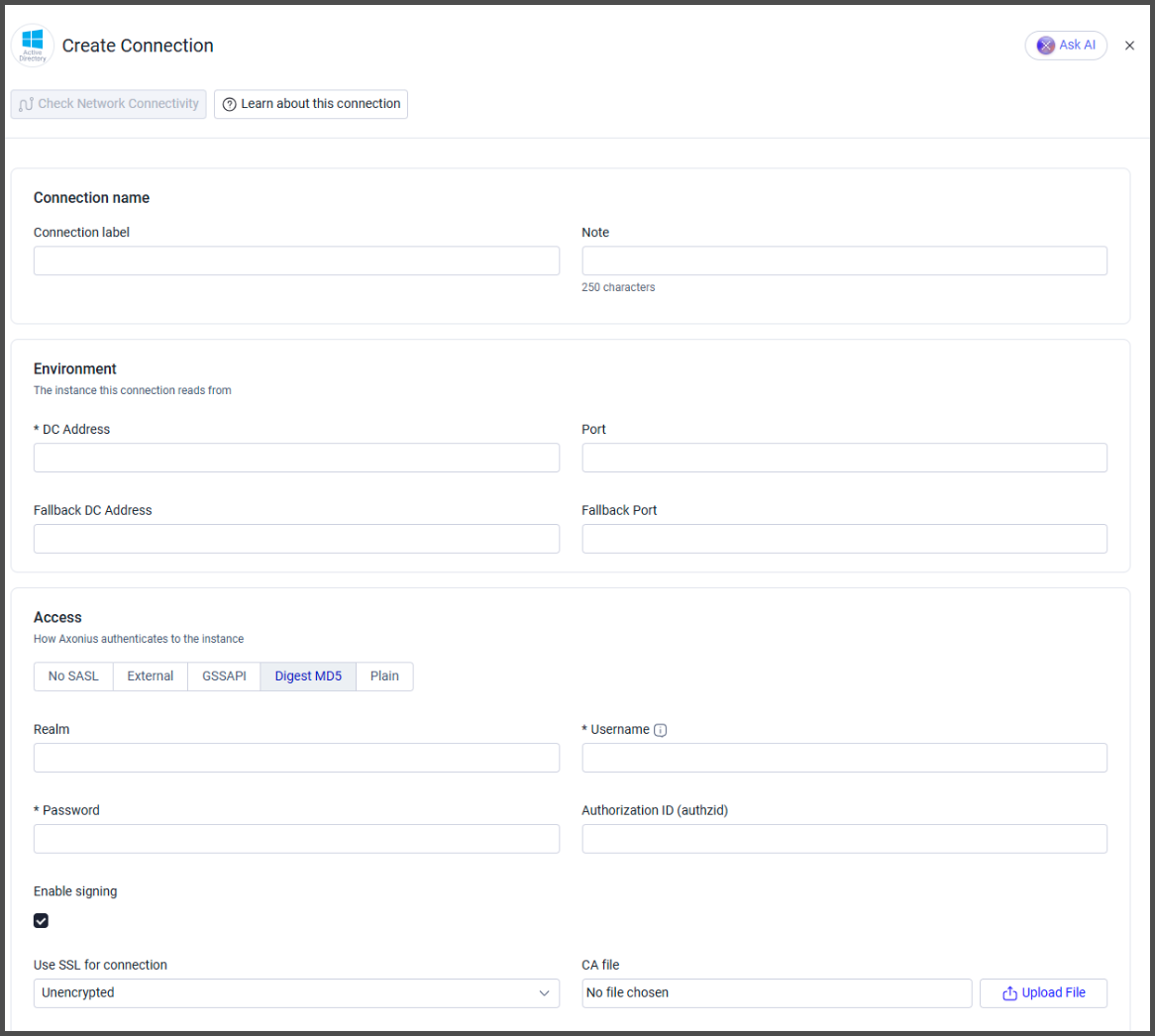
- Authorization ID - The SASL authzid.
- Username / Authentication ID and Password (required) - A Service Account with appropriate permissions and its password.
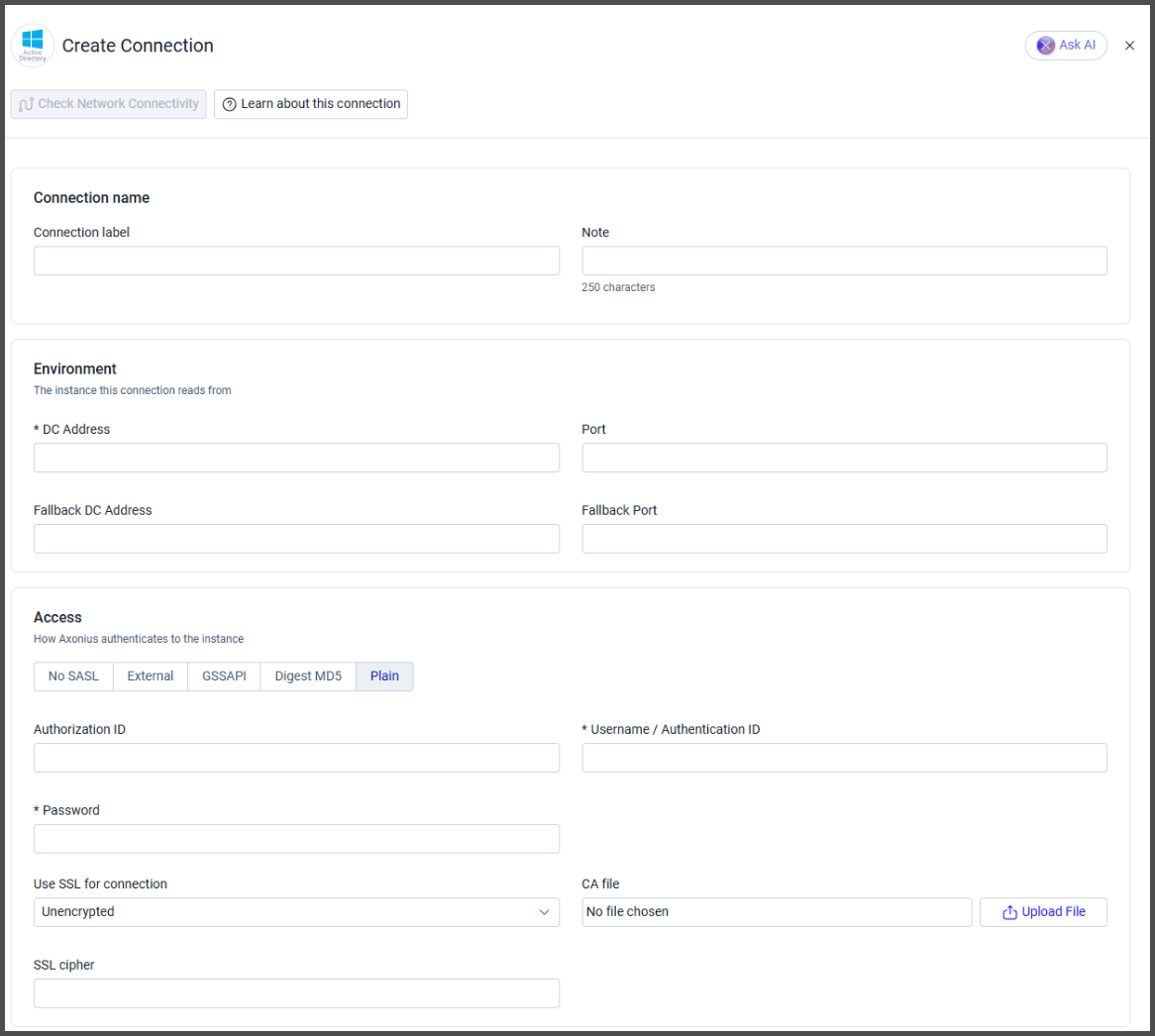
- Use SSL for connection (default: Unencrypted) -
- Verified - The DC Address above must be the FQDN provided by the certificate.
- Unverified - (not recommended for production environments) Skips certificate verification
- CA file - To use LDAPS, you must upload an SSL certificate in PEM format
- SSL cipher - Enter an SSL cipher to use for the TLS object of the connection. Using a stronger cipher can solve connection failures when using the default cipher. Examples of OpenSSl ciphers
Scope
- Connect to Global Catalog (GC) - Select this option if the configured DC has a Global Catalog role.
- Organizational units include list - To ensure Axonius fetches entities only from specific organizational units (OUs), input the desired OUs using their distinguished names (DNs). Each entry in the list should correspond to a separate OU. For example, if you want to include the organizational units for Acme Corporation in both the Ireland and New York Offices, specify them as follows:
Ireland Office/Acme/Corp,New York Office/Acme/Corp
- Organizational units to exclude - To prevent Axonius from fetching entities belonging to specific organizational units (OUs), list the OUs using their distinguished names (DNs). Each entry in the list should correspond to a separate OU. For instance, if you want to exclude the organizational units for Acme Corporation in both the Ireland and New York Offices, specify them as follows:
Ireland Office/Acme/Corp,New York Office/Acme/Corp
- Search Base - Search Base: This field specifies a path for conducting searches within a defined scope. By default, searches are conducted across the entire domain. However, configuring this option can be beneficial when dealing with multiple Active Directory (AD) subdomains, as it allows you to limit the search to resources within a specific subdomain.
More Options
- DNS Server Address - Axonius assumes that Domain Controller listed in each connection is also a DNS server. If your Domain Controller does not have the DNS role installed and you would like to use a different system for name resolution of discovered assets you can enter an alternate IP address here (even if it is installed, but you enter a field here, Axonius will use it). Please note that this setting is only used for discovered assets and will not affect resolution of the Domain Controller name entered in the connection configuration. This configuration value is used in conjunction with the Enable IP Resolving advanced setting.
- Alternative DNS suffix - Replace the device original DNS suffix for DNS resolving. For example, if the device name is windows8.acme.corp , and the Alternative DNS Suffix defined is 'acme-corp.lan', DNS resolving will be done for windows8.acme-corp.lan.
- Do Not Fetch Users - Select this option if you do not want to fetch users
- Fetch Disabled Devices and Fetch Disabled Users - Select to fetch disabled devices or users. By default, Axonius fetches only enabled devices and users.
- Filter Deleted Devices - By default Axonius fetches deleted devices. Select this option to not fetch deleted devices.
- Filter Deleted Users - By default Axonius fetches deleted users. Select this option to not fetch deleted users.
- HTTPS Proxy - A proxy to use when connecting to the value supplied in Root Domain.
- HTTPS Proxy User Name (optional, default: empty) - The user name to use when connecting to the value supplied in Root Domain via the value supplied in HTTPS Proxy.
- HTTPS Proxy Password - The password to use when connecting to the value supplied in Root Domain via the value supplied in HTTPS Proxy.
-
Select Gateway – Select the Axonius Gateway to use when connecting adapters whose sources are only accessible by an internal network and not from the primary Axonius instance, which may be an Axonius-hosted (SaaS) instance or Customer-hosted (on-premises / private cloud). To use this option, you need to set up an Axonius Gateway.
Required Ports
Axonius must be able to communicate with the address supplied in DC Address using one of the following ports:
| Port | Description |
|---|---|
| 88 | when using Kerberos authorization |
| 389 | when LDAP - SSL unencrypted is selected |
| 636 | when LDAPS - SSL encrypted or unverified is selected |
| 3268 | when the insecure Global Catalog - SSL unencrypted is selected |
| 3269 | when both SSL encrypted or unverified is selected and Secure Global Catalog is enabled |
| 5986 | when the Fetch Permissions advanced setting is enabled |
| Custom | when you set a custom port in DC Address |
3. (optional) Configure Advanced Settings
Refer to the Active Directory Advanced Settings.
Updated 11 days ago