
Text and HTML Editor
The Text and HTML Editor allows you to create and format custom messages within a Dynamic Value statement. It is typically used to generate custom email bodies, tickets, reports, or other text output that requires rich formatting and dynamic data.
The editor streamlines the process of combining static content with dynamic data (e.g., from assets, users, or workflow results) to easily automate business processes such as sending custom emails, creating detailed tickets, or generating alerts.
Key Features
The main features of the HTML and Plain Text editor are:
- Rich Text and HTML modes - Easily switch between the visual Rich Text (WYSIWYG) editor and the raw HTML code view.
- Dynamic data insertion - Insert dynamic values from the Workflow Data repository, asset fields, or event fields.
- Rich formatting tools - Use built-in options for headings, bulleted/numbered lists, bold text, italics, and other standard formatting.
- Direct HTML control - Manually edit the raw HTML to incorporate advanced elements like tables, custom styling, or specific structure.
Use Cases
The following are some common use cases:
- Onboarding - Automatically generate a personalized welcome email for new employees or users, with user details, role, and an onboarding checklist.
- Vulnerability Ticketing - Compose a structured ticket description listing affected assets, severity, and remediation steps.
- Reporting - Summarize actions taken during a workflow, such as listing all devices decommissioned or users disabled in a specific timeframe.
Note
If you are using this editor to compose an email, you may also need to go to Additional Fields and enable the Add Custom message setting to ensure recipients receive your custom body text.
Using the Text and HTML Editor
The editor has two main composing modes:
- Rich Text mode - Use this mode to write in plain text and use the rich text tools.
- HTML mode - Use this mode for advanced customization, or you can enter raw HTML directly into the standard Syntax tab of the Dynamic Value statement.
To use the Text and HTML editor
-
Above your Dynamic Value statement, click the Wizard button.
-
In the first dropdown, select Custom message (up to 100000 characters).
-
In the second dropdown, select Rich Text. The Text and HTML editor opens.
-
Select the mode you want to use:
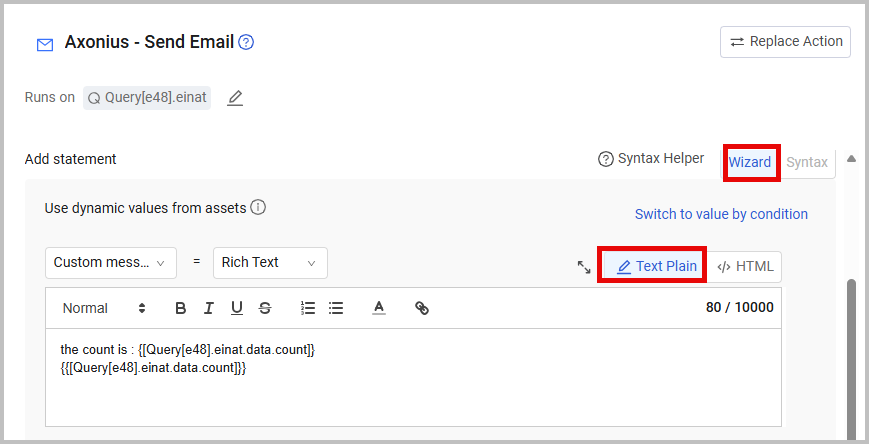
- To write a message in Rich Text (WYSIWYG) mode, click Plain Text.
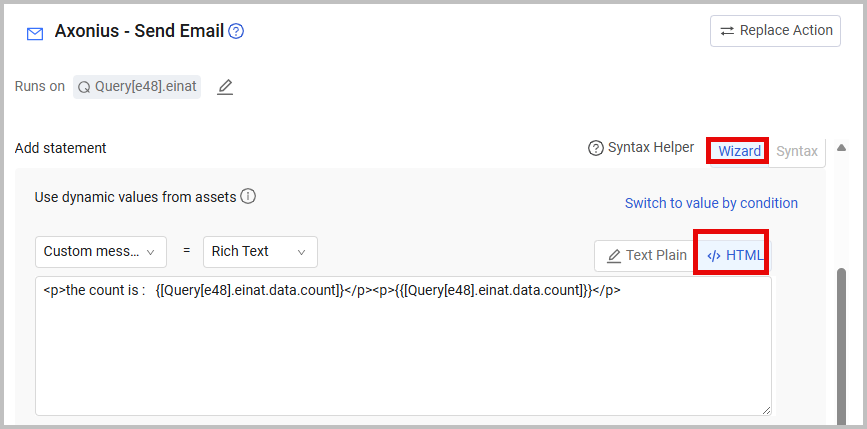
- To write in raw HTML code, click HTML. Click Preview to view the HTML message as it will look when sent. Click Exit to return to HTML editor.
-
To insert a dynamic value in the editor, copy it from the Workflow Data repository or type the variable, enclosing it in double curly brackets
{{}}.- Example:
"hello {{[user.specific_data.data.username]}}" -
Use the Expand and Minimize icons to change the size of the message area.
Example
You can use the Wizard to write the custom message in Plain Text.
Alternatively, you can use the Wizard to write the custom message in HTML.
The following shows an example of the generated syntax when composing a message in the HTML Editor:
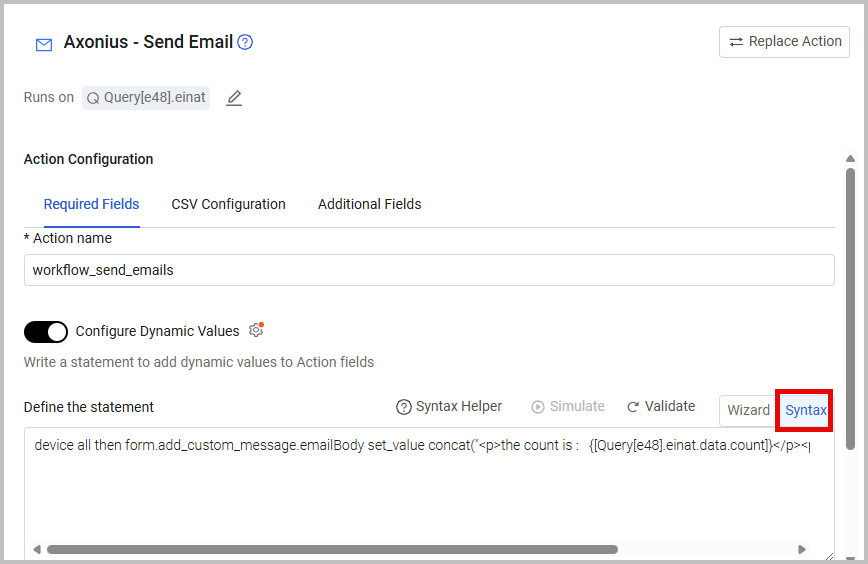
Syntax:
device all then form.add_custom_message.emailBody set_value concat("

the count is :   {[Query[e48].einat.data.count]}

",[Query[e48].einat.data.count],"

")
Updated 14 days ago