
Spacelift
Spacelift is an infrastructure-as-code management platform that orchestrates Terraform, OpenTofu, Pulumi and other IaC workflows with policy-based access control and CI/CD automation.
Use Cases the Adapter Solves
- Review Spacelift access: Identify managed users and their account status to support access reviews.
- Monitor infrastructure administration: Review configured application settings for administrative stacks, automatic deployments, and deletion protection.
Asset Types Fetched
- Users
- Application Settings
Data Retrieved through the Adapter
Users - fields such as: Username, Invitation Email, Status, Login Method
Application Settings - settings such as: Audit Trail Webhook Enabled, API Key Admin, Managed User Status, Stack Protect From Deletion
Before You Begin
Required Ports
TCP port 443 (HTTPS)
Authentication Methods
The adapter uses API key authentication.
APIs
Axonius uses the Spacelift API. The following API request is called:
-
POST /graphql- Retrieves a JWT for API key authentication, managed users, and optional application settings.The API queries the following:
GraphQL Query Data Retrieved managedUsersAll IAM-managed users (username, login method, status, last login) auditTrailWebhookAudit trail webhook configuration apiKeysAll API keys (name, admin flag, expiry) stacksAll stacks (name, space, administrative flag, autodeploy settings)
Required Permissions
Option 1: Root Admin API Key (Recommended)
Spacelift's managedUsers, apiKeys, and auditTrailWebhook queries are organization-level resources accessible only through Organization Settings, which requires Root Space Admin (Admin/Owner) access.
Create the API key as a Root Admin key:
- In Spacelift, go to your name/avatar (lower-left) → Organization Settings → API Keys.
- Click Create API key.
- Enable the Admin toggle — this grants the key Root Space Admin access.
- Copy the Key ID and Key Secret and enter them into Axonius.
Note: In Spacelift's RBAC system, the Admin toggle on an API key grants it Root Space Admin permissions, equivalent to the
Space Adminrole on the root space. This is required to accessmanagedUsersand organization-level settings.
Option 2: Custom Role (Minimum Permissions)
You can also create a custom role with only the required actions. Assign the custom role to the API key in the root space.
Minimum required actions (from Spacelift RBAC):
| Action | Description | Required For |
|---|---|---|
Space: Read | View stacks, runs, and resources within a space | Stacks query |
Space: Admin on root space | Manage users, API keys, audit trail, and org-level settings | managedUsers, apiKeys, auditTrailWebhook queries |
Note: Spacelift does not expose granular read-only permissions for
managedUsersor org-level API key listing separately from the Admin role. TheSpace: Adminpermission on the root space is the minimum required to access these queries.
Creating the API Key
- Go to Organization Settings → API Keys (requires Admin access).
- Click Create API key.
- Give the key a descriptive name (for example,
axonius-integration). - Enable the Admin toggle.
- Save the Key ID and Key Secret — the secret is only shown once.
Supported From Version
Supported from Axonius version 9.0.7
Connecting the Adapter in Axonius
- Navigate to the Adapter Catalog, search for Spacelift, and select the adapter.
- Click Add Connection.
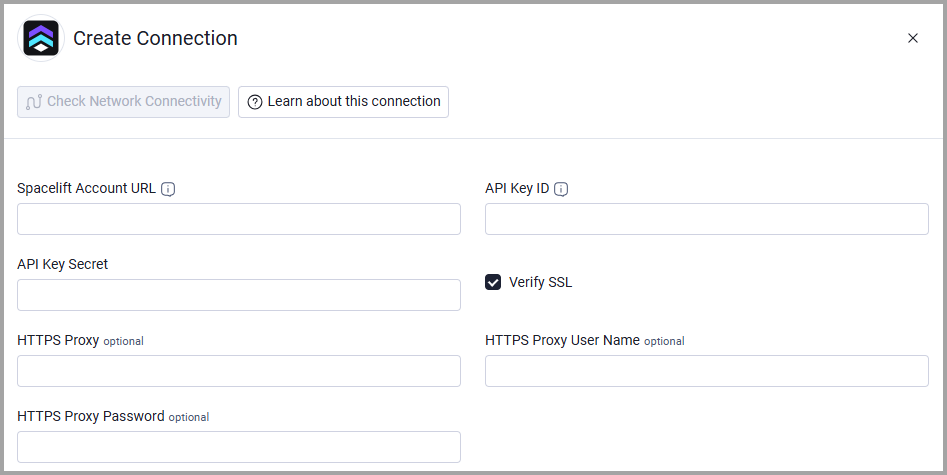
- Provide the following parameters.
Required Parameters
- Spacelift Account URL - The base URL of the Spacelift account. Do not add an endpoint after the domain. Example:
https://mycompany.app.spacelift.io - API Key ID - The ID of the Spacelift API key.
- API Key Secret - The secret for the Spacelift API key.
Optional Parameters
- Verify SSL - Select whether to verify the SSL certificate of the server against the CA database inside of Axonius. For more details, see SSL Trust & CA Settings.
- HTTPS Proxy - Connect the adapter to a proxy instead of directly connecting it to the Spacelift account URL.
- HTTPS Proxy User Name - The user name to use when connecting to the Spacelift account URL via the value supplied in HTTPS Proxy.
- HTTPS Proxy Password - The password to use when connecting to the server using the HTTPS Proxy.
To learn more about common adapter connection parameters and buttons, see Adding a New Adapter Connection.
Advanced Settings
Note:
Advanced settings can either apply to all connections for this adapter, or to a specific connection. Refer to Advanced Configuration for Adapters.
To learn more about Adapter Configuration tab advanced settings, see Adapter Advanced Settings.
- Fetch Application Settings - When enabled, retrieves application settings for audit trail webhooks, API keys, managed users, and stacks. This setting is disabled by default.
Updated 15 days ago