
Belarc BelManage
Belarc BelManage is an IT asset management and configuration monitoring platform that provides automated discovery, CMDB generation, software license tracking, security configuration visibility, and compliance reporting across enterprise infrastructure.
Use Cases the Adapter Solves
- Software License Optimization: Track installed software across all devices to identify unused licenses, optimize software spend, and ensure compliance with vendor licensing agreements.
- Security Benchmark Compliance: Monitor security configuration benchmarks (CIS, DISA STIG, NIST) across your device fleet to identify configuration drift and maintain compliance with security standards.
- Comprehensive IT Asset Visibility: Gain centralized visibility into hardware configurations, software inventory, network information, and organizational unit assignments for all devices managed by BelManage.
Asset Types Fetched
- Devices, Software, SaaS Applications
Data Retrieved through the Adapter
Devices - Fields such as Hostname, Domain, Serial Number, Operating System
Software - Fields such as Name, Vendor, Version,Last Used Date
Before You Begin
Required Ports
- TCP port 1433 (SQL Server / TDS)
Authentication Methods
SQL Server Authentication
The adapter authenticates to the BelManage SQL Server database using SQL Server authentication with a username and password. The adapter connects directly to the database using the FreeTDS driver over TCP port 1433.
Database Access
Axonius connects directly to the BelManage SQL Server database and executes SQL queries against the following tables:
SELECTquery onComputerstable - Retrieves device information including hostname, domain, hardware details, network configuration, and operating systemSELECTquery onBenchmarkStatusByProfiletable - Retrieves security benchmark assessment data (CIS, DISA STIG, etc.)SELECTquery onSoftwareByListByProfileSumtable - Retrieves installed software inventory with usage tracking
Note: No public API documentation is available for the BelManage database
Required Permissions
The SQL Server account used by the adapter must have the following permissions:
It is recommended to use the Principle of Least Privilege by assigning the service account only the db_datareader role.
- SELECT permission on the
Computerstable - Required to retrieve device inventory data. - SELECT permission on the
BenchmarkStatusByProfiletable - Required to retrieve security benchmark information. - SELECT permission on the
SoftwareByListByProfileSumtable - Required to retrieve software inventory data.
Supported From Version
Supported from Axonius version 8.0.23
Setting Up Belarc BelManage to Work with Axonius
- Identify the hostname or IP address of your BelManage SQL Server
- Identify the BelManage database name (default database name may vary based on installation)
- The best practice is to create a dedicated SQL Server account for Axonius with read-only access:
- For details about creating an Axonius user for Microsoft SQL Server, see Creating a Local Read-Only User for Microsoft SQL Server.
- Grant the login access to the BelManage database
- Grant permissions to the tables
- Note the username and password for use in the Axonius adapter configurationץ
To connect to the SQL instance you have to enable TCP.
Connecting the Adapter in Axonius
Navigate to the Adapters page, search for Belarc BelManage, and click on the adapter tile.
Click Add Connection.
To connect the adapter in Axonius, provide the following parameters:
Required Parameters
- Host Name or IP Address - The hostname or IP address of the Belarc BelManage SQL Server. Example:
belmanage-server.company.comor10.0.1.50 - Port - The TCP port for SQL Server connections. Example:
1433 - Database - The name of the BelManage database to connect to. Example:
BelManage - User Name - The SQL Server account username with read access to the BelManage database. Example:
axonius_readonly - Password - The password for the SQL Server account. The password must not include ";".
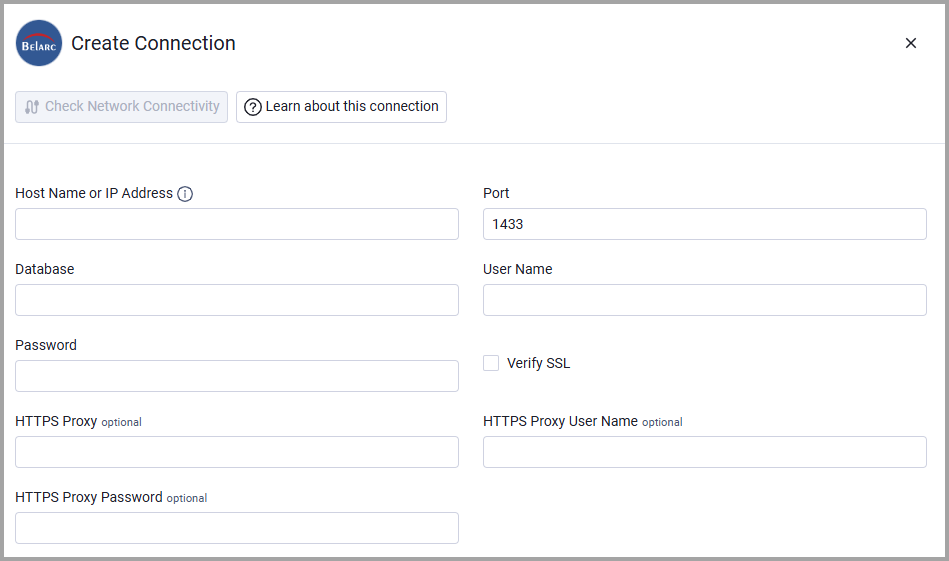
Optional Parameters
- Verify SSL - Select whether to verify the SSL certificate of the server against the CA database inside of Axonius. For more details, see SSL Trust & CA Settings.
- HTTPS Proxy - Connect the adapter to a proxy instead of directly connecting it to the domain.
- HTTPS Proxy User Name - The user name to use when connecting to the value supplied in Host Name or IP Address via the value supplied in HTTPS Proxy.
- HTTPS Proxy Password - The password to use when connecting to the server using the HTTPS Proxy.
To learn more about common adapter connection parameters and buttons, see Adding a New Adapter Connection.
Updated 5 months ago