
RoboShadow
RoboShadow is a cybersecurity platform that offers internal and external vulnerability assessment and remediation capabilities for endpoints, networks, and applications.
The RoboShadow adapter enables Axonius to fetch and catalog endpoints and users, providing visibility into their vulnerability status and security posture.
Asset Types Fetched
- Devices
- Vulnerabilities
- Users
- SaaS Applications
Data Retrieved through the Adapter
- Devices (endpoints) - Hostnames, operating systems, and device types.
- Users - User display names, emails, and permissions.
- Vulnerabilities - CVE IDs, descriptions, CVSS scores, and remediation details linked to devices.
- Software - Application names, versions, and vendors.
Before You Begin
Required Ports
- TCP Port 443 (HTTPS)
Authentication Methods
Axonius uses an API key that is sent as a Bearer Token in the authorization header of API requests.
Required Permissions
The RoboShadow adapter requires an API key generated for a user or a service account. The identity associated with the API key must be assigned a role that grants the following permissions:
- Resource Access - Permission to read/view vulnerability data.
- Scope Access - Permission to access the specific organization.
APIs
Axonius uses the RoboShadow API to retrieve asset data.
Generating the API Key
- Log in to the RoboShadow console.
- Navigate to the Settings or Integrations section (specific location may vary).
- Generate a new API Key (Bearer Token) and copy it for use in the Axonius configuration.
Supported from Version
The adapter is supported from Axonius version 8.0.6.
Connection Parameters
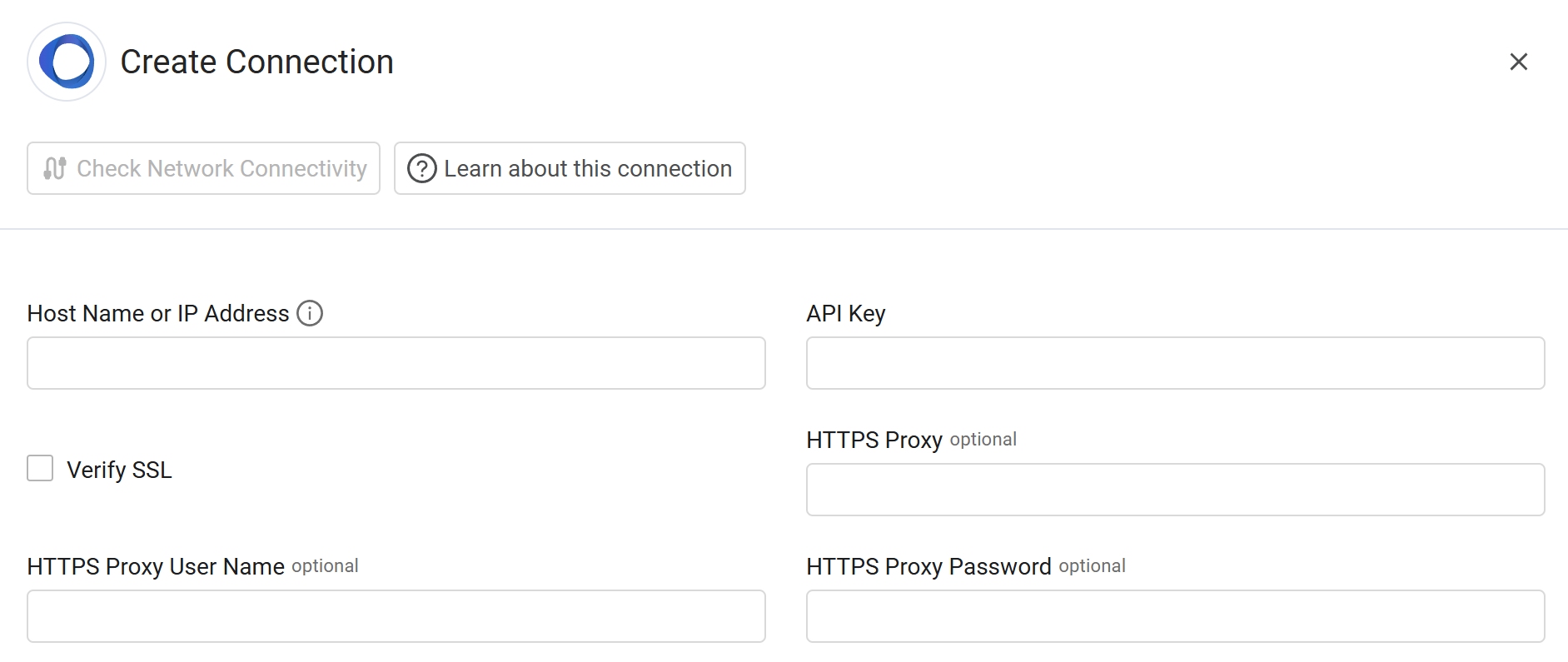
To connect the adapter in Axonius, provide the following parameters.
Required Parameters
- Host Name or IP Address - Enter the hostname or IP address of the RoboShadow server that Axonius can communicate with via the Required Ports.
- API Key - Enter the Bearer Token generated from the RoboShadow console.
Optional Parameters
- Verify SSL - Select whether to verify the SSL certificate of the server against the CA database inside of Axonius. For more details, see SSL Trust & CA Settings.
- HTTPS Proxy - Enter an HTTPS proxy address to connect the adapter to a proxy instead of directly connecting it to the domain.
- HTTPS Proxy User Name - Enter the user name to use when connecting to the value supplied in Host Name or IP Address via the value supplied in HTTPS Proxy.
- HTTPS Proxy Password - Enter the password to use when connecting to the server using the HTTPS Proxy.
To learn about additional optional/common adapter connection parameters, see Adding a New Adapter Connection.
Updated 10 months ago