
Absolute - Unfreeze Devices
Absolute - Unfreeze Devices unfreezes devices in Absolute for:
- Assets returned by the selected query or assets selected on the relevant asset page.
See Creating Enforcement Sets to learn more about adding Enforcement Actions to Enforcement Sets.
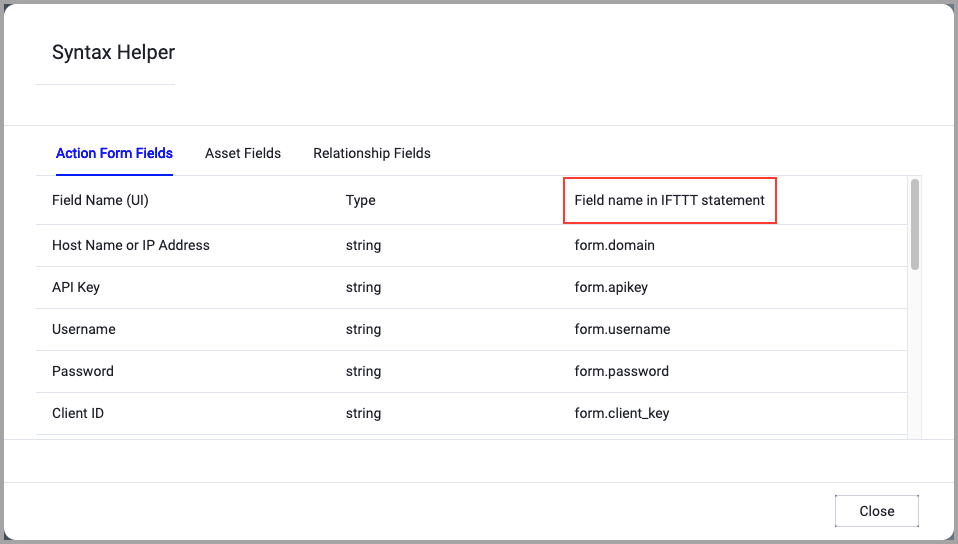
When accessing an enforcement action using the API, you must use the backend form of field names.
Use the Syntax Helper to find the correct name. In the enforcement action, enable Configure Dynamic Values and select Syntax Helper.
Note
- Not all asset types are supported for all Enforcement Actions.
- See Actions supported for Activity Logs, Adapters Fetch History, and Asset Investigation modules.
- See Actions supported for Aggregated Security Findings.
- See Actions supported for Software.
Required Fields
- Action name - The name of this Enforcement Action. The system sets a default name. You can change the name.
- Configure Dynamic Values (optional) - Toggle on to enter a Dynamic Value statement. See Creating Enforcement Action Dynamic Value Statements to learn more about Dynamic Value statement syntax.
- Use stored credentials from the Absolute adapter - Select this option to use credentials from the adapter connection. By default, the first connection is selected.
-
When you select this option, the Select Adapter Connection drop-down becomes available. Select the adapter connection to use for this Enforcement Action.
-
Note
- To use this option, you must successfully configure an Absolute adapter connection.
-
Compute Node - The Axonius node to use when connecting to the specified host. For more details, see Working with Axonius Compute Nodes.
Additional Fields
Connection and CredentialsWhen Use stored credentials from the adapter is toggled off, some of the connection fields below are required to create the connection, while other fields are optional.
Absolute Domain (optional) - Your Absolute domain. The Absolute API access is limited to two regions:
- Canadian Data Center (CADC) - https://api.absolute.com
- US Data Center (USDC) - https://api.us.absolute.com
Token ID and Client Secret (required) - The Absolute API requires an authentication token which consists of two parts: token ID and secret key. These are generated from the Absolute console, using a custom user role, defined by your organization, or the Guest user role.
For more details about creating a Token ID and a Secret Key, see Working with Absolute APIs.Note
The System Administrator of your Absolute console can assign the role.
Verify SSL (Optional) (default: enabled) - Selects whether to verify the SSL certificate of the server against the CA database inside of Axonius. For more details, see SSL Trust & CA Settings. This setting is enabled by default on all new adapter settings. If you need to disable SSL verification, make sure you disable this setting.)
HTTPS Proxy (optional) - Connect the adapter to a proxy instead of directly connecting it to the domain.
HTTPS Proxy User Name (optional) - The user name to use when connecting to the server using the HTTPS Proxy.
HTTPS Proxy Password (optional) - The password to use when connecting to the server using the HTTPS Proxy.
- Remove Scheduled - When selected, deletes any pending scheduled freeze requests set for a future date/time.
- Remove Offline - When selected, the Conditional - Offline Freeze request is removed.
APIs
Axonius uses the Absolute Public API API.
Required Permissions
The credentials used to run this enforcement action must have an Absolute API key that explicitly grants the permission to unfreeze devices.
For more details about other enforcement actions available, see Action Library.
Updated 12 days ago