
Reading Reports
The AI Companion includes a Reports Manager specialist who handles questions about scheduled reports. When you ask about reports, your question is automatically routed to this specialist.
The Reports Manager can:
- List all reports with their name, schedule, last generation time, and status.
- Explain what a specific report contains — which dashboard spaces, charts, and saved views are included.
- Answer "who receives report X," "when does report X go out," and "what is in report X".
- Find reports that include a specific dashboard space, chart, or saved query.
- Audit report hygiene — identify reports that are inactive, have no recipients, or have not been generated recently.
- Provide direct links to the Reports page and to individual reports.
The Reports Manager is read-only. It can describe and audit reports, but cannot create, edit, delete, activate, or send them. For any changes, the agent will give you a link to the report's page in Axonius.
About Axonius Reports
An Axonius Report is a scheduled PDF — optionally with CSV attachments — assembled from your platform content and emailed to a recipient list. A report can include:
- Dashboard spaces and charts — Snapshots of selected charts from selected dashboard spaces.
- Saved views — Tables of saved query results, which also become the CSV attachments when attached.
- A schedule — Daily, weekly, monthly, or after every discovery cycle, with a configured send time.
- Recipients — One or more email addresses (To and CC).
Reports live on the Reports page at /reports. A report can exist without a schedule, in which case it is generated manually rather than emailed automatically.
Listing Reports
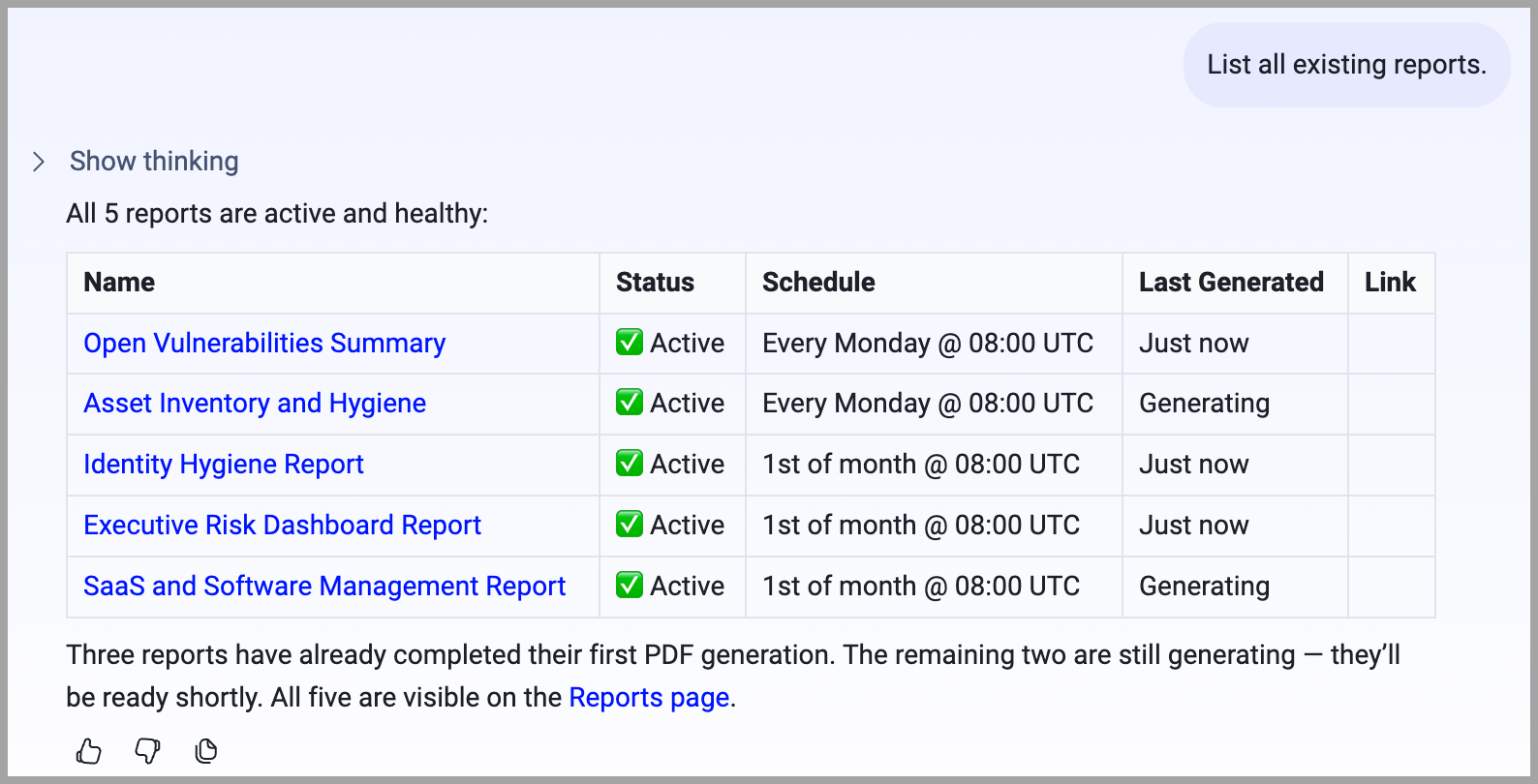
To see all of your reports, ask the agent:
- "List all my reports."
- "What reports do I have?"
- "Show me all reports and when they last ran."
The agent returns a table with each report's name, status, schedule, last generation time, and a link to the report's page.
Status: A report shows as active when it has a schedule and is being emailed automatically. A report with no schedule is inactive — it is not broken, just not scheduled. The agent will say "not scheduled" rather than "broken" for healthy unscheduled reports.
Explaining a Report
To understand what a specific report contains, ask:
- "What's in the 'Weekly Executive Summary' report?"
- "Who receives the 'Daily Compliance Report' report?"
- "When does the 'Monthly Patch Status' report go out?"
- "Does the 'Board Report' include the cloud inventory dashboard?"
The agent retrieves the report's configuration and describes its contents, recipients, and schedule in plain language.
Auditing Reports
To find reports with potential issues, ask:
- "Which of my reports have no recipients?"
- "Are there any reports that haven't been generated in the last 30 days?"
- "Which reports are inactive?"
- "Show me all reports that include the 'Vulnerability Trends' saved query."
The agent reviews all reports and surfaces the ones that match your audit criteria.
Navigating to a Report
Each report in the agent's response includes a direct link to that report's page in Axonius. Click the link to open the report, view its generated PDFs, update its configuration, or send it manually.
To go to the Reports page directly, click the link at the bottom of any report listing, or navigate to Reports in the Axonius sidebar.
Updated 7 days ago