
Defining a Data Scope by Assets
Only assets of the selected types will be available in the data scope, in combination with any selections made on the Define by Adapters tab.
To define a data scope by assets:
-
In the Define by Assets tab, search for or select the asset types to include in the data scope and click Apply. The number of selected asset types is indicated next to the tab name and a collapsible section is added below for each selected asset type, in their order of selection. An
All Datatag appears next to each asset type to indicate that all assets of this type are included in the data scope.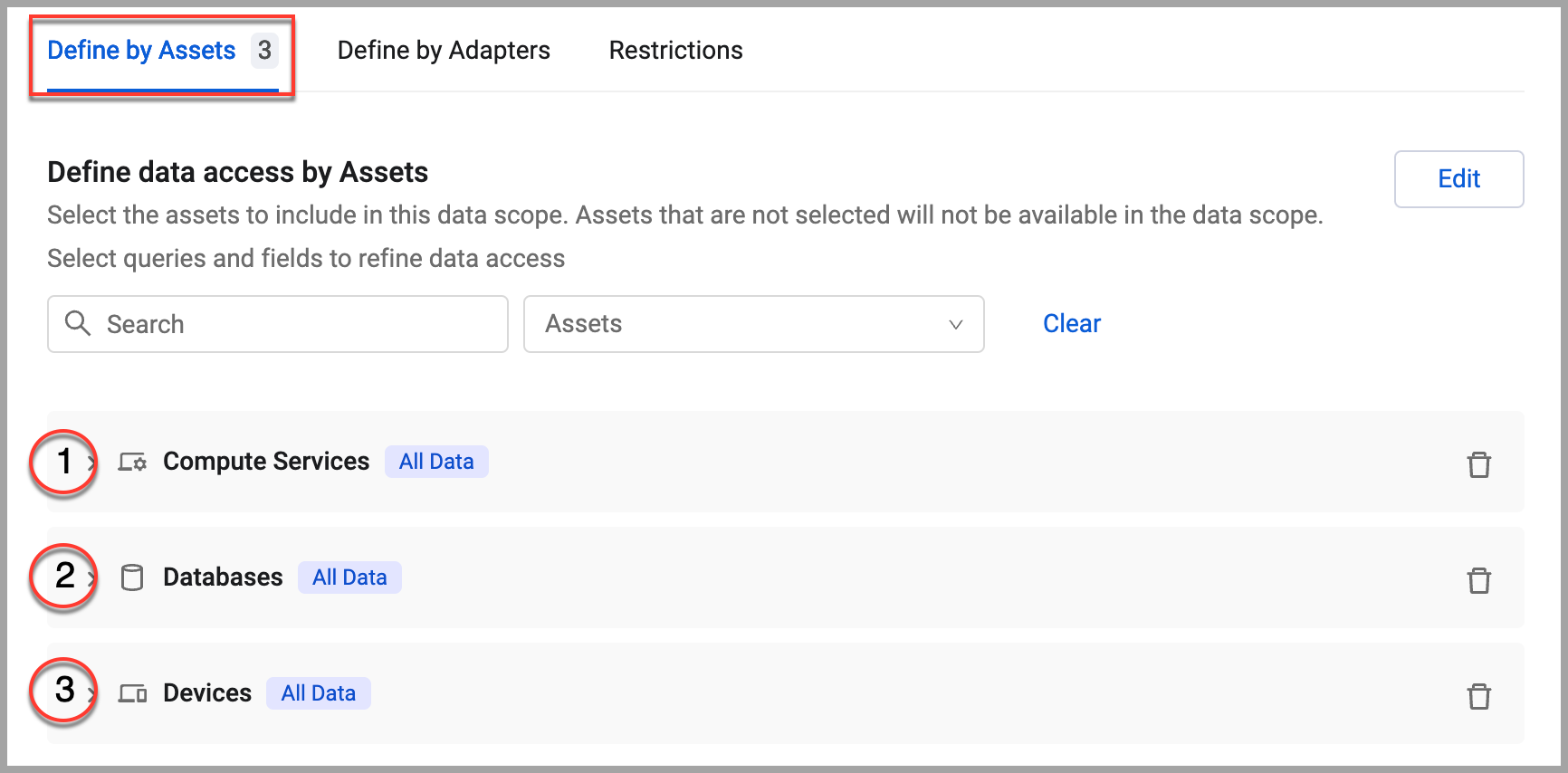
-
You can further specify what assets are included in the data scope by using a query and/or specifying that the data of specific fields be included or excluded.
- To select an asset scope query, expand the asset type and select Refine data by query. From the list, select the asset scope query that returns the assets you want included in the data scope. Click
+to add more queries. Adding queries functions as an AND, so results from all selected queries are included in the data scope. You can add as many as needed. To remove a query, click the x to the right. When an asset scope query is used, aPartial Datatag appears to indicate that only a subset of available assets of this type are included in the data scope. See Creating an Asset Scope Query.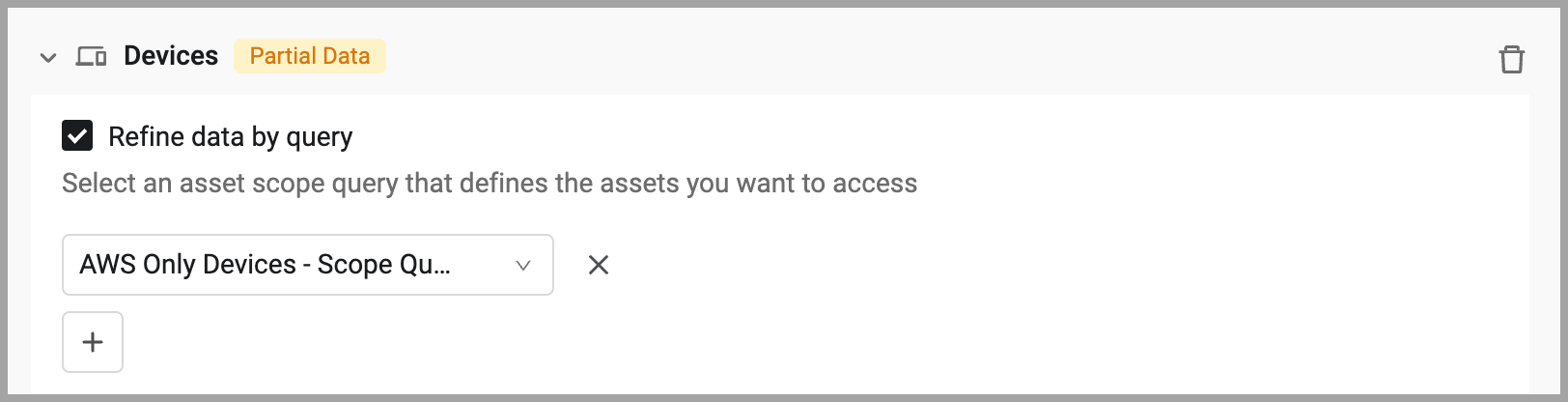
- To include/exclude fields, expand the asset type and select Refine data by fields. When fields are included or excluded, a
Partial Datatag appears to indicate that only a subset of available assets of this type are included in the data scope.
- To select an asset scope query, expand the asset type and select Refine data by query. From the list, select the asset scope query that returns the assets you want included in the data scope. Click
Using Data Scope Profiles
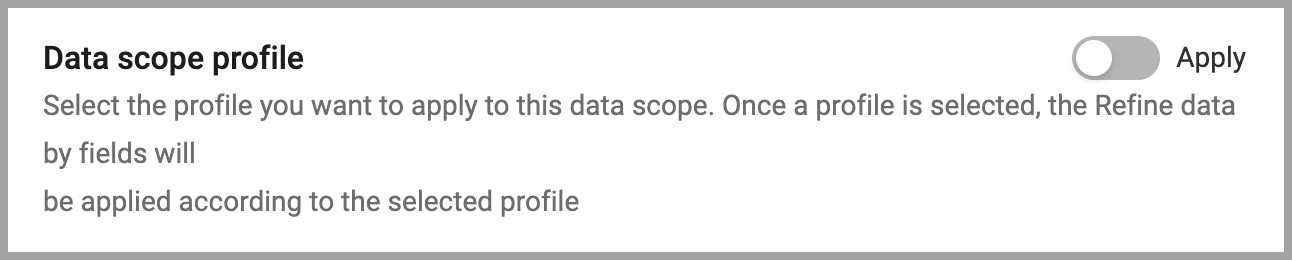
Instead of defining included and excluded fields for every data scope individually, you can apply a data scope profile. When a profile is applied, the Refine data by fields option is disabled and the field configurations from the profile are shown greyed.
The
Partial Datatag appears next to the asset type name.To use profiles they must be enabled for all data scopes. See Data Scope Settings. When data scope profiles are enabled, the "Data scope profile" section is added to the top of the data scope configuration drawer (including existing data scopes). There you need to enable profiles for the individual data scope. See Applying a Profile to a Data Scope.
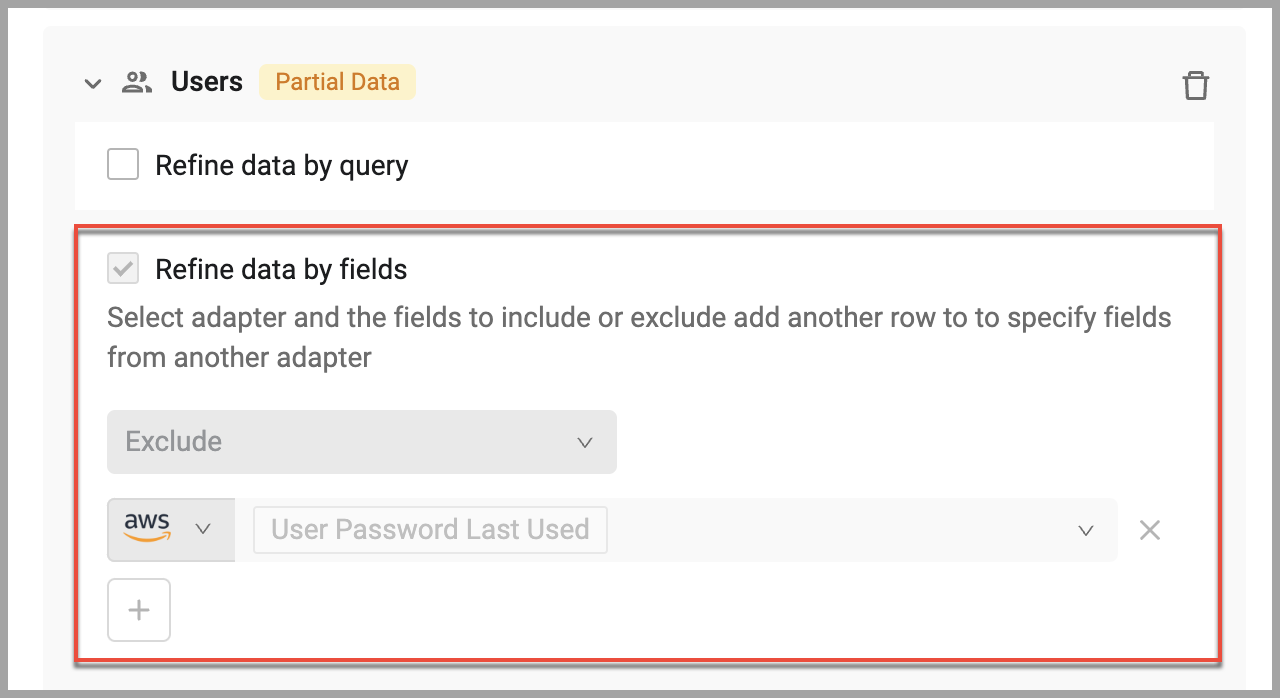
Select either Include or Exclude.
- Include - Select all fields you want to appear in the data scope. All other field names and data are hidden.
- Exclude - Select all the fields you do not want to appear in the data scope. The field names and all field data are hidden.
Notes
When specific fields are excluded from a data scope, the following modules will not be available to the data scope:
Data Analytics
Asset Investigation
These types of fields cannot be excluded from a data scope:
Preferred fields
Adapter-specific fields related to an aggregated field (e.g. AWS hostname)
Fields that Axonius correlation is based upon
Within Asset Profile, the XML and JSON format tabs will not be available.
The related modules of Software and Aggregated Security Findings will not be restricted even when those fields are restricted within any asset type.
- Do one of the following:
- Go to the Define by Adapters tab to further define the data scope to include assets according to the adapter connection used to fetch them. Selections in all tabs combine to define the data scope.
- Go to the Restrictions tab to manage adapter configuration information and cloud accounts.
- Click Save to create the data scope as it is currently defined combined with the selections on the Define by Assets tab.
- Assign data scopes to users to give access to specific users. Users are assigned a main data scope in the process of creation.
Updated 23 days ago