
Forescout eyeSight
Forescout eyeSight is a network visibility tool that offers real-time device intelligence and monitoring.
The Forescout eyeSight adapter provides Axonius with visibility into your network infrastructure, offering real-time device intelligence and monitoring.
Asset Types Fetched
- Networks
- Network Services
Data Retrieved through the Adapter
The adapter retrieves information to provide visibility into your publicly accessible assets. The retrieved data for each asset type may include:
- Networks - Data such as name, description, and network ranges.
- Network Services - Data such as key, comment, creation date, and expiration date.
Before You Begin
Required Ports
- TCP Port 443
Authentication Methods
The adapter uses the OAuth 2.0 flow to exchange the provided client ID, username, and password for an authentication token.
Required Permissions
The dedicated service account must have the following permissions within Forescout:
- API Access - Permission to access the OAuth 2.0 token endpoint and Admin API configuration endpoints.
- Group Management - Privileges enabled to retrieve group membership and ignored IP ranges.
- Policy Management - Privileges enabled for comprehensive network monitoring.
- Data Retrieval - Specific permissions to allow segment tree retrieval and group enumeration.
Generating Forescout eyeSight Credentials
- Create a dedicated console user (service account) within the Forescout platform.
- Enable API access for this user to allow retrieval of network segments and group management data.
- Record the Host Name, User Name, Password, and Client ID for use in the Axonius connection.
APIs
Axonius uses the Forescout Admin API to retrieve asset data.
Supported from Version
This adapter is supported from Axonius version 8.0.12.
Connection Parameters
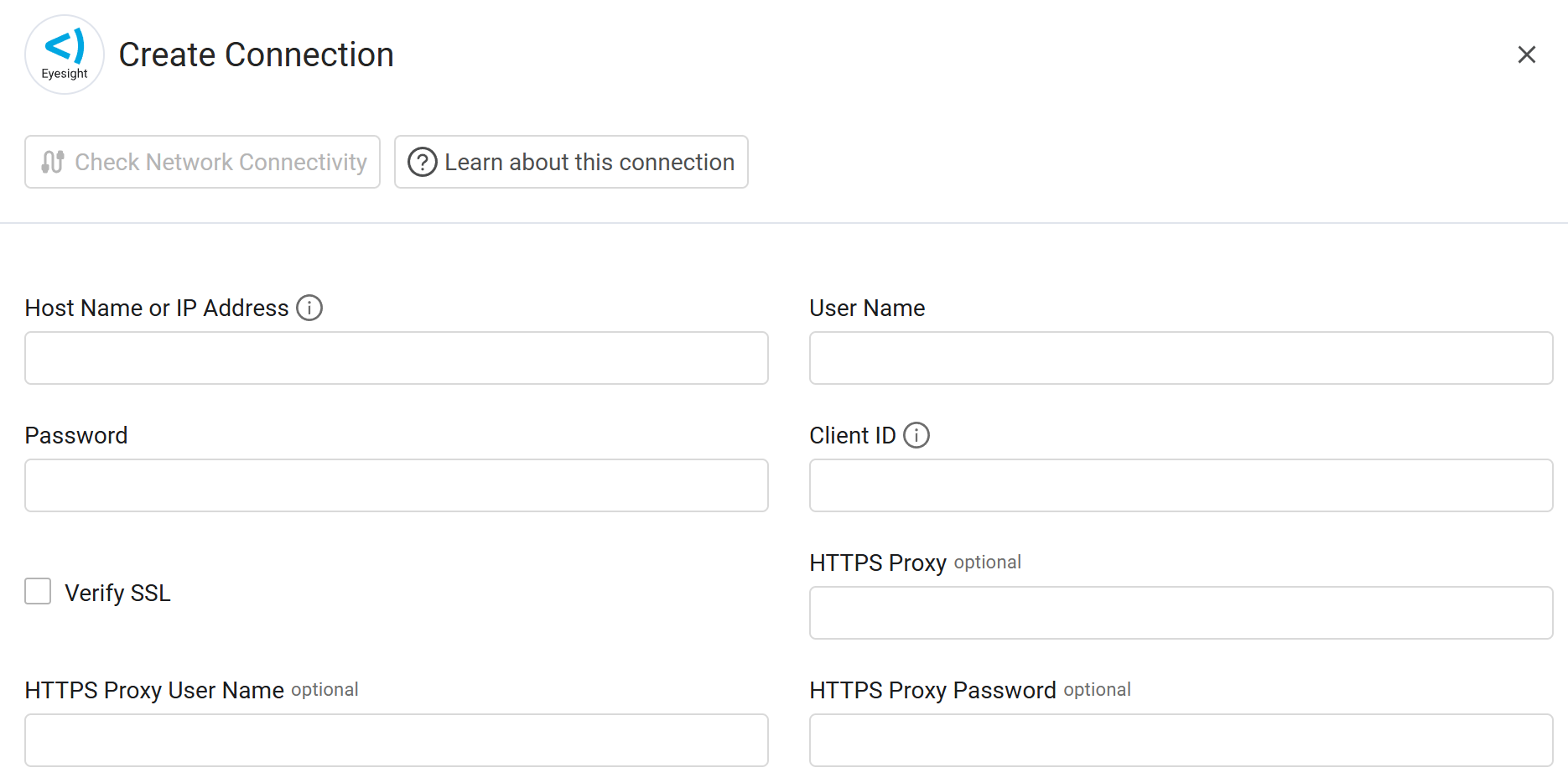
To connect the adapter in Axonius, provide the following parameters.
Required Parameters
- Host Name or IP Address - Enter the address of the Forescout server.
- User Name - Enter the username for the dedicated console user.
- Password - Enter the password for the dedicated console user.
- Client ID - Enter the Client ID associated with the API user.
Optional Parameters
-
Verify SSL - Select whether to verify the SSL certificate of the server against the CA database inside of Axonius. For more details, see SSL Trust & CA Settings.
-
HTTPS Proxy - Enter an HTTPS proxy address to connect the adapter to a proxy instead of directly connecting it to the domain.
-
HTTPS Proxy User Name - Enter the user name to use when connecting to the value supplied in Host Name or IP Address via the value supplied in HTTPS Proxy.
-
HTTPS Proxy Password - Enter the password to use when connecting to the server using the HTTPS Proxy.
To learn about additional optional/common adapter connection parameters, see Adding a New Adapter Connection.
Updated 9 months ago