
AWS - Assign Group to Users
AWS - Assign Group to Users adds or removes an AWS group to or from the users returned by the selected query or assets selected on the relevant asset page.
See Creating Enforcement Sets to learn more about adding Enforcement Actions to Enforcement Sets.
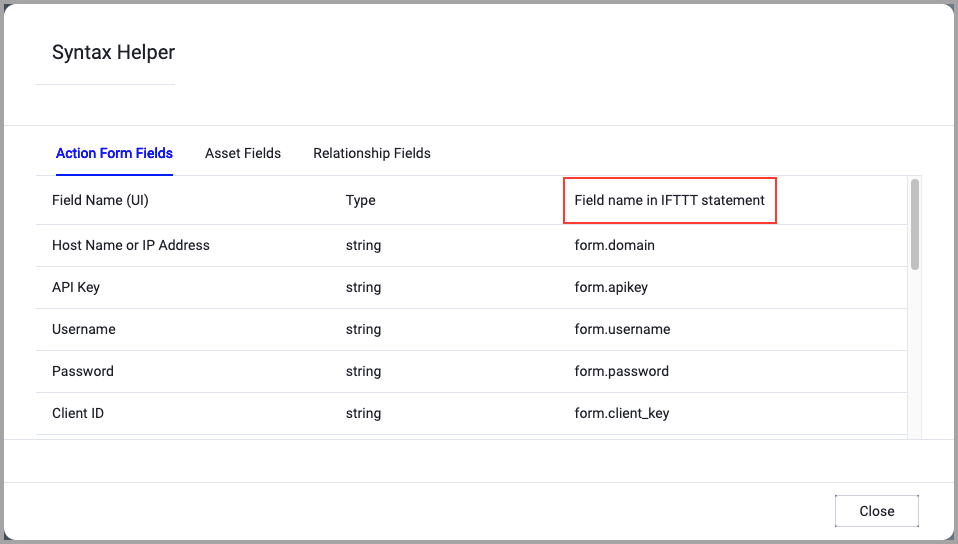
When accessing an enforcement action using the API, you must use the backend form of field names.
Use the Syntax Helper to find the correct name. In the enforcement action, enable Configure Dynamic Values and select Syntax Helper.
Note
- Not all asset types are supported for all Enforcement Actions.
- See Actions supported for Activity Logs, Adapters Fetch History, and Asset Investigation modules.
- See Actions supported for Aggregated Security Findings.
- See Actions supported for Software.
Required Fields
These fields must be configured to run the Enforcement Set.
- Action name - The name of this Enforcement Action. The system sets a default name. You can change the name.
- Configure Dynamic Values (optional) - Toggle on to enter a Dynamic Value statement. See Creating Enforcement Action Dynamic Value Statements to learn more about Dynamic Value statement syntax.
- Use stored credentials from Amazon Web Services (AWS) adapter - Select this option to use credentials from the adapter connection. By default, the first connection is selected.
-
When you select this option, the Select Adapter Connection drop-down becomes available. Select the adapter connection to use for this Enforcement Action.
-
Note:
To use this option, you must successfully configure an Amazon Web Services (AWS) adapter connection.
- Group ID - The ID of the group you want to assign/remove.
- Add/Remove assignment - Select the action to perform: Add or Remove.
-
Compute Node - The Axonius node to use when connecting to the specified host. For more details, see Working with Axonius Compute Nodes.
Additional Fields
These fields are optional.
Connection and CredentialsWhen Use stored credentials from the adapter is toggled off, some of the connection fields below are required to create the connection, while other fields are optional.
AWS Access Key ID and AWS Access Key Secret - these are required unless Use instance profile (attached role) is checked.
- AWS Access Key ID - Provide AWS Access Key ID or choose to use an EC2 instance attached IAM role.
- AWS Access Key Secret - Provide AWS Access Key Secret or choose to use an EC2 instance attached IAM role.
Proxy (optional) - HTTPS proxy to use when connecting to the AWS APIs.
- If supplied, Axonius will utilize the proxy when connecting to the AWS APIs.
- If not supplied, Axonius will connect directly to the AWS APIs.
Use instance profile (attached role) (optional) - Check this to authenticate with the role assigned to the Axonius Instance installed on your EC2 instance. When you authenticate with an instance profile, the Access Key ID and Access Key Secret parameters are not required, and if you populate them, they will be ignored.
Regions Names or Get All Regions - (optional) - Specify one or more comma-separated region names for specific regions, OR check Get All Regions to connect to all available regions. See the List of Supported AWS Regions for more information.
Roles to assume - Provide an ARN role that points to a specific IAM role in AWS, which has its own set of permissions defined in its IAM policy. The role should be in the following format:
arn:aws:iam::123456789012:role/MyCrossAccountRoleAdvanced Configuration file (optional) - Upload an advanced configuration JSON file. For details, see AWS Advanced Configuration File.
- Justification reason - Enter reason for adding or removing the listed groups to/from the users.
-
Gateway Name - Select the Gateway through which to connect to perform the action.
APIs
Required Permissions
The stored credentials, or those provided in Connection and Credentials, must have the necessary permissions to perform this enforcement action.
For more details about other enforcement actions available, see Action Library.
Updated 8 days ago