
Delinea Privileged Remote Access
Delinea Privileged Remote Access is a privileged access management solution that offers centralized identity security controls to define, authorize, and audit access to sensitive data and critical infrastructure resources.
Note
This adapter was previously named Delinea Platform.
Use Cases the Adapter Solves
- Detect devices managed by Delinea, improving hardware inventory and compliance.
- Analyze privileged access activities for audit and security assurance.
- Verify that remote access engine assets have the required configuration and version properties.
Types of Assets Fetched
Devices, Users, Activities
Before You Begin
Ports
- TCP port 443 (HTTPS, default and recommended)
- TCP port 80 (HTTP, if enabled and required)
Authentication Method
- OAuth 2.0 – Client Credentials flow. Authenticate by sending a POST request to
/identity/api/oauth2/token/xpmplatformusing your service user’s client ID and client secret, to retrieve a Bearer token.
APIs
Permissions
The following permissions are required:
- delinea.platform/administration/remoteaccess/engine/read
- delinea.platform/audit/event/read
Supported From Version
Supported from Axonius version 8.0.13
Setting Up the Adapter to Work with Axonius
Refer to Delinea Documentation for detailed information about creating a service account and required roles.
Connecting the Adapter in Axonius
- Navigate to the Adapters page, search for Delinea Privileged Remote Access, and click on the adapter tile.
- Click Add Connection.
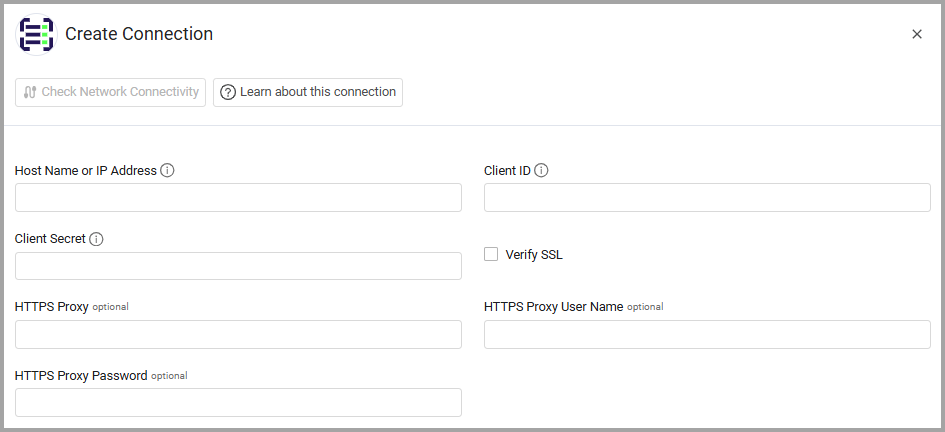
- To connect the adapter in Axonius, provide the following parameters:
Required Parameters
- Host Name or IP Address - The hostname or IP address of the Delinea Platform server.
- Client ID - The Client ID for an OAuth 2.0 service user with the required permissions.
- Client Secret - The Client Secret for the OAuth 2.0 service user.
- Connection Label - A label to help you distinguish between multiple connections for the same adapter. See Connection label .
Optional Parameters
- Verify SSL - Select whether to verify the SSL certificate of the server against the CA database inside of Axonius. For details, see SSL Trust & CA Settings.
- HTTPS Proxy - Connect the adapter via an HTTPS proxy.
- HTTPS Proxy User Name - The user name for the HTTPS proxy.
- HTTPS Proxy Password - The password for the HTTPS proxy.
Select Gateway – Select the Axonius Gateway to use when connecting adapters whose sources are only accessible by an internal network and not from the primary Axonius instance, which may be an Axonius-hosted (SaaS) instance or Customer-hosted (on-premises / private cloud). To use this option, you need to set up an Axonius Gateway.
To learn more about common adapter connection parameters and buttons, see Adding a New Adapter Connection.
Advanced Settings
Note
- Advanced settings can apply to either all connections of this adapter, or to a specific connection. For more detailed information, see Advanced Configuration for Adapters.
- For more general information about advanced settings, see Adapter Advanced Settings.
Enrich Users with User Info - Select this option to enrich user data with additional details including Tenant ID and Directory Service Name.
Updated 29 days ago