
Docebo - Suspend User
Docebo - Suspend User suspends or unsuspends a user account in Docebo for:
- Assets returned by the selected query or assets selected on the relevant asset page.
See Creating Enforcement Sets to learn more about adding Enforcement Actions to Enforcement Sets.
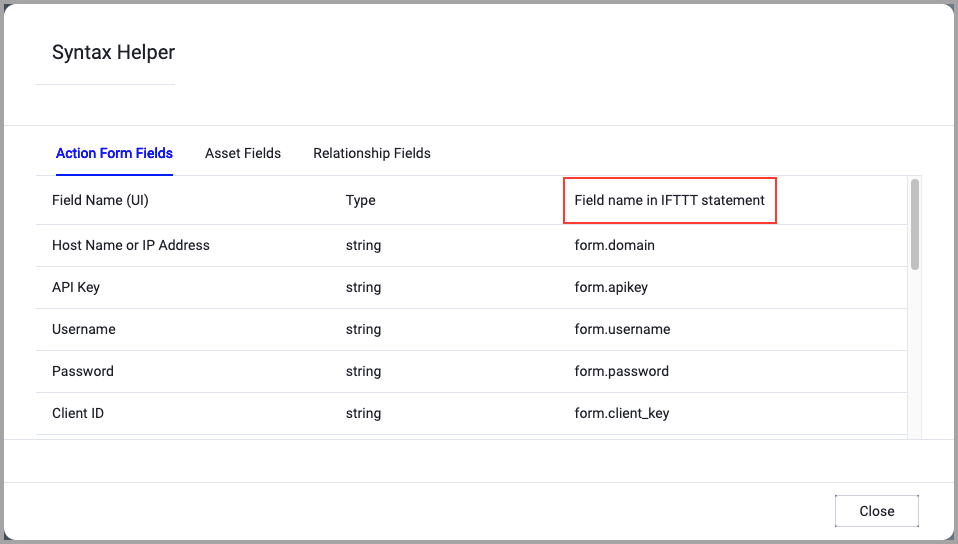
When accessing an enforcement action using the API, you must use the backend form of field names.
Use the Syntax Helper to find the correct name. In the enforcement action, enable Configure Dynamic Values and select Syntax Helper.
Note
- Not all asset types are supported for all Enforcement Actions.
- See Actions supported for Activity Logs, Adapters Fetch History, and Asset Investigation modules.
- See Actions supported for Aggregated Security Findings.
- See Actions supported for Software.
Required Fields
These fields must be configured to run the Enforcement Action.
- Action name - The name of this Enforcement Action. The system sets a default name. You can change the name.
- Configure Dynamic Values (optional) - Toggle on to enter a Dynamic Value statement. See Creating Enforcement Action Dynamic Value Statements to learn more about Dynamic Value statement syntax.
-
Use stored credentials from the Docebo adapter - Select this option to use credentials from the adapter connection. By default, the first connection is selected.
-
When you select this option, the Select Adapter Connection drop-down becomes available. Select the adapter connection to use for this Enforcement Action.
Note
To use this option, you must successfully configure a Docebo adapter connection.
-
-
User ID - Unique identifier for the user.
-
Action - Select whether to suspend or unsuspend the user. Options:
- Suspend User (default)
- Unsuspend User
-
Compute Node - The Axonius node to use when connecting to the specified host. For more details, see Working with Axonius Compute Nodes.
Additional Fields
This Enforcement Action does not have additional optional fields.
Connection and CredentialsWhen Use stored credentials from the adapter is toggled off, some of the connection fields below are required to create the connection, while other fields are optional.
- Host Name or IP Address - The base domain for the Docebo API. Should contain a prefix of http:// or https://. Do not add any specific endpoints after the domain. Example: https://yourcompany.docebo.com/
- OAuth2 Client ID - OAuth2 Client ID for OAuth2 Client Credentials authentication.
- OAuth2 Client Secret - OAuth2 Client Secret for OAuth2 Client Credentials authentication.
Verify SSL (Optional) (default: enabled) - Selects whether to verify the SSL certificate of the server against the CA database inside of Axonius. For more details, see SSL Trust & CA Settings. This setting is enabled by default on all new adapter settings. If you need to disable SSL verification, make sure you disable this setting.)
HTTPS Proxy (optional) - Connect the adapter to a proxy instead of directly connecting it to the domain.
HTTPS Proxy User Name (optional) - The user name to use when connecting to the server using the HTTPS Proxy.
HTTPS Proxy Password (optional) - The password to use when connecting to the server using the HTTPS Proxy.
Gateway Name - Select the Gateway through which to connect to perform the action.
APIs
Axonius uses the Docebo Manage API - PUT /manage/v1/user/change_status
Required Ports
Axonius must be able to communicate via the following ports:
- TCP port 80/443
Required Permissions
The following permissions and requirements are needed:
- A dedicated Docebo API client must be created via the API and SSO app in the Docebo platform
- OAuth 2.0 authentication using Client Credentials grant
- A Docebo tenant with the API and SSO app activated
- For full visibility: Superadmin account OR Power User assigned a profile with read access to users, courses, and enrollments
Updated 12 days ago