
ServiceNow - Request Catalog Items
The ServiceNow - Request Catalog Items action orders one service cart item from the service catalog that includes all returned:
- Assets returned by the selected query or assets selected on the relevant asset page.
See Creating Enforcement Sets to learn more about adding Enforcement Actions to Enforcement Sets.
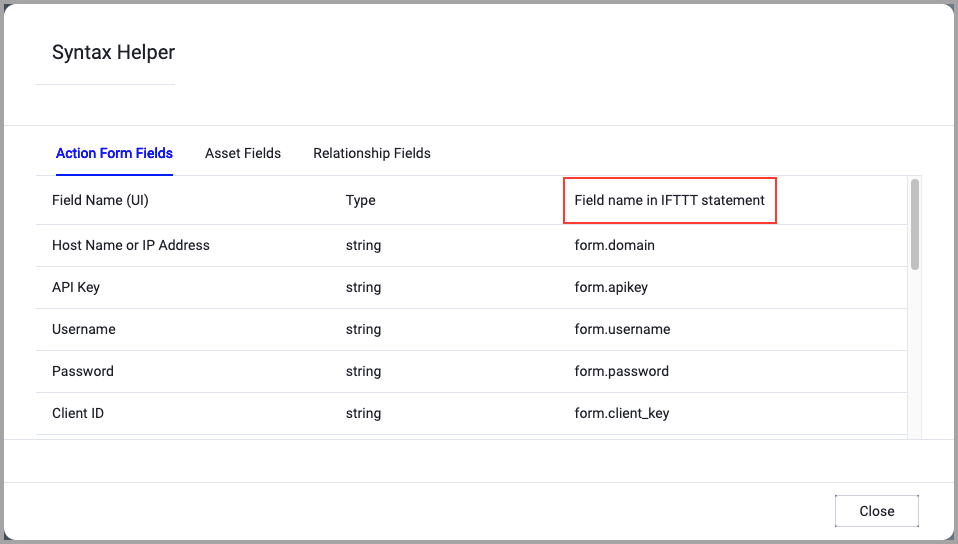
When accessing an enforcement action using the API, you must use the backend form of field names.
Use the Syntax Helper to find the correct name. In the enforcement action, enable Configure Dynamic Values and select Syntax Helper.
Note
- Not all asset types are supported for all Enforcement Actions.
- See Actions supported for Activity Logs, Adapters Fetch History, and Asset Investigation modules.
- See Actions supported for Aggregated Security Findings.
- See Actions supported for Software.
Required Fields
These fields must be configured to run the Enforcement Set.
- Action name - The name of this Enforcement Action. The system sets a default name. You can change the name.
- Configure Dynamic Values (optional) - Toggle on to enter a Dynamic Value statement. See Creating Enforcement Action Dynamic Value Statements to learn more about Dynamic Value statement syntax.
- Use stored credentials from ServiceNow adapter - Select this option to use the ServiceNow connected adapter credentials. By default, the first connection is selected.
- When you select this option, the Select Adapter Connection dropdown is available, and you can choose the adapter connection to use for this Enforcement Action.
Note
To use this option, you must successfully configure a ServiceNow adapter connection.
- SYS ID - The ID of the requested item.
-
Compute Node - The Axonius node to use when connecting to the specified host. For more details, see Working with Axonius Compute Nodes.
Additional Fields
These fields are optional.
Connection and CredentialsWhen Use stored credentials from the adapter is toggled off, some of the connection fields below are required to create the connection, while other fields are optional.
ServiceNow Domain - URL for the ServiceNow admin panel.
User Name and Password - To connect to ServiceNow, you will need to create a user with action privileges.
OAuth Client ID and OAuth Client Secret - The OAuth Client ID and Client Secret for OAuth access to ServiceNow. Refer to OAuth 2.0 with Inbound REST for full details on how to obtain the OAuth Token.
OAuth Refresh Token - When using the OAuth method of authentication, enter the value of the Refresh Token issued by a ServiceNow instance.
OAuth Custom Endpoint Path - Specify a custom endpoint path to be used instead of the default
oauth_token.do.Enable sending OAuth requests as JSON - Enable to to send the request in JSON format instead of the standard
www-form-urlencodedformat.Apigee URL - The URL of the domain that the get request is sent to for acquiring APIgee token.
Resource Apigee - The resources you want the APIgee to access.
Verify SSL (Optional) (default: enabled) - Selects whether to verify the SSL certificate of the server against the CA database inside of Axonius. For more details, see SSL Trust & CA Settings. This setting is enabled by default on all new adapter settings. If you need to disable SSL verification, make sure you disable this setting.)
HTTPS Proxy (optional) - Connect the adapter to a proxy instead of directly connecting it to the domain.
Gateway Name - Select the Gateway through which to connect to perform the action.
- Quantity - The number of catalog items to request. Equivalent to sysparm_quantity.
-
Additional fields - Specify additional fields to be added as key/value pairs in a JSON format.
For example:{"field1": "value1", "field2": "value2"}If one of the specified fields is invalid, the request might fail.
- Send CSV data - When enabled, the created issue includes an attached CSV file with the query results.
Additional CSV Settings
-
Split by asset entities - Select to create a CSV file where each asset on a device is shown as a separate row. This separates each asset as the 'expand' option in the application. It separates each asset by its entity. For example, you will be able to know which values were fetched from each adapter connection.
- If supplied, each value on a device or user is shown as a separate row.
- If not supplied all values on a device are in the same cell on the CSV file.
-
Export CSV delimiter to use for multi-value fields (default:Export CSV delimiter to use for multi-value fields field under the System Settings section in the GUI Settings) - Specify a delimiter to separate between values within the same field of an exported CSV file, otherwise the delimiter defined in Export CSV delimiter to use for multi-value fields is used.
-
Maximum rows (default: 1048500) - Specify the maximum number of rows to be included in the CSV file. When you set a value here the generated CSV file will include the top x rows, based on the specified values. Otherwise, the generated CSV file will include the default maximum rows, set as 1048500.
-
Include associated devices (only for Aggregated Security Findings and Software) - For Software and Aggregated Security Findings queries. Toggle on this option to include the associated devices with the preferred hostname as a predefined field for each Software or Aggregated Security Finding. When you create a CSV file with associated devices (for Aggregated Security Findings or Software), if the exported query results are larger than the value set under Maximum rows (or the default value of 1048500), an appropriate notice is displayed at the end of the CSV file.
- Device fields - This option is available for Software and Aggregated Security Findings. Select the device fields to add. By default Preferred Host Name is selected. Click add to select more fields. At least one field must be selected. Click the bin icon to remove a device field.
- Attach CSV on requested item (RITM) instead of on request - If the Send CSV data option is enabled, enabling this option attaches the CSV on the requested item (RITM) instead of on the request itself (REQ).
- Split by field values - Select a field to split assets by in the Assets table. Each incident will be split into multiple rows where each row lists a single field value - for example, a row with an incident per Security Finding per device.
APIs
Axonius uses the following API:
Required Permissions
The stored credentials, or those provided in Connection and Credentials, must have the following permission(s) to perform this Enforcement Action:
- The
itiladmin role
For more details about other enforcement actions available, see Action Library.
Updated 6 months ago