
Apple Business Manager V2
Apples Business Manager V2 is a web-based portal that provides device management, app distribution, and user access control for organizations integrating with Mobile Device Management (MDM) solutions.
Use Cases the Adapter Solves
The adapter identifies all Apple devices owned by the organization, including those that are purchased but not yet enrolled in a Mobile Device Management (MDM) solution to help security teams find devices that have been purchased but haven't checked in or been assigned to a security policy yet. It helps to confirm that devices are correctly linked to the organization’s ABM account and assigned to the intended MDM server.
The adapter fetches information that includes the device's serial number, model, and the Mobile Device Management (MDM) server it is assigned to.
Asset Types Fetched
 Devices
Before You Begin
Ports
- TCP port 443
Authentication Method
OAuth 2.0 (Client Credentials Grant) using a Client Assertion (JWT).
APIs
Axonius uses the Apple Business Manager API v1
Permissions
The following permissions are required:
- OAuth scope:
business.api- This scope grants access to the ABM API endpoints.
Supported From Version
Supported from Axonius version 8.0.9
Configuring the Apple Business Manager V2 to Work With Axonius
You need to generate a private key. Follow the instructions under Generate a Private Key in Create an API account in Apple Business Manager.
Connecting the Adapter in Axonius
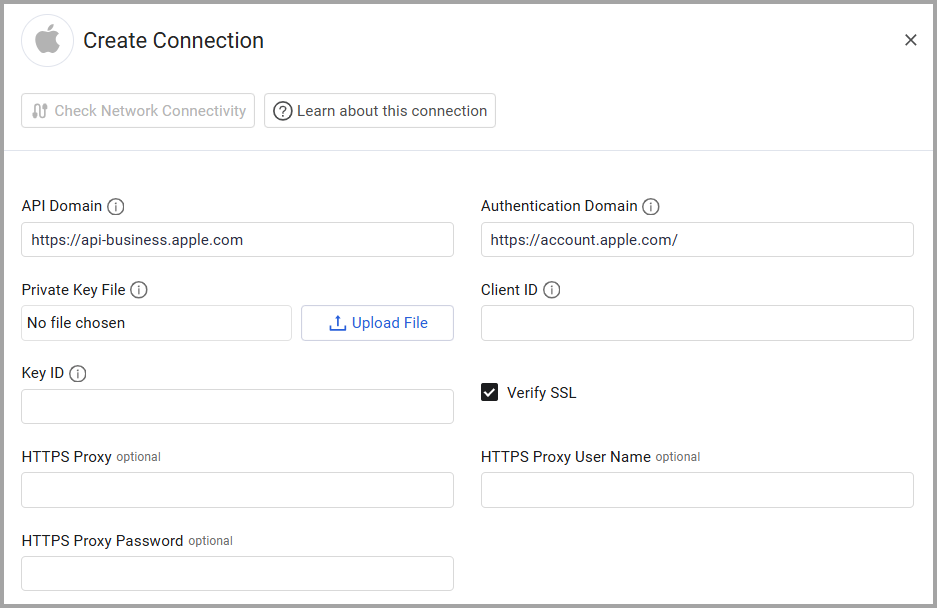
Navigate to the Adapters page, search for Apple Business Manager V2, and click on the adapter tile. Click Add Connection.
To connect the adapter in Axonius, provide the following parameters:
Required Parameters
-
API Domain (default
https://api-business.apple.com) - The base URL for calling the Apple Business Manager API endpoints. -
Authentication Domain (default
https://account.apple.com/) - The URL of the Apple OAuth 2.0 authorization server. -
Private Key File Upload the private key file in PEM format used to sign the JWT for OAuth 2.0 authentication. This key is used to sign JWTs as part of the OAuth Client Assertion process. The private key must correspond to the Key ID and Team ID issued in Apple Business Manager when registering the API integration.
-
Client ID - The Client ID from your Apple Business Manager API account. This is the identifier for your OAuth 2.0 client, issued when registering your Apple Business Manager API account.
-
Key ID - The identifier for the private key registered in your Apple Developer account. You receive this value when you create and download a private key for API authentication.
Optional Parameters
-
Verify SSL - Select whether to verify the SSL certificate of the server against the CA database inside of Axonius. For more details, see SSL Trust & CA Settings.
-
HTTPS Proxy - Connect the adapter to a proxy instead of directly connecting it to the domain.
-
HTTPS Proxy User Name - The user name to use when connecting to the value supplied in Host Name or IP Address via the value supplied in HTTPS Proxy.
-
HTTPS Proxy Password - The password to use when connecting to the server using the HTTPS Proxy.
-
Select Gateway – Select the Axonius Gateway to use when connecting adapters whose sources are only accessible by an internal network and not from the primary Axonius instance, which may be an Axonius-hosted (SaaS) instance or Customer-hosted (on-premises / private cloud). To use this option, you need to set up an Axonius Gateway.
To learn more about common adapter connection parameters and buttons, see Adding a New Adapter Connection.
Updated 20 days ago