
Importing and Exporting Workflows
You can import and export workflows to share them across environments. The workflow is exported in JSON format, including the complete definition of all nodes.
Note
Sensitive information, such as passwords, API keys, tokens, are not exported and need to be reconfigured after import.
To export a workflow:
- In the Workflows page, hover over the workflow you want to export, and, from the 3-dot menu, select Export Workflow.
- A pop-up notifies you that credentials and sensitive inputs are excluded and must be reconfigured when reimporting this workflow. To continue and export, click Export.
- A file in JSON format is downloaded to your local computer.
To import a workflow:
-
From the Create Workflow list, select Import Workflow.
-
Select the workflow to import and click Open.
-
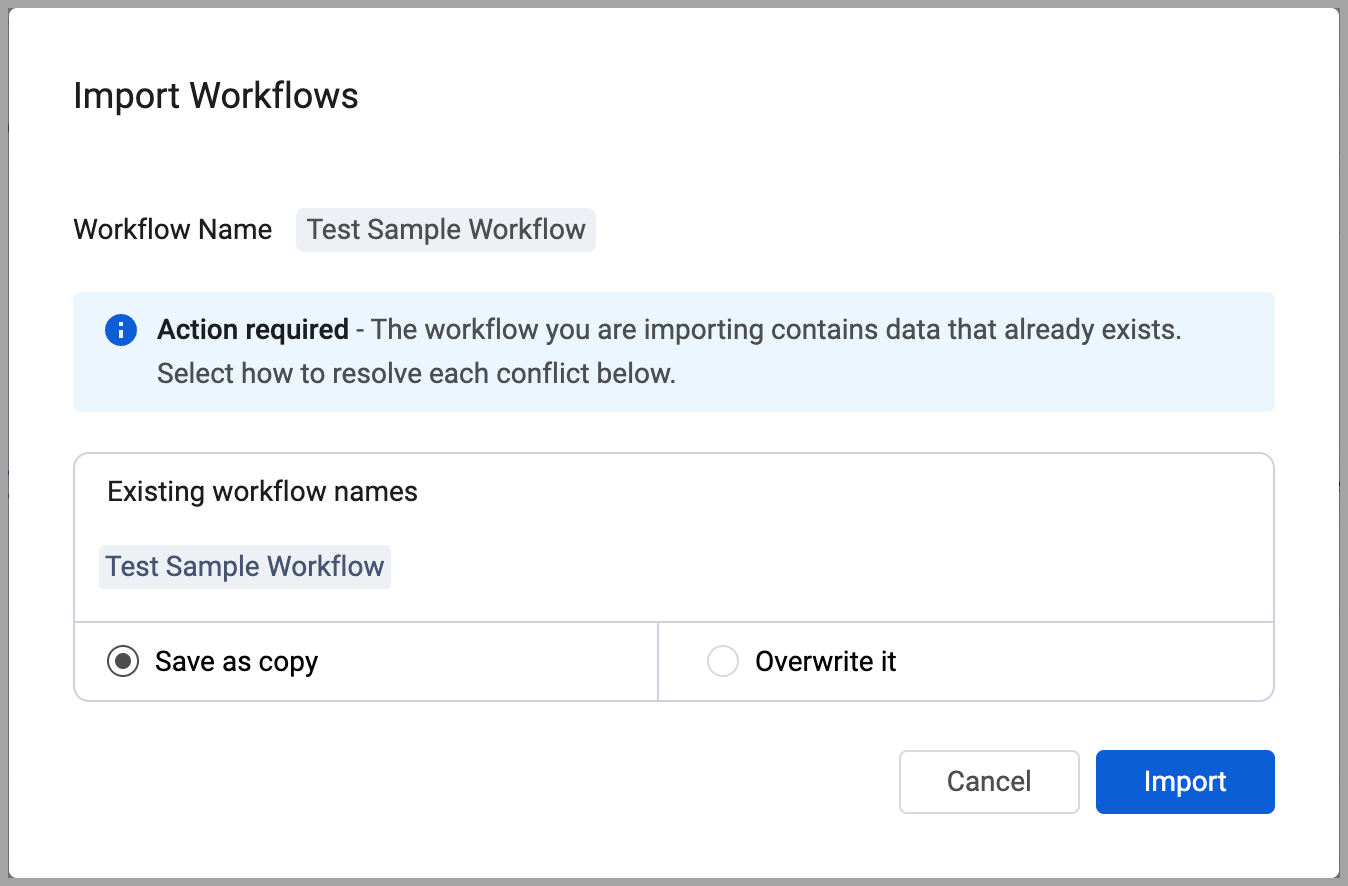
If a query or other data already exists in the environment to which you are importing the workflow, a warning dialog is displayed.
-
For each instance of a conflict, select how you want to resolve the conflict:
- Save as copy - Creates a copy of the item.
- Overwrite - Overwrites the existing item with the one being imported.
-
Click Import. The imported workflow is added to the Workflows page, and the selections from the previous step are implemented.
Updated 9 months ago