
FleetDM
FleetDM (formerly Kolide Fleet) is an is an open-source query manager for device management.
Asset Types Fetched
- Devices, Vulnerabilities, Software, SaaS Applications
Before You Begin
Ports
- TCP port 80/443
Authentication Method
- User Name/Password for Cloud
- API Token for on-prem
APIs
Axonius uses the Fleet REST API.
Permissions
Consult with your vendor for permissions for reading the objects.
Connecting the Adapter in Axonius
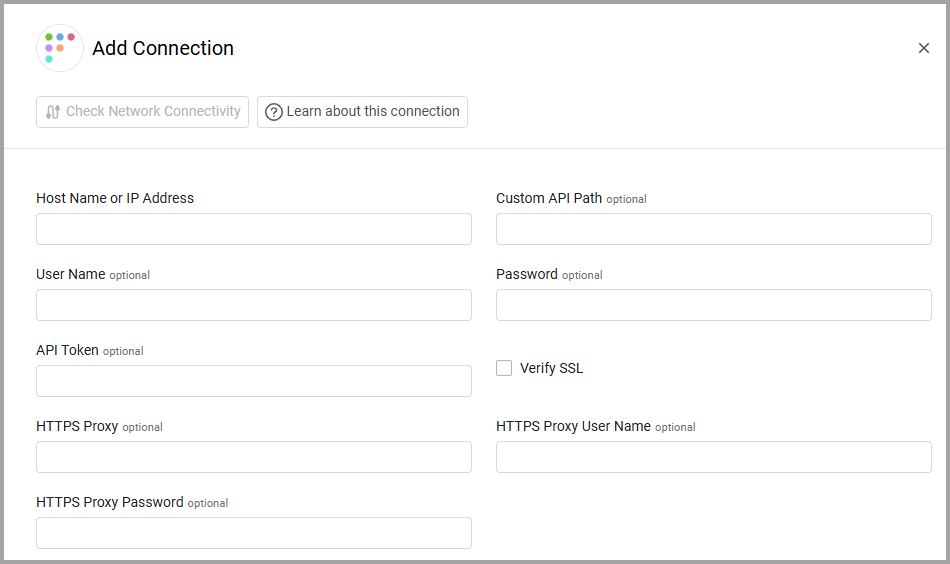
To connect the adapter in Axonius, provide the following parameters:
Required Parameters
- Host Name or IP Address - The hostname or IP address of the FleetDM server.
- Enter the credentials for the authentication method you use:
- User Name and Password (required for this method) - The credentials for a user account that has the permissions to fetch assets.
- API Token (required for this method) - An API Key associated with a role that has permissions to fetch assets. Only API Token is supported in v4 of FleetDM and higher.
- Use Cloudflare Access Headers (required for this method, default: disabled) - Select this option when your FleetDM server is protected by Cloudflare Access. The adapter sends the values of User Name and Password as the
CF-Access-Client-IdandCF-Access-Client-Secretheaders. - User Name (required for this method) - The Client ID of your Cloudflare Access service token.
- Password (required for this method) - The Client Secret of your Cloudflare Access service token.
Optional Parameters
-
Custom API Path - Fill in the field to use a different custom API path. You can use this field as a prefix for the API (generally not required, only for advanced deployments).
-
Verify SSL - Select whether to verify the SSL certificate offered by the value supplied in Host Name or IP Address. For more details, see SSL Trust & CA Settings.
-
HTTPS Proxy - A proxy to use when connecting to the value supplied in Host Name or IP Address.
-
HTTPS Proxy User Name - The user name to use when connecting to the value supplied in Host Name or IP Address via the value supplied in HTTPS Proxy.
-
HTTPS Proxy Password - The password to use when connecting to the value supplied in Host Name or IP Address via the value supplied in HTTPS Proxy.
To learn more about common adapter connection parameters and buttons, see Adding a New Adapter Connection.
Advanced Settings
Note
Advanced settings can either apply to all connections for this adapter, or to a specific connection. Refer to Advanced Configuration for Adapters.
- Fetch Software (default: true) - Select whether to fetch software information.
- Fetch Vulnerabilities (default: false) - Select whether to fetch vulnerabilities.
- Legacy Mode (default: false) - Select this option to enable legacy mode and fetch all hosts and host details. In Legacy Mode, the Fetch settings only control which fields are parsed from each host response; they do not change which data is requested.
- Async Chunks in parallel (optional, default: 100) - Set the number of asynchronous chunks that will run in parallel. You can set any integer number between 1 and 100.
- Fetch Device Labels (default: false) - Select this option to fetch device labels and add them to the device data. Each non-empty label name is also added as a device tag.
- Fetch Device Policies (default: false) - Select this option to fetch device policies and add their details to the device data.
- Fetch Users (default: false) - Select this option to fetch host users and add their user name and shell information to the device user data.
- Fetch End Users (default: false) - Select this option to fetch end-user details and add them to the device data.
- Hosts Page Size (default: 50) - Enter the number of hosts to request per page, between 1 and 500. When you enable several Fetch options together, you may need to lower this value. Fleet recommends a page size of 50 or lower, especially when Fetch End Users is enabled.
Note
To learn more about Adapter Configuration tab advanced settings, see Adapter Advanced Settings.
Updated 14 days ago