
Nudge Security
Nudge Security is a SaaS management platform that provides discovery, governance, and security controls for SaaS applications, accounts, and users across an organization.
Use Cases the Adapter Solves
- Discover Shadow IT: Identify all SaaS applications in use across your organization, including unapproved apps and OAuth grants that may pose security risks.
- Monitor SaaS Account Security: Track user accounts across SaaS platforms to ensure proper authentication, MFA status, and identify high-risk access patterns.
- Enforce SaaS Governance: Maintain visibility into SaaS application approvals, compliance status, and user access to support governance policies and audit requirements.
Asset Types Fetched
- Application Add-ons, SaaS Applications, Application Add-on Instances, Admin-Managed Extensions, Admin-Managed Extension Instances, Users, User-Initiated Extension Instances, User-Initiated Extensions, Extensions, Application Keys, User Extensions
Data Retrieved through the Adapter
SaaS Applications
- Name, Domain, Category
User Extensions
- Name, Related Vendor Name, Created
Users
- Display Name, First Name, Last Name
- Mail, User Status, Is Admin
Before You Begin
Required Ports
- TCP port 443 (HTTPS)
Authentication Methods
The adapter authenticates using an API token (Bearer token) generated from the Nudge Security admin portal. The token is passed in the Authorization header of API requests.
APIs
Axonius uses the Nudge Security API v1.0. The following endpoints are called:
POST /api/1.0/apps/search- Retrieves SaaS applications discovered in the organizationPOST /api/1.0/accounts/search- Retrieves user accounts associated with SaaS applicationsPOST /api/1.0/users/search- Retrieves user information from the organization
Required Permissions
The following permissions are required:
Administrator Role (Required)
The API user must have the Administrator role in Nudge Security to generate API tokens. The Administrator role provides:
- Full access to all data in Nudge Security (apps, accounts, users, OAuth grants, security events)
- Ability to generate and manage API tokens from Settings > API Tokens
NoteOnly users with the Administrator role can create API keys. According to Nudge Security's official documentation, this role provides full access to all features and data, which is necessary for comprehensive asset discovery through the Axonius integration.
Supported From Version
Supported from Axonius version 9.0.3
Connecting the Adapter in Axonius
Navigate to the Adapters page, search for Nudge Security, and click on the adapter tile.
Click Add Connection.
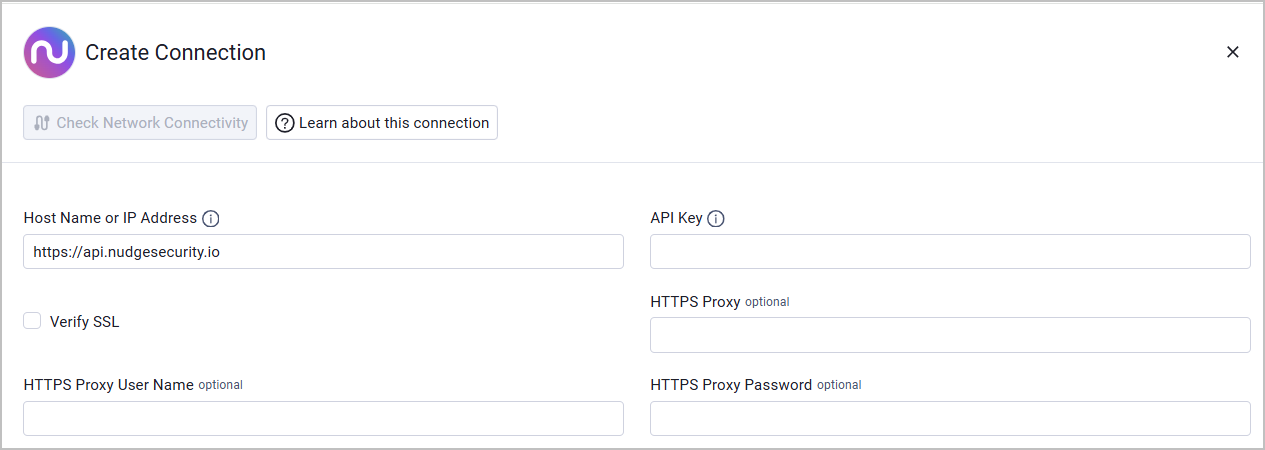
To connect the adapter in Axonius, provide the following parameters:
Required Parameters
- Host Name or IP Address - Base URL for the Nudge Security API. Do not include a trailing slash. Example:
https://api.nudgesecurity.io - API Key - API token obtained from Settings > API Tokens in the Nudge Security admin portal. The token is displayed only once and must be saved immediately. Tokens expire after 4 weeks of inactivity.
Optional Parameters
- Verify SSL - Select whether to verify the SSL certificate of the server against the CA database inside of Axonius. For more details, see SSL Trust & CA Settings.
- HTTPS Proxy - Connect the adapter to a proxy instead of directly connecting it to the domain.
- HTTPS Proxy User Name - The user name to use when connecting to the value supplied in Host Name or IP Address via the value supplied in HTTPS Proxy.
- HTTPS Proxy Password - The password to use when connecting to the server using the HTTPS Proxy.
To learn more about common adapter connection parameters and buttons, see Adding a New Adapter Connection.
Updated 22 days ago