
WordPress Toolkit
WordPress Toolkit is a Plesk management extension that provides installation, plugin, theme, update, security hardening, and vulnerability scanning capabilities for WordPress sites.
Use Cases the Adapter Solves
- Inventory WordPress sites: Identify WordPress installations and their hosting domains in one place.
- Monitor site components: Review plugin and theme versions, availability of updates, and component status.
Asset Types Fetched
- Domains & URLs
- Aggregated Security Findings
- SaaS Applications
Data Retrieved through the Adapter
Domains & URLs - fields such as: Title, Display Title, WordPress Version, Security Status
Aggregated Security Findings - fields such as: Vulnerability Title, EPSS Score, Fixed In, Details URL
SaaS Applications - fields such as: Slug, Title, Version, Available Version
Before You Begin
Required Ports
- TCP port 8443 (HTTPS).
Authentication Methods
The adapter uses HTTP Basic Authentication with a user name and password.
APIs
Axonius uses the Plesk API (https://docs.plesk.com/en-US/obsidian/api-reference/). The following endpoints are called:
GET /api/modules/wp-toolkit/v1/installations- Retrieves WordPress installations.GET /api/modules/wp-toolkit/v1/installations/{installation_id}/plugins- Retrieves plugins for each installation.GET /api/modules/wp-toolkit/v1/installations/{installation_id}/themes- Retrieves themes for each installation.GET /api/modules/wp-toolkit/v1/security-measures/checker- Retrieves security-measure results for installations.GET /api/modules/wp-toolkit/v1/vulnerabilities-checker- Retrieves vulnerability-check results for installations.
Required Permissions
Prerequisites
The WP Toolkit REST API must be enabled in Plesk before connecting:
- Log in to Plesk as an administrator.
- Go to Tools & Settings > Remote API (REST).
- Enable WP Toolkit REST API.
Required Account Type: Plesk Administrator
The adapter calls server-wide endpoints (/v1/installations, /v1/vulnerabilities-checker, /v1/security-measures/checker) that return data across all subscriptions on the server. The Plesk REST API scopes responses to the authenticated user:
- Plesk Administrator — returns data for all WordPress installations across the entire server ✅
- Reseller account — returns data scoped to their reseller pool only ❌
- Customer account — returns data scoped to their own subscriptions only ❌
The Plesk Administrator account is required.
Option 1: HTTP Basic Auth
| Field | Value |
|---|---|
| Username | Plesk administrator username (admin on Linux, administrator on Windows) |
| Password | Plesk administrator password |
Supported From Version
Supported from Axonius version 9.0.7
Connecting the Adapter in Axonius
- Navigate to the Adapter Catalog, search for WordPress Toolkit, and select the adapter.
- Click Add Connection.
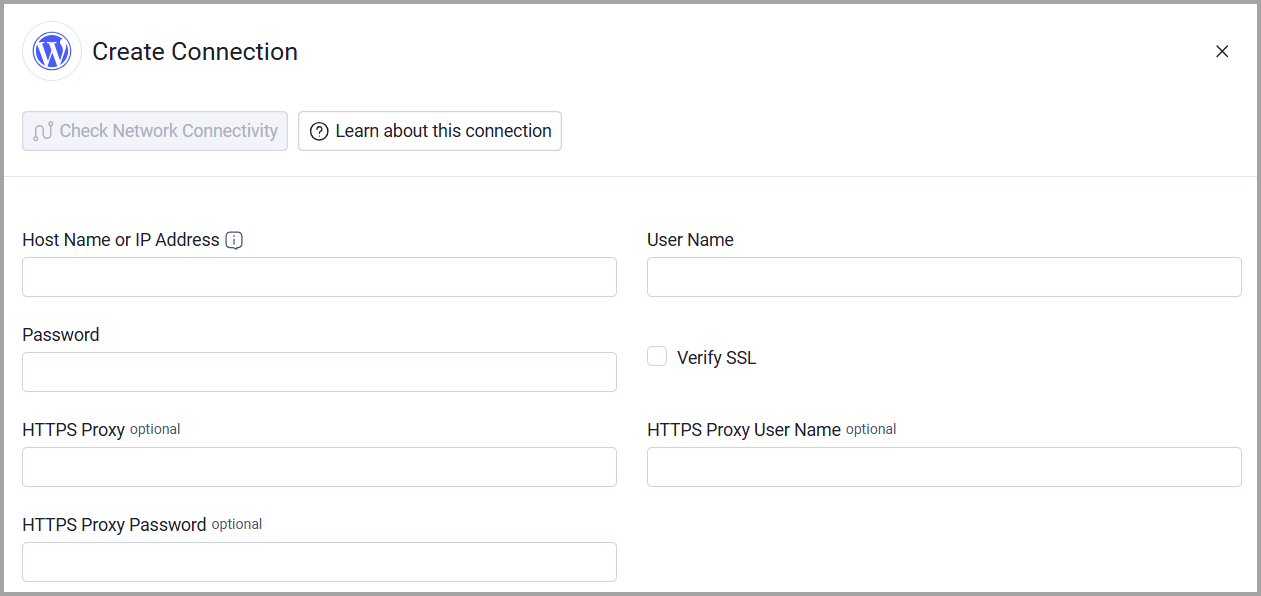
- Provide the following parameters.
Required Parameters
- Host Name or IP Address - The Plesk server API base URL, including http:// or https://, without a specific endpoint path. Example: https://plesk.example.com:8443.
- User Name - The user name for HTTP Basic Authentication.
- Password - The password for HTTP Basic Authentication.
Optional Parameters
-
Verify SSL - Select whether to verify the SSL certificate of the server against the CA database inside of Axonius. For more details, see SSL Trust & CA Settings.
-
HTTPS Proxy - Connect the adapter to a proxy instead of directly connecting to the Plesk API host.
-
HTTPS Proxy User Name - The user name to use when connecting to the Host Name or IP Address through the HTTPS Proxy.
-
HTTPS Proxy Password - The password to use when connecting through the HTTPS Proxy.
To learn more about common adapter connection parameters and buttons, see Adding a New Adapter Connection.
Updated about 1 month ago