
Device Network Connection Graph
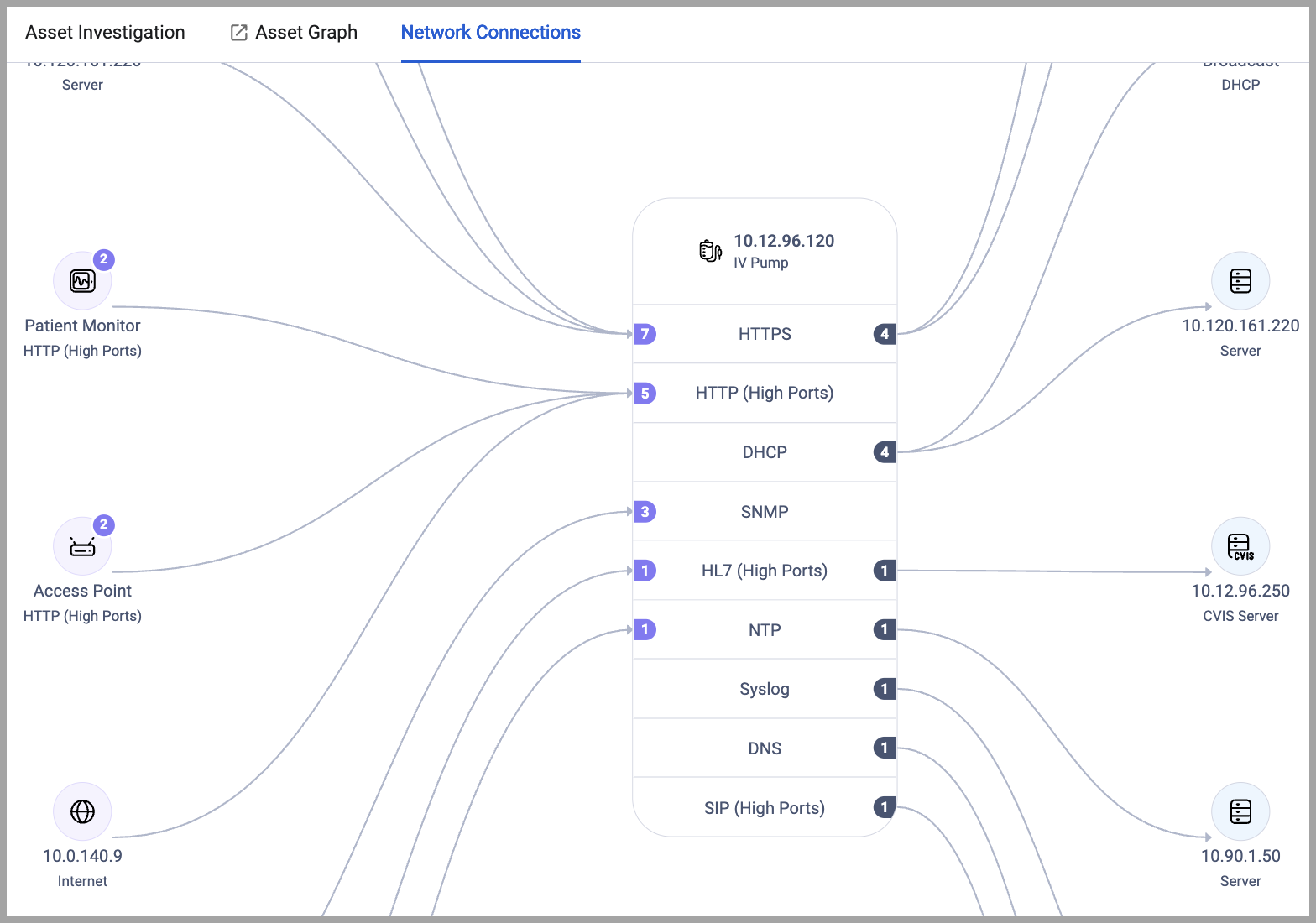
The network connections graph displays a visual map of all inbound and outbound connections for a selected device. You can see which protocols the device uses, which ports are open, and how many connections exist for each protocol or port.
Use Cases
Use the network connections view to:
- Identify unusual network activity — Spot unexpected protocols or high connection counts
- Verify device communication paths — Confirm devices communicate only with authorized systems
- Troubleshoot connectivity issues — See which devices successfully connect and which protocols are in use
- Detect unauthorized connections — Find devices communicating on unexpected ports or with unknown systems
- Analyze network topology — Understand how devices are interconnected across your network
Accessing the Network Connections View
To view network connections for a device:
- Navigate to the Devices asset page.
- Select a device to open its asset profile.
- Click the Network Connections tab.
The network connections diagram appears, showing the selected device in focus with all connected devices on either side.
Understanding the Network Connections Diagram
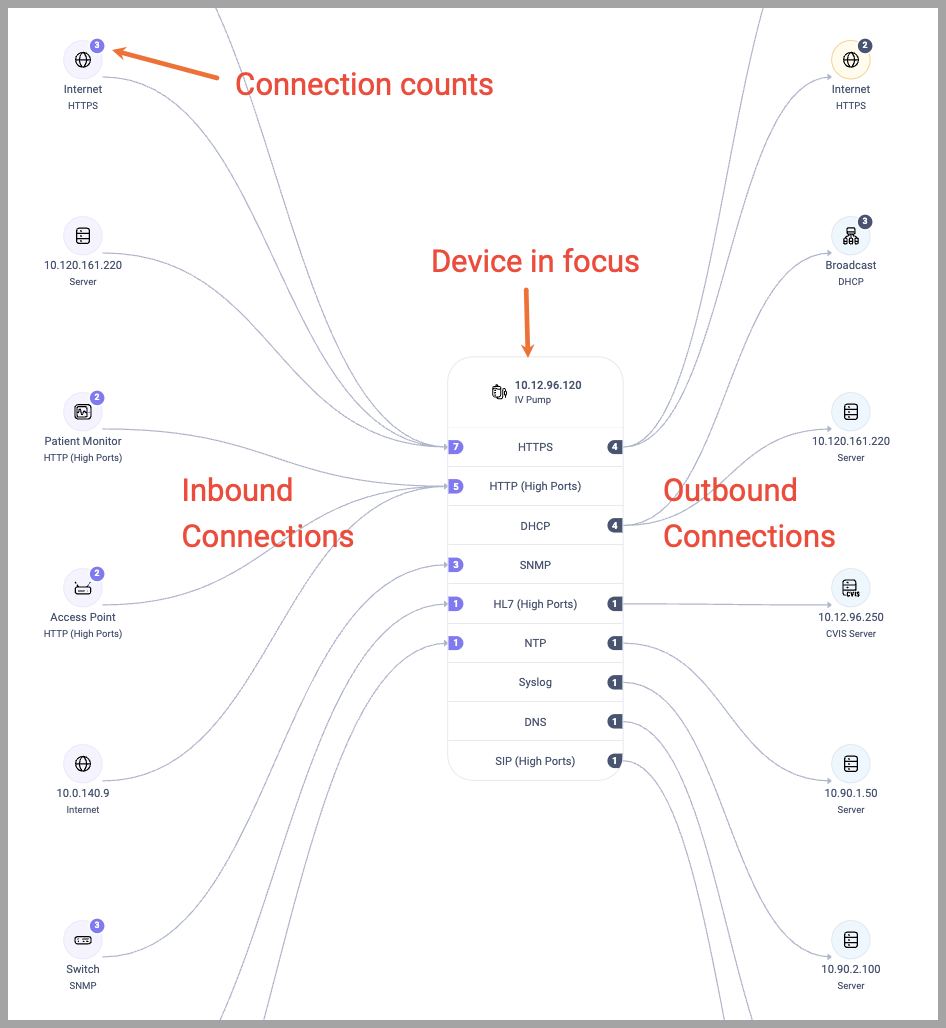
The diagram shows:
- Device in focus — The selected device with its IP address, device type, and all active ports and protocols
- Inbound connections — Devices on the left side sending traffic to the device in focus
- Outbound connections — Devices on the right side receiving traffic from the device in focus
- Connection counts — Numbers in badges showing how many connections exist for each protocol or port
- Connection lines — Visual lines connecting devices to specific protocols or ports
Device Information
The device in focus displays:
- Device IP address
- Device type icon and label
- List of active protocols and ports
Protocol and Port Entries
Each row in the device in focus shows:
- Protocol name — Standard protocols like HTTP, HTTPS, NTP, RTSP, SSDP
- Port number — Custom or non-standard ports (for example: Port 1121, Port 3231)
- Port range — Grouped high-numbered ports (for example: High Ports)
- Connection count badge — Number of active connections using that protocol or port
- When a badge appears on the left of a protocol or port, it indicates inbound connections
- When a badge appears on the right of a protocol or port, it indicates outbound connections
Connected Devices
Connected devices appear on both the inbound connections (left side) and outbound connections (right side). Each device shows:
- Device type icon
- Device identifier (IP address, hostname, or device type label)
- Connection count badge — Number of connections between that device and the device in focus
Grouped Devices
When multiple devices of the same type connect using the same protocol or port, they appear as a grouped node showing:
- Device type icon
- Device type label (for example: Smart TV, Laptops)
- Connection count badge — Total number of devices in the group
Click a grouped node to expand and view individual devices within the group.
Interpreting Connection Counts
Connection count badges appear in three locations:
- On inbound connections (left side) — Shows how many connections that device sends to the device in focus
- On protocols/ports (device in focus) — Shows total inbound or outbound connections using that protocol or port
- Left-side badge: inbound traffic
- Right-side badge: outbound traffic
- On outbound connections (right side) — Shows how many connections the device in focus sends to that device
Connection counts are cumulative. A device communicating with the device in focus may have multiple connections from other devices, and those connections are included in the connection count displayed. At each level of connected devices, the count includes all devices connected to it.
For example, if you see a grouped "Smart TV" node on the left showing 4 connections, and the device in focus shows 8 total inbound connections on the HTTPS protocol, this means:
- Four Smart TV devices are each sending traffic to the device in focus via HTTPS
- The remaining 4 inbound HTTPS connections come from other devices (such as PCs or Servers)
- If you select the Smart TV group node, you'll see the individual Smart TV devices highlighted, each contributing to that count of 4
- The Smart TV group's count of 4 represents the cumulative connections from all Smart TVs in that group, not 4 connections from a single device
Selecting and Highlighting Nodes
When you select a node in the graph:
- The selected node is highlighted with a blue border
- All devices directly connected to the selected node are highlighted
- Connection lines between the selected node and connected devices are highlighted
- Unrelated nodes and connections appear dimmed
This highlighting helps you focus on specific connection paths and understand which devices communicate with the selected node.
To select a node:
- Click any device node in the inbound connections, device in focus, or outbound connections area.
To deselect a node:
- Click the selected node again, or click in an empty area of the diagram.
Filtering and Interaction
Hover over a protocol or port to highlight only the connections using that protocol or port.
- Click a connected device to navigate to that device's asset profile.
- Click a protocol or port name to filter the view and show only connections using that protocol or port.
- Click a grouped device node to expand the group and view individual devices.
Updated 20 days ago