
Teams Message Received Event
Axonius supports receiving a Teams Message as an event in a Workflow. The event can be a triggering event that initiates a workflow run or an event within a workflow.
Triggering a Workflow when a Teams Message is Received
You can configure a triggering event to initiate a workflow run when a Teams message is received. When this event occurs, the Workflow run starts.
This event type requires a valid webhook connection. Before configuring a Teams Message Received trigger, configure the webhook. See Configuring Workflow Events Settings.
Configuring a workflow to start when a Teams message is received:
-
Click on the first node in a workflow. This is the trigger node where you configure when and how workflow run is started.
-
In the Trigger Type drawer, expand Message Received, and click Teams Message Received. This event retrieves Users who sent the Teams message.
-
Click View Webhook Configuration and in the Webhook Configuration Details screen that opens, check that a URL and the optional security token are configured for Teams.
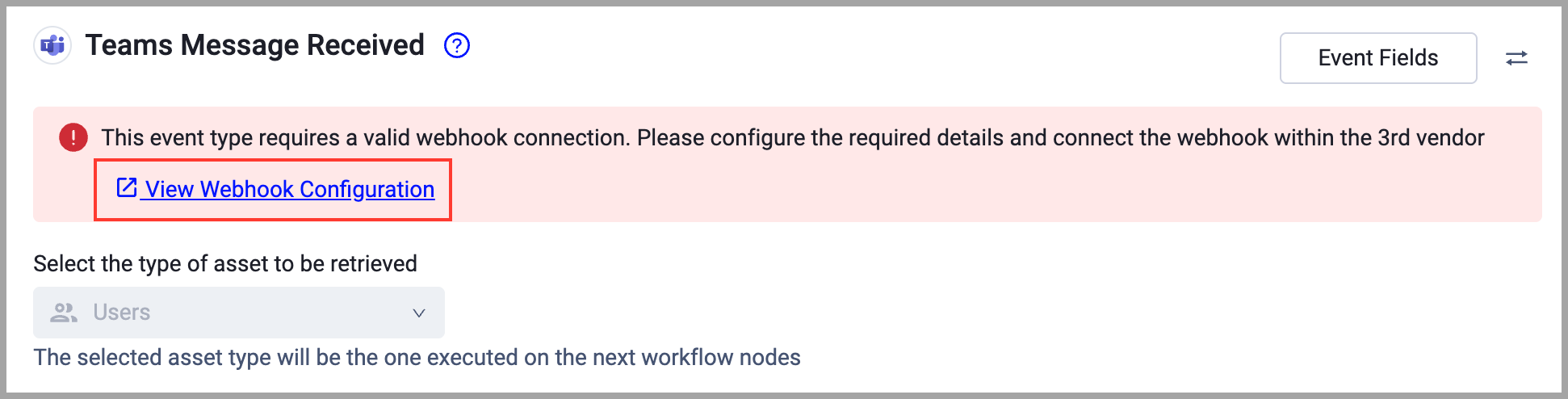
-
If you generated a new security token in Teams, enter it, and click Enable Webhook. Otherwise, click Close to return to the Trigger Type drawer.
The Workflow is triggered each time a user sends a Teams message. The next node runs on the retrieved user.
Configuring a non-Trigger Teams Message Received Event
A Teams Message Received event can also be used anywhere in a workflow as any other event, and not as a trigger to initiate a workflow run.
To use a Teams Message Received event as a regular workflow event
-
Add an event node to a workflow.
-
In the Event pane, under Message Received, click Teams Message Received.
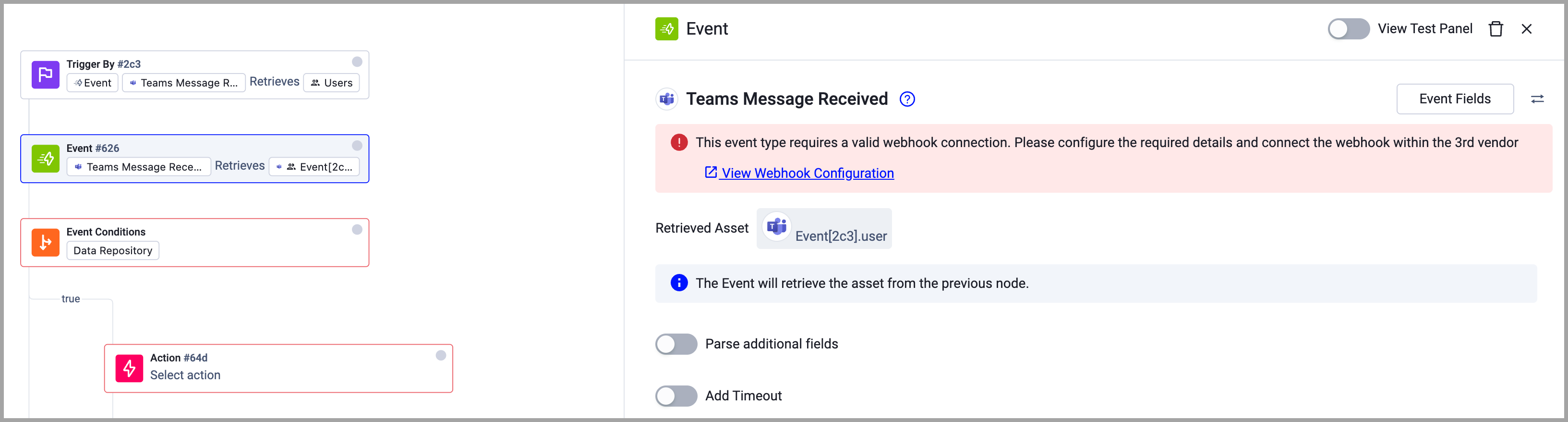
Viewing the Event Fields
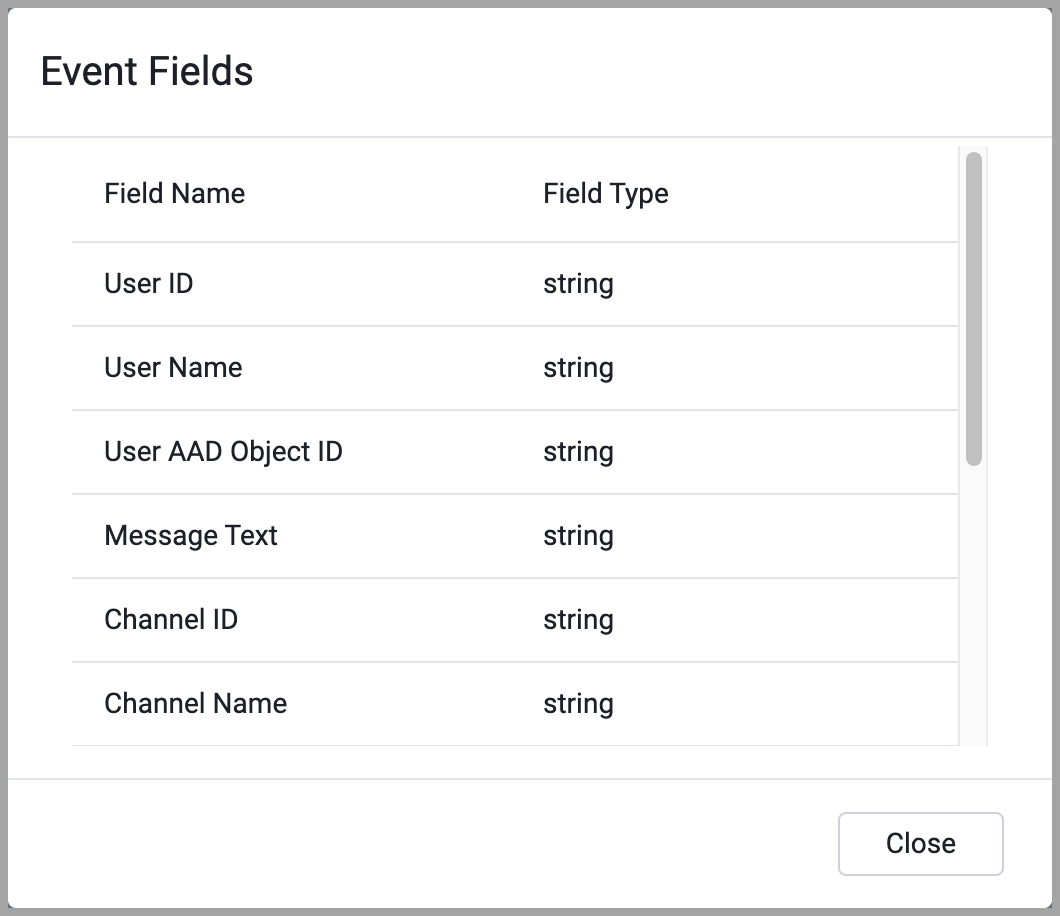
After you select the event, you can view the fields of the event that the Teams webhook delivers to the Axonius Webhook URL. You can then use these fields to follow up on Teams Message Received events in a workflow; for example, in triggering event filters or in event conditions.
To view the Event fields
- In the Trigger Type or Event configuration panes for the Teams Message Received event (see above screens), click Event Fields. A list opens of all event field names and their field types.
Updated 6 months ago