
Business Units
Use Business Units to create and manage rules that automatically map assets to the relevant Business Units.
Attention
Business Units are currently supported only for the following asset types: Devices, Users, Software, and SaaS Applications. Each asset type has its own dedicated dashboards and rules.
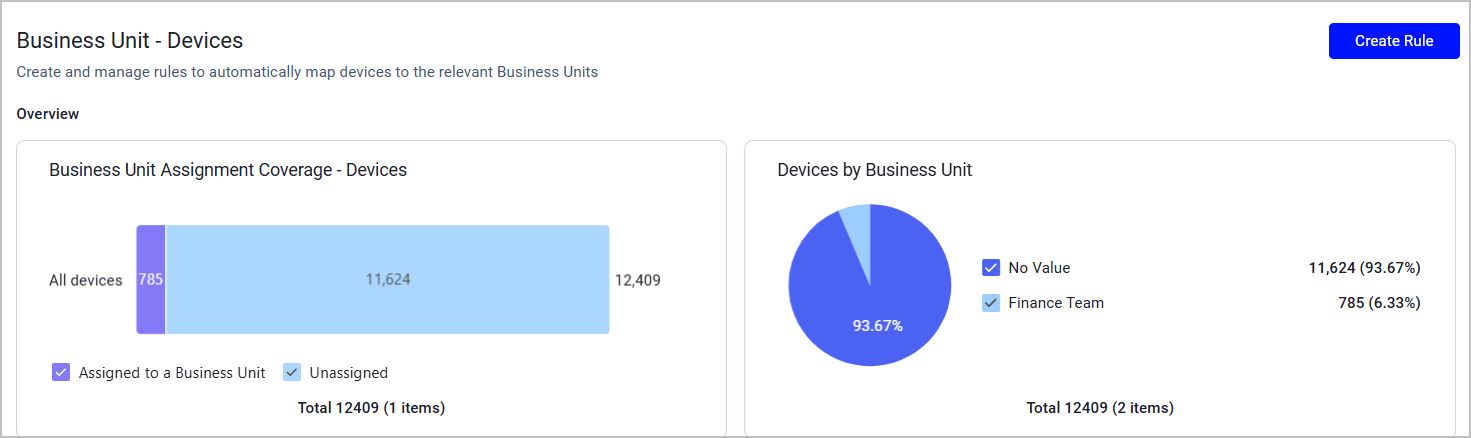
Each Business Unit - [Asset Types] page displays the following information:
- Business Unit Assignment Coverage - How many assets are assigned a business unit and how many are unassigned.
- Assets by Business Unit - All the Business Units across which assets are distributed and their proportions.
- Rule table - A table listing all Business Unit rules defined in the system.
Creating a Business Unit Rule
To define a new Business Unit, click Create Rule.
Provide the following details:
- Rule Name - Enter a meaningful name, for example: Finance, Legal, R&D. The rule name must be unique.
- Add Description (optional) - A brief summary of what this unit represents or the scope of the assets it covers. Example: "All workstations and servers assigned to the global legal department.".
- Business Unit - Select an existing business unit to assign this rule to, or create a new business unit. If you use this feature for the first time, no business units are defined, and you need to create them: click + New Business Unit after you start typing.
- Saved Query - Select a saved query that includes the specific assets to assign this rule to.
- Priority - Assign the rule a priority of 1 (default) or above. Since an asset might appear in multiple queries, a prioritization mechanism is required for cases when an asset might be assigned more than one Business Unit. According to the prioritization logic, the rule with the highest priority that an asset matches determines its Business Unit.
- Activate rule - Each new rule is Active by default. Click the toggle to deactivate it.
Click Save to add the new rule to the system. The rule will apply from the next discovery cycle and on.
Rule Actions
By hovering over a rule row, you can:
- Edit the rule (from there you can also activate/deactivate it)
- Change the rule's priority
- Duplicate an existing rule and modify it to match your needs
- Delete a rule
The Business Unit Asset Field
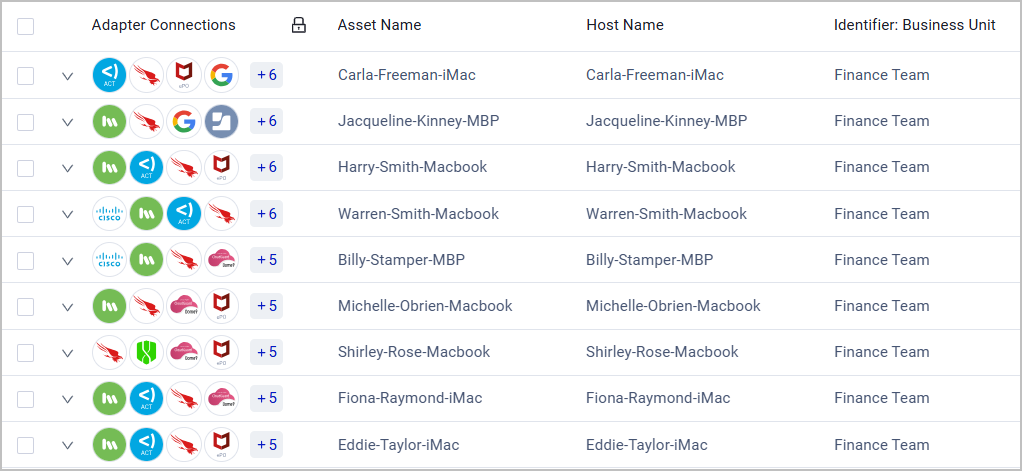
To see Business Unit data from the Assets pages, add the Identifier: Business Unit field to the relevant Assets table (learn more about Setting Page Columns Display). You can also use this field for filtering in the Query Wizard.

Updated 4 months ago