
Viewing AI Workforce Notifications
Use the Notifications page to review findings from your virtual workers, act on items that need your decision, and track changes across your environment.
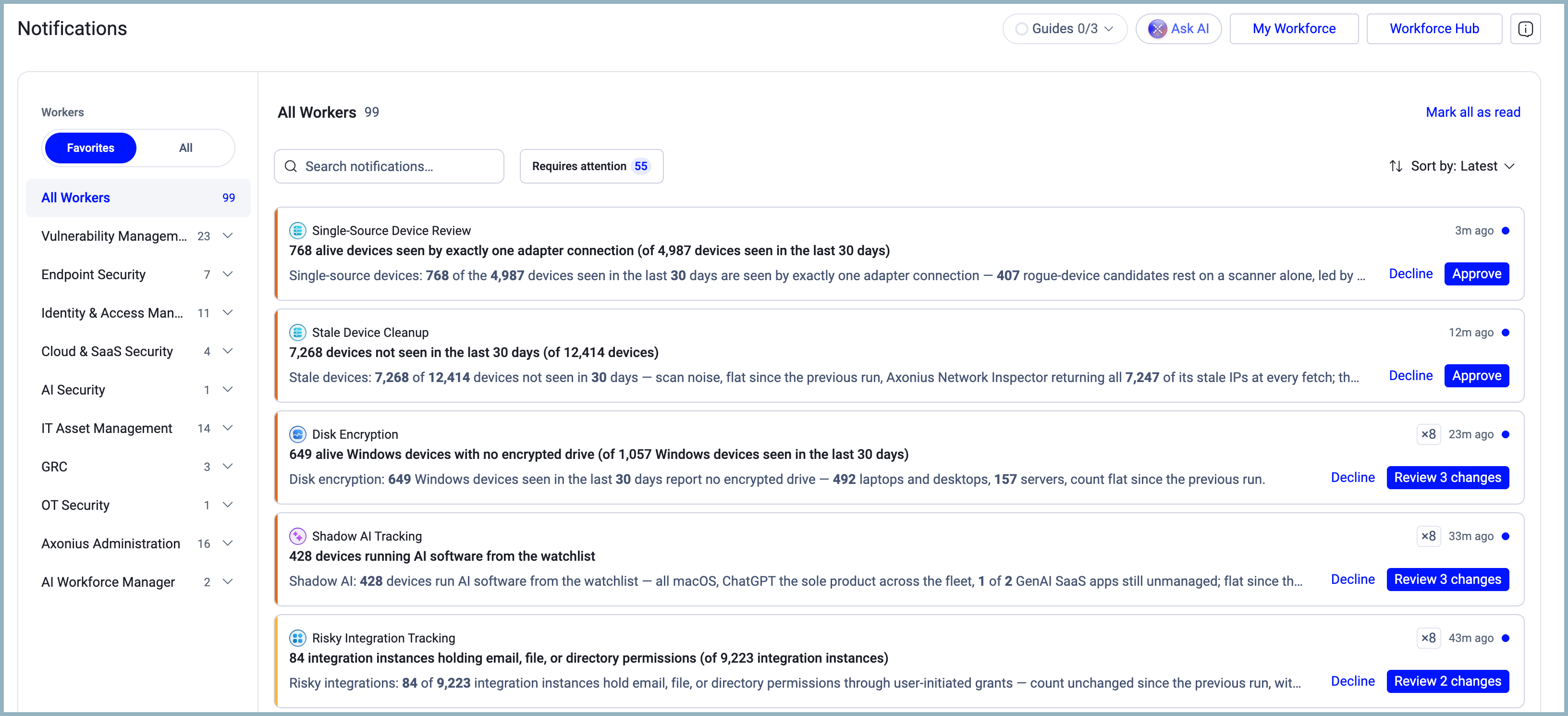
Each worker's run, when finished, appears on this page as a notification card. When the results of a run are the same, the results are grouped under one notification, with an identifier indicating the number of identical runs.
Permissions
- To open the Notifications page, your role needs the AI Agents > View and interact permission.
- To see the runs of the AI Workforce workers, your role needs a global data scope. Without a global data scope, the page shows your own runs in that scope, including your own Run now runs of Virtual Workers.
- To use Always Approve, your role needs the AI Agents > AI Agents > Manage the AI Workforce permission and a global data scope.
Opening the Notifications Page
In the sidebar, hover over AI Workforce, and then select Notifications.
The Notifications option in the sidebar shows a badge with the number of unread notifications in your current view. The badge follows your choice of Followed or All.
Each worker page also has a Notifications tab that shows the same cards for that worker only.
Workers Panel
The Workers panel on the left lists all departments and workers and sets the scope of the page. The count next to each row shows how many notifications the row holds.
Switching Between Followed and All
The Followed and All tabs at the top of the panel control which runs the page shows, including the counts, the filters, and the sidebar badge:
- Followed — Shows the runs of the workers and custom workers you follow, and the runs you started with Run now. Followed is the default view.
- All — Shows every run of every worker, followed or not.
Axonius remembers your choice in your browser. To add a worker to Followed, follow the worker in the Workforce Hub. See Following Workers.
If you never followed or unfollowed a worker, you start out following the workers that are enabled at that time. When you follow or unfollow a worker, the list becomes yours to manage.
When none of the workers you follow have runs and Followed is selected, the page shows "No notifications from the workers you follow yet." To switch to the All view, select Show all notifications.
The Followed and All tabs appear only for roles that see the runs of the AI Workforce. For other roles, the page shows only the runs of their own tasks.
Filtering by Department or Worker
To view a list of all workers, select All Workers. To view a specific department or worker, select the department or worker in the list.
To scope the list to a row, select the row. To see the unread count without selecting, hover over the row — the hover text shows the total and unread count. To change the width of the panel, drag its edge.
When you select a worker, the list heading shows <department> / <worker>. To expand the view back to the whole department, select the department name in the heading.
On a window narrower than 1200 px, the panel becomes a Choose a worker menu above the list.
Notifications List
The list shows the notifications for the selected row in the Workers panel. The heading shows the row name and its count.
Searching Notifications
Type in the Search notifications… bar to filter cards by keyword. The search matches against the title, the headline, and the briefing of each notification.
Filtering by Requires Attention
Select Requires attention to show only the items waiting on your decision. Select it again to return to the full list. When the filter is active, the count next to each row in the Workers panel shows only the items that wait on you.
The filter includes:
- Unread runs with a change that waits for your decision. A change waits when a worker previewed a write in Human in the loop mode, and nobody declined the change or sent it to the chat.
- Your own conversations that stopped for your approval or your answer. These appear as Waiting on you cards. See Waiting on You Cards.
When you view a run, it is removed from the Requires Attention filter. Mark as unread puts the run back. When nothing waits on you, the page shows "Nothing is waiting on you here."
Sorting Notifications
Use Sort by to order the list:
- Latest first — The newest runs first. This is the default.
- Oldest first — The oldest runs first.
- Unread first — Unread runs before read runs.
- By priority — The most severe runs first. Failed runs and unread runs with a waiting change come before information runs. Among waiting changes, approvals (where the worker has proposed a specific action) rank before questions (where the worker is asking for your input).
Marking Notifications as Read
Mark all as read marks every notification in the current list as read. The action is available only when All Workers is selected, no search text is entered, and unread notifications exist. In Followed view, the action marks only the runs in Followed — the other runs stay unread.
Empty States
- "No new notifications are available at this moment for you." — Your view has no notifications.
- "No notifications match this filter." — The search or filter matches nothing.
Notification Cards
To open the full details of a run, select the card.

Each card shows one run, or a series of runs that returned the same result.
A card shows the following:
- The worker icon and name. To open the worker page, select the name.
- A tag for a custom worker: Personal Custom for your own custom worker, or Organizational Custom for one your organization shares.
- The time of the run, and a blue dot when the notification is unread.
- The title — the headline of the run — and one line of the worker's briefing.
- A colored left edge that shows the severity of the run.
- Action controls at the end of the card. See Approving or Declining Changes.
When a worker has previewed a change and is waiting for your decision, Decline and Approve appear at the end of the card. Select Approve to send the change to the AI chat for final confirmation, or Decline to reject it. Until you decide, the card stays unread.
Severity Colors
The colored left edge shows the severity that the worker assigned to the run:
| Color | Severity |
|---|---|
| Red | Critical, or a failed run |
| Orange | High |
| Yellow | Medium |
| Blue | Low or information |
| Grey | No verdict |
Every scheduled run gets a severity, including runs of custom workers.
Stacked Run Cards
When a worker runs several times in a row and returns the same result, the page displays a single card with a tag such as ×5. To see the run count, hover over the tag — the tooltip shows "5 runs, same result".
A series continues, with runs completing one after the other under the same headline number. When a run has no number in its headline, the headline text must be identical. A new card starts when the headline number changes, when a run fails, when the first run follows a failed run, or when a different worker runs.
Each new run with the same result makes the card unread again. When you sort by Latest first, the card moves to the top and shows the newest run's headline, briefing, results, and next steps. The counts in the Workers panel and the unread badges count cards, not individual runs.
For example, a daily Coverage Check worker finds "12 devices with no agent" on five consecutive days. The page shows one card with ×5. On day six, the count changes to 9, and a new card starts.
Automatic Pause
A scheduled worker pauses its own schedule after 14 consecutive runs with the same result and no action taken. The card then shows "Paused after 14 runs with the same result and no action on them." and a Resume option.
To resume your own schedule, your role needs the AI Agents > View and interact permission. To resume the schedule of an organizational custom worker, your role needs the AI Agents > Manage the AI Workforce permission and the global data scope.
To resume a paused schedule:
- In the sidebar, hover over AI Workforce, and then select Notifications.
- Find the card of the paused worker.
- Select Resume. The message "<worker name> runs on its schedule again." appears, and the schedule runs again from its next scheduled time.
You can also resume the schedule from the Scheduled Workers page. To do so, edit the schedule and enable Activate. See Managing Scheduled Workers.
If Axonius can't resume the schedule, the message "Failed to resume the schedule." appears.
The following actions restart the count of runs:
- You open the card, or select Mark as read or Mark as unread. On a card with a change that waits for your decision, opening the card doesn't count. Only a decision or Mark as read / Mark as unread counts.
- You approve or decline a change on the card.
- You select Run now.
- A run of a Virtual Worker applies a change in Live mode.
- You resume the schedule with Resume or Activate.
The following schedules never pause this way:
- The AI Workforce schedules of the catalog workers.
- A schedule with Email me each run's report enabled. When you disable the email, the count starts from that time.
- A custom worker with a write action set to Live.
- A worker that you follow. For an organizational custom worker, the schedule doesn't pause when any user follows the worker. To follow a worker, your own follow or unfollow counts — the list of workers you start out following doesn't. See Following Workers.
Note the following:
- When you follow a worker after its schedule is paused, the schedule stays paused. To restart the schedule, select Resume.
- When you unfollow a worker later, the count doesn't restart. The schedule can pause at its next run.
- When you change the email setting or turn the schedule off and on during a run, that run doesn't pause the schedule.
- The automatic pause stops only the schedule. The worker's status doesn't change.
- After the upgrade to version 10.0.1, a card counts only the new runs. A card that paused before the upgrade can show a lower run count.
- Axonius records the pause in the Activity Logs as Scheduled Task Paused Automatically, and records the resume as a separate entry.
To find out why a worker stopped running, ask the AI Companion, for example: "Why did my worker stop running?" The AI Companion tells you when the schedule paused and after how many runs.
For example, a custom worker runs every day and reports the same number of devices for 14 days, and nobody opens its card. After the 14th run, the schedule pauses, and the card says so. You select Resume, and the worker runs the next day again.
Hover Actions
When you hover over a card, the following actions appear:
- Open in chat — Opens the run's conversation in the AI Companion side panel. The Open in chat menu also includes Ask AI. Open in chat displays the report in the AI Companion chat pane. Ask AI opens the chat pane with a question about the notification itself.
- Mark as read / Mark as unread — Changes the read state of the notification.
To open the details panel, select a card. See Notification Details Panel.
When you open the details panel or select Open in chat, Axonius marks the run as read. A run with a change that still waits for your decision stays unread. Ask AI never marks a run as read.
Approving or Declining Changes
When a worker previews a change in Human in the loop mode, you decide whether it applies. Nothing on this page writes data without your decision.
The end of a card shows one of the following controls:
- Decline and Approve — One change waits for your decision.
- Decline and Review N changes — Several changes wait. To decide each change in the details panel, select Review N changes.
- View Actions/Changes — The run has results but no change waiting for a decision. Select to open the details panel.
- Open in chat — The card is a Waiting on you card.
Approve
Approve sends the change to the chat for your final approval. The mode of the action doesn't change. The AI chat opens with an approval card for the change. To apply the change, approve it there. The card then shows Sent to chat for every user who sees it. The details panel shows "Sent to chat by <user> · <time>".
In Results in the details panel, the menu of Approve has the following options:
- Approve Once — Works the same as Approve on the card.
- Always Approve — Sets this action of the worker to Live for its next runs, and then approves this change. A Switch to Live? dialog asks for confirmation. After you confirm, the worker applies the action automatically on every run — including scheduled runs — without stopping for approval. This write still goes to your chat for approval. The option appears only for users with the Manage the AI Workforce permission in the global data scope, and only while the action is in Human in the loop mode.
If the action is already Live, the row shows "Live from the next run". If an administrator set the action to Off, the row shows "Now Off — approval required".
Decline
Decline rejects the change. Axonius writes nothing, and the change shows as Declined for every user who sees the notification. When several changes are waiting, Decline on the card declines all of them.
The details panel shows "Declined by <user> · <time>", or "All changes declined by <user> · <time>", with an Undo option. Undo puts the changes back for all users, and the run becomes unread again.
"Waiting on you" Cards
A Waiting on you card represents one of your own conversations that stopped waiting for your approval or answer. The card shows the worker name — or AI Companion for a plain chat — the Waiting on you tag, the title, and the question. To answer in the conversation where it stopped, select Open in chat.
The details panel for this card shows Waiting on your answer, What will change, and Your options. The options are read-only.
Example
A worker previewed a tag change on 12 devices. The card shows Decline and Approve. When you select Approve, the chat opens with an approval card for this change. After you approve it in the chat, the card shows Sent to chat.
Notification Details Panel
To open the details panel, select a card or select Review N changes. The panel shows the notification title, Open in chat, and the worker name with the time of the newest run. To change the panel width, drag its edge.
The panel includes the following sections:
-
What changed from last run — Compares the run with the previous run, with a small trend chart. For a stacked card, the box shows how long the result stayed the same — for example, "Unchanged for the last 5 runs · Before that: 3 fewer (−50%)". The box doesn't appear when the headline has words and no number, or when fewer than two runs have a number.
-
What the worker worked out — Shows the Summary of the worker's briefing first. To expand the full briefing, select Read more.... To collapse it, select Show less. A briefing with no summary shows in full. The panel doesn't repeat the headline metric and severity, because the card title and left edge already show that information. Screen readers announce the severity under the title — for example, "Severity: High".
-
Results — Lists each change from the run with its current state: Done, Waiting for approval, Sent to chat, Declined, or Failed. Each row links to the affected records or tickets, or shows its own Decline and Approve controls. See Approving or Declining Changes.
-
Suggested next steps — Up to three suggestions that open the chat with a follow-up question. Suggested next steps never appear in the Requires attention filter.
Updated 2 days ago