
BD Alaris
BD Alaris is an IV pump management platform that provides device inventory, firmware tracking, and connectivity monitoring for infusion pump controllers and their serially attached modules via a dedicated MS SQL database.
Use Cases the Adapter Solves
- Track Medical Device Inventory: Maintain an accurate inventory of all infusion pump controllers (PCUs) and their attached modules across your healthcare network for visibility into medical device assets.
- Monitor Device Connectivity and Status: Identify disconnected or unreachable infusion pumps to ensure continuous availability of critical medical devices and prevent potential patient safety issues.
- Ensure Firmware Compliance: Verify that all BD Alaris devices are running approved software, boot, and firmware versions to meet regulatory compliance requirements and maintain device security standards.
Asset Types Fetched
- Devices
Data Retrieved through the Adapter
Devices - Fields such as Alaris Device ID, Serial Number, Model Name, Software Version
Before You Begin
Required Ports
- TCP port 1433 (MS SQL Server)
Authentication Methods
Database Authentication via MS SQL Server - The adapter connects directly to the BD Alaris MS SQL database using standard SQL Server authentication.
APIs
Axonius connects directly to the BD Alaris MS SQL database (InfusionOLTP). The following database tables are queried:
Infusion_InfusionMonitorController- Retrieves PCU controller device information including device ID, serial number, software versions, and power supply detailsInfusion_InfusionMonitorControllerConnectionState- Retrieves network connectivity information including IP addresses, MAC addresses, and communication statusInfusion_InfusionMonitorModule- Retrieves infusion pump module information including device ID, serial number, and software versionsInfusion_InfusionMonitorModuleModel- Retrieves module model descriptions and marketing informationInfusion_InfusionControllerModuleAssoc- Retrieves associations between modules and PCU controllers
Required Permissions
The database user must have the following SQL Server permissions:
- Database credentials (username and password) with READ access to the InfusionOLTP database
- SELECT permission on the following tables in the InfusionOLTP database:
Infusion_InfusionMonitorControllerInfusion_InfusionMonitorControllerConnectionStateInfusion_InfusionMonitorModuleInfusion_InfusionMonitorModuleModelInfusion_InfusionControllerModuleAssocInfusion_InfusionControllerModuleAssocSet
NoteThe exact permission names should be confirmed with your BD Alaris database administrator or BD support, as the API documentation is not publicly available.
Supported From Version
Supported from Axonius version 9.0.4
Setting Up BD Alaris to Work with Axonius
To configure BD Alaris for integration with Axonius, you need to configure access to the BD Alaris MS SQL database:
- Identify the SQL Server host where the BD Alaris InfusionOLTP database is installed.
- Contact your BD Alaris database administrator to create a read-only database user account.
- Ensure the database user has SELECT permissions on the required tables listed in the Required Permissions section.
- If your BD Alaris database uses Active Directory authentication, ensure the username is in the format
DOMAIN\usernameor[email protected] - Verify network connectivity from the Axonius instance to the SQL Server on port 1433.
- Collect the following information for use in Axonius:
- SQL Server hostname or IP address
- SQL Server port (default: 1433)
- Database name (default: InfusionOLTP)
- Database username
- Database password
Connecting the Adapter in Axonius
- Navigate to the Adapters page, search for BD Alaris, and click on the adapter tile.
- Click Add Connection.
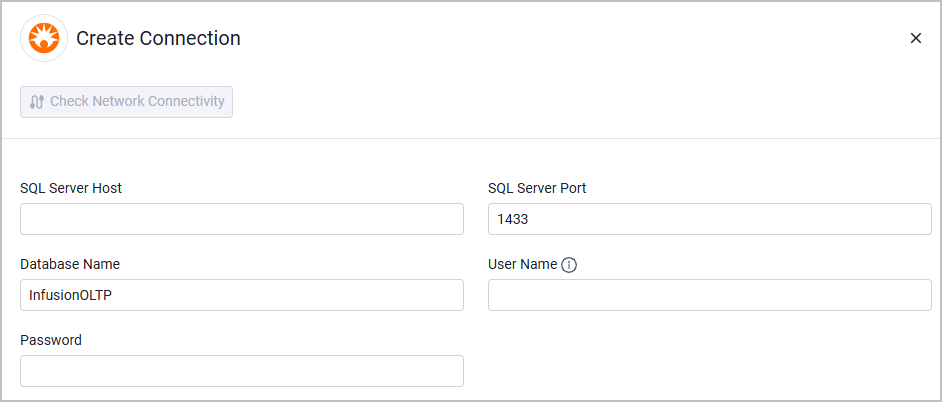
- Provide the following parameters:
Required Parameters
- SQL Server Host - The hostname or IP address of the Microsoft SQL Server hosting the BD Alaris InfusionOLTP database. Example:
bd-alaris-sql.healthcare.local - SQL Server Port - The port number for the SQL Server instance. Default is
1433. - Database Name - The name of the BD Alaris database. Default is
InfusionOLTP. - User Name - The username for SQL Server authentication. If an AD Domain is configured, the username should be in the format of
DOMAIN\usernameor[email protected]. Example:HEALTHCARE\axonius_readonly - Password - The password for the database user account.
To learn more about common adapter connection parameters and buttons, see Adding a New Adapter Connection.
Updated 12 days ago