
Managing Scheduled Workers
Use Scheduled Workers to run a prompt on a recurring schedule and automatically receive the results. Instead of asking the same question every morning — for example, "Which critical vulnerabilities were published in the last 24 hours?" — you configure it once as a scheduled task, and the agent runs it for you on the cadence you set.
Results are displayed in a new chat with an "unread" indicator.
Scheduled tasks are useful for recurring security hygiene checks, daily environment briefings, and any question where you want a recurring answer without manual effort.
Viewing Your Scheduled Workers
Scheduled Workers appears as a top-level item in the sidebar with a badge showing the count of active tasks.
To view your Scheduled Workers:
- Click Scheduled Workers in the sidebar.
- A list of your Scheduled Workers is displayed.
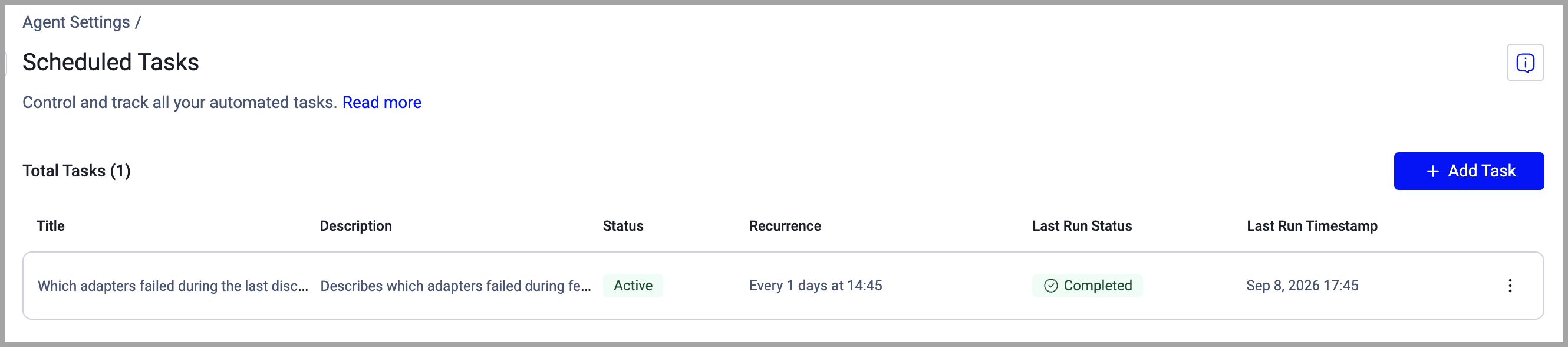
Axonius Predefined Tasks
Axonius provides a set of predefined scheduled tasks in the Scheduled Workers list. Predefined tasks are disabled by default and represent common recurring use cases, for example daily vulnerability checks and environment briefings.
To use a predefined task, hover over it and select Enable from the More menu. To create a custom version based on a predefined task, select Duplicate, then edit and save the copy as your own custom task.
Predefined tasks can't be edited or deleted.
Creating a Scheduled Worker
You can create as many Scheduled Workers as you want.
To create a Scheduled Worker:
-
Click Scheduled Workers in the sidebar.
-
Click Add Custom Worker. The Add Custom Worker drawer opens.
-
To activate the task when you save it, enable Activate. Disable this option to save the task without running it.
-
In the Title field, enter a unique name for the task.
-
In the Prompt field, enter the AI prompt Axonius runs when the task triggers.
-
(Optional) To add context or notes, click + Add description and enter a description.
-
Under Recurrence, select and configure the trigger type:
- Scheduled — Enter a number and select a time unit in the Every fields to set the run frequency, then enter a run time in HH:MM format in the Run time field. All times are in UTC.
- Event — Runs the task when the selected event occurs: Every Discovery cycle or Every successful adapter fetch. When you select Every successful adapter fetch, choose the specific adapter connection that triggers the task.
-
Under Email Delivery, select Email me each run's report. The report is emailed to the email address associated with your user account after each successful run. If a run failed, no email is sent.
-
Click Save.
The task appears in the Scheduled Workers list and runs at the next scheduled time.
How Results Are Delivered
Results are delivered in a new chat with an "unread" indicator.
To have the report sent to you via email, enable Scheduled Worker Emails in General Settings.
Editing a Scheduled Worker
To edit an existing Scheduled Worker:
- Open the Scheduled Workers list and select the task you want to change, or from the 3-dot More menu, click Edit.
- Make the changes you want and click Save.
Changes take effect at the next scheduled run.
Deleting a Scheduled Worker
To delete a Scheduled Worker:
- Open the Scheduled Workers list.
- From the 3-dot More menu of the task you want to delete, select Delete.
- The task is deleted and will no longer run.
Deleting a Scheduled Worker stops all future runs. Past results are not affected.
Updated 7 days ago