
Palo Alto Networks Cortex Cloud
Palo Alto Networks Cortex Cloud is a cloud security platform that provides application security, cloud posture management, runtime protection, and threat detection across code, cloud, and SOC environments.
Use Cases the Adapter Solves
- Identify vulnerable cloud assets: Discover virtual machines and containers with known CVEs and assess their severity to prioritize remediation efforts.
- Monitor compliance posture: Ensure adherence to security standards and regulatory requirements across your cloud infrastructure.
Asset Types Fetched
- Devices, Containers
Data Retrieved through the Adapter
Devices - fields such as Asset Name, Asset Strong ID, Asset ID, Cloud Provider
Before You Begin
Required Ports
- TCP port 443 (HTTPS)
Authentication Methods
API Key Authentication
The adapter authenticates using an API Key and API Key ID, supporting two authentication methods:
- Standard Authentication - Uses the API Key directly in the
Authorizationheader, no timestamp / nonce / signing required. - Advanced Authentication Method - Generates a signature using the API Key with timestamp and nonce for enhanced security. The mandatory headers are:
x-xdr-auth-id- numeric API Key IDx-xdr-timestamp- current UTC time in millisecondsx-xdr-nonce- random 64-character alphanumeric string, unique per requestAuthorization- hex-encoded SHA256(API_KEY + NONCE + TIMESTAMP).
APIs
Axonius uses the Cortex Cloud Platform APIs. The following endpoints are called:
POST /public_api/v1/assets- Retrieves asset inventory data for virtual machines and containersPOST /public_api/v1/issue/search- Retrieves vulnerability and compliance issues
Required Permissions
The API user must have the appropriate permissions to access the Cortex Cloud APIs. The exact permission names should be confirmed with your Palo Alto Networks administrator, as specific role-based permissions are required for:
- Asset Inventory Access - Read access to virtual machine and container assets
- Issue Management Access - Read access to vulnerability
Note: The exact permission names should be confirmed with your Palo Alto Networks administrator or Palo Alto Networks support, as the API documentation is not publicly available.
Supported From Version
Supported from Axonius version 9.0.2
Connecting the Adapter in Axonius
- Navigate to the Adapters page, search for
Palo Alto Networks Cortex Cloud, and click on the adapter tile. - Click Add Connection.
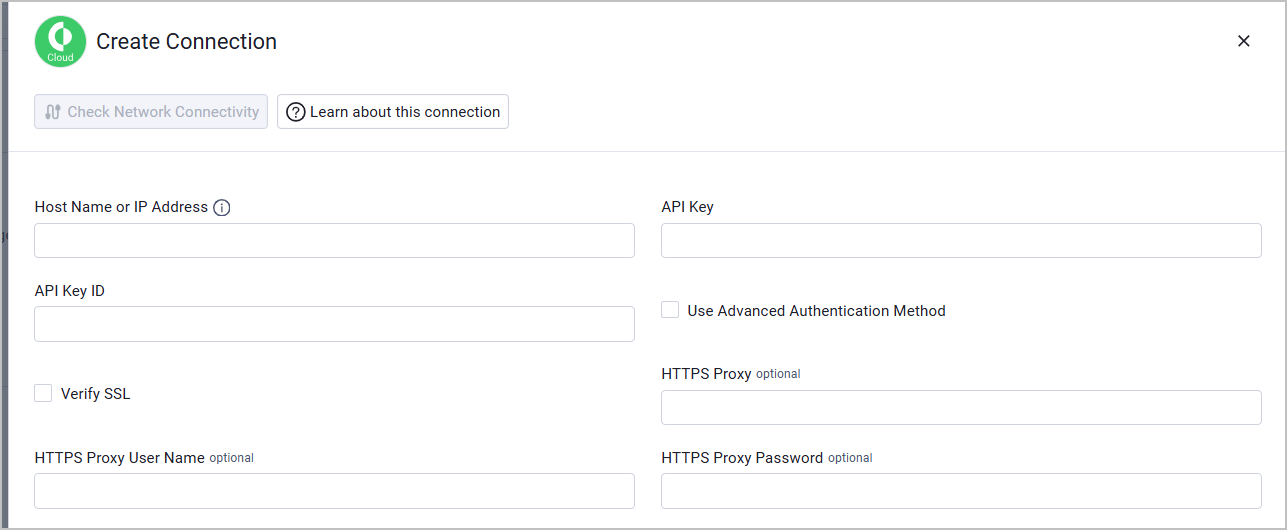
To connect the adapter in Axonius, provide the following parameters:
Required Parameters
- Host Name or IP Address - Base domain for the API, should contain a prefix of http:// or https://. Do not add any specific endpoints after the domain. Example:
https://api-tenant.xdr.us.paloaltonetworks.com - API Key - The API Key generated from the Cortex Cloud console.
- API Key ID - The API Key ID associated with the API Key.
- Verify SSL - Select whether to verify the SSL certificate of the server against the CA database inside of Axonius. For more details, see SSL Trust & CA Settings.
Optional Parameters
- Use Advanced Authentication Method - Enable this option to use the advanced authentication method that generates a signature with timestamp and nonce for enhanced security.
- HTTPS Proxy - Connect the adapter to a proxy instead of directly connecting it to the domain.
- HTTPS Proxy User Name - The user name to use when connecting to the value supplied in Host Name or IP Address via the value supplied in HTTPS Proxy.
- HTTPS Proxy Password - The password to use when connecting to the server using the HTTPS Proxy.
To learn more about common adapter connection parameters and buttons, see Adding a New Adapter Connection.
Updated 24 days ago