
Your First Chat with Axonius AI
Axonius AI is a conversational assistant built into the Axonius platform. It can query your asset data, build and save queries, create dashboard charts, explain platform concepts, run automated health checks across your environment, and take actions on your behalf — all through plain-language conversation.
Axonius AI knows your environment and the Axonius platform. You can ask it questions about your assets, have it surface risks and gaps, create queries and charts from natural-language prompts, or run one of the built-in Virtual Workers that check your environment automatically.
How to Access Axonius AI
There are multiple ways to work with Axonius AI:
- AI Companion that appears in a side pane that stays open as you navigate Axonius, and a full-screen mode for focused work. The AI Companion is available from every page in Axonius. Click Ask AI to open the AI Companion side page.
NoteAxonius AI has the same access you do, so you can use it to explore the same data and functionality as you can.
Side Pane
At the top of the Axonius screen, click the Axonius AI icon next to your user avatar:

The Axonius AI pane opens on the right side of the screen. It stays open as you navigate — you can browse your assets, open dashboards, and come back to the chat at any time.
Axonius AI displays a few quick sample prompts you may want to use to ask about your environment. Click Show more to see more quick prompts. Click on one of them to see the results.
When you click a prompt, Axonius AI starts analyzing it. Some prompts take longer to answer than others, depending on how much work is needed. While Axonius AI is still processing, the 3-dot ellipsis will animate. When Axonius AI has an answer, it displays its response in the chat pane.
Use the icons in the Axonius AI pane toolbar to manage your session:
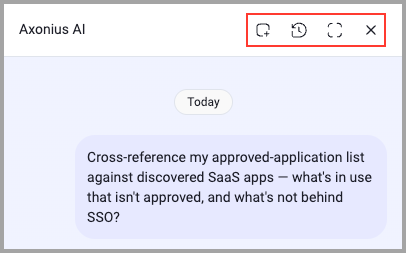
- To start a new chat, click
 (New Chat) in the Axonius AI pane toolbar. The previous chat is saved in Chat History.
 - To view Chat History, click
 (Chat History) in the Axonius AI pane toolbar. See Managing Chats to rename, pin, move, delete, or mark a chat as unread.
 - To switch to full-screen mode, click
 (Full Screen) in the Axonius AI toolbar.
 - To close the Axonius AI pane, click
 (Close) in the Axonius AI toolbar.
Full-Screen Mode
For more focused or extended conversations, open Axonius AI in full-screen mode.
There are two ways:
- From the side pane, click the Full Screen icon () in the pane toolbar.
- From the left navigation rail, click AI Companion.
NoteWhen you switch from the Axonius AI pane to full-screen mode, the pane closes. If there was an active conversation, it stays active and is displayed in the Axonius AI page.
The Axonius AI opens in full-screen mode with your full conversation history in the sidebar.
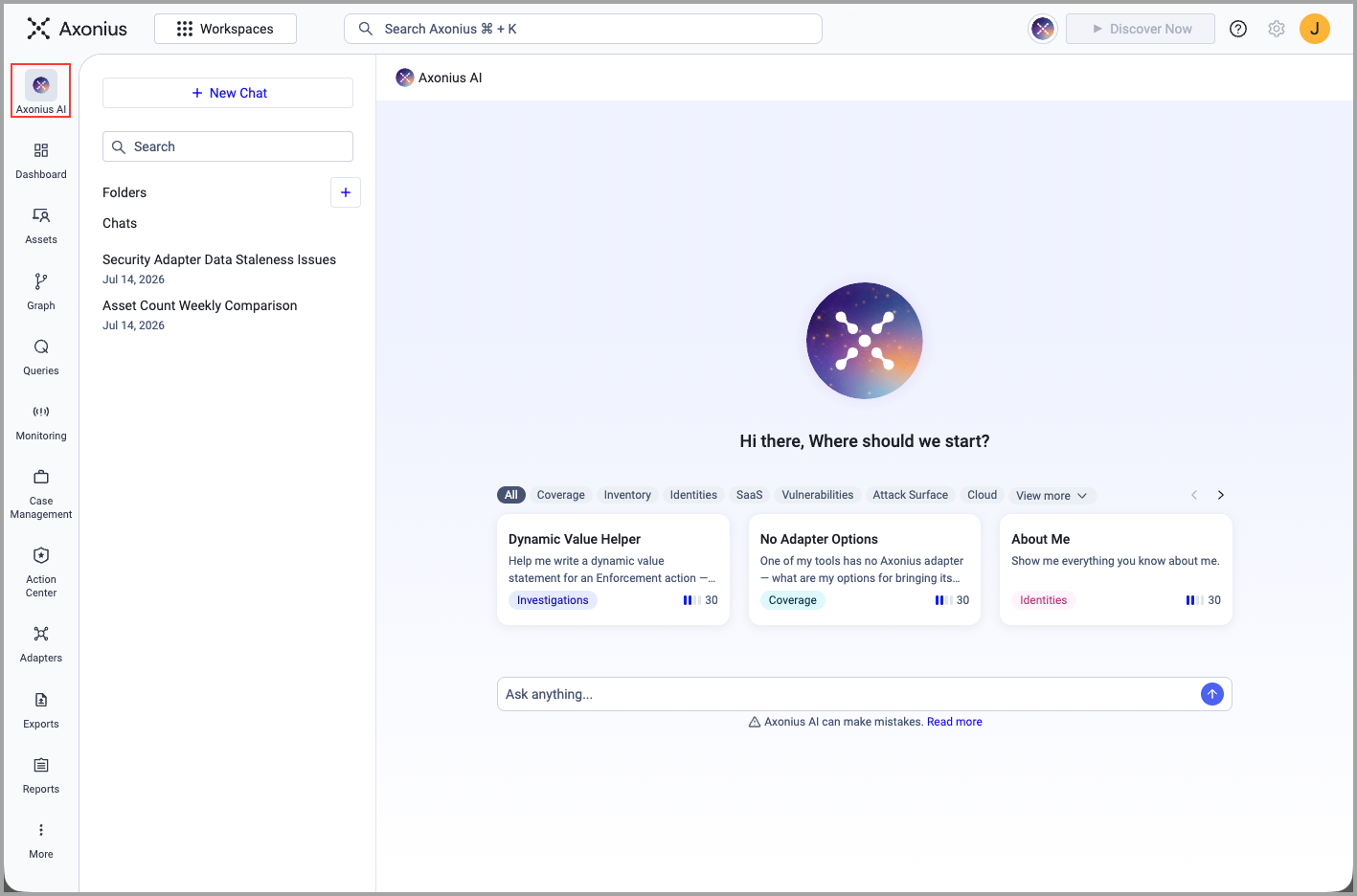
- Click + New Chat to start a new conversation.
- Use folders to organize your chats by topic or project.
- Older conversations load as you scroll down the sidebar.
- A streaming indicator shows when a response is generating; an unread dot marks conversations with replies you haven't seen yet.
- You can ask Axonius AI to file the current chat: "Move this chat to my CVE folder" — it will create the folder if it doesn't exist.
Start with Axonius AI — What Do You Want to Know?
Want to know the difference between the features in Axonius?
Ask Axonius AI.
Want a quick overview of the status of a certain set of assets?
Ask Axonius AI.
Need to know about your system exposures?
Ask Axonius AI.
Want to know about admin and privileged roles in your environment?
Ask Axonius AI.
Start your Axonius session using Axonius AI to surface information for you.
What a Response Looks Like
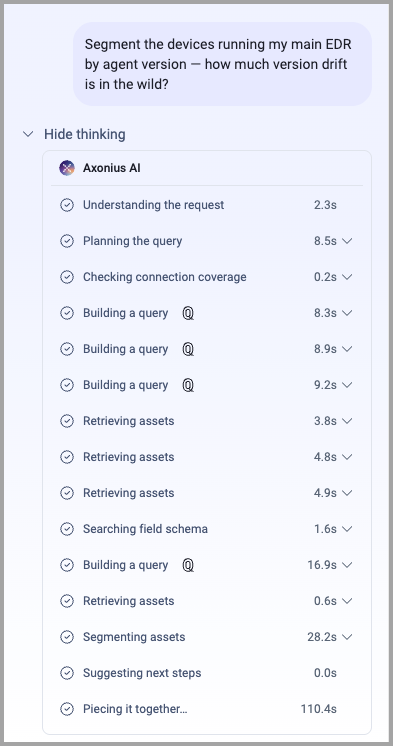
When you click a prompt or type a question, Axonius AI begins working. First, the "thinking" section appears. Before delivering its answer, Axonius AI displays a progressive list of steps it is taking to build the response. Steps appear one by one as Axonius AI works through your request.
For example, a check on software health might show steps like:
- "Running query for end-of-life software"
- "Checking governance data"
- "Analyzing patch backlog"
This execution plan helps you understand what Axonius AI is doing at each stage.
Expand Show thinking to see the full process Axonius AI used to develop its answer.
A full response often includes a text description of the results, as well as charts and tables to present information in an easy-to-use way. You can download charts by clicking the download icon.
Responses also include Key observations and Recommended next steps. Below the response, Axonius AI may show you some prompts to consider under Suggested next steps. You can click one of those, ask another question in this chat, or start a new chat.

Use the icons below a chat response to rate it or copy it to the clipboard. Your ratings help Axonius AI improve.

The AI Workforce
Beyond one-off questions, Axonius AI includes the AI Workforce — a team of Virtual Workers that run automatically (after each discovery cycle, daily, or on a custom schedule) and report findings directly to you.
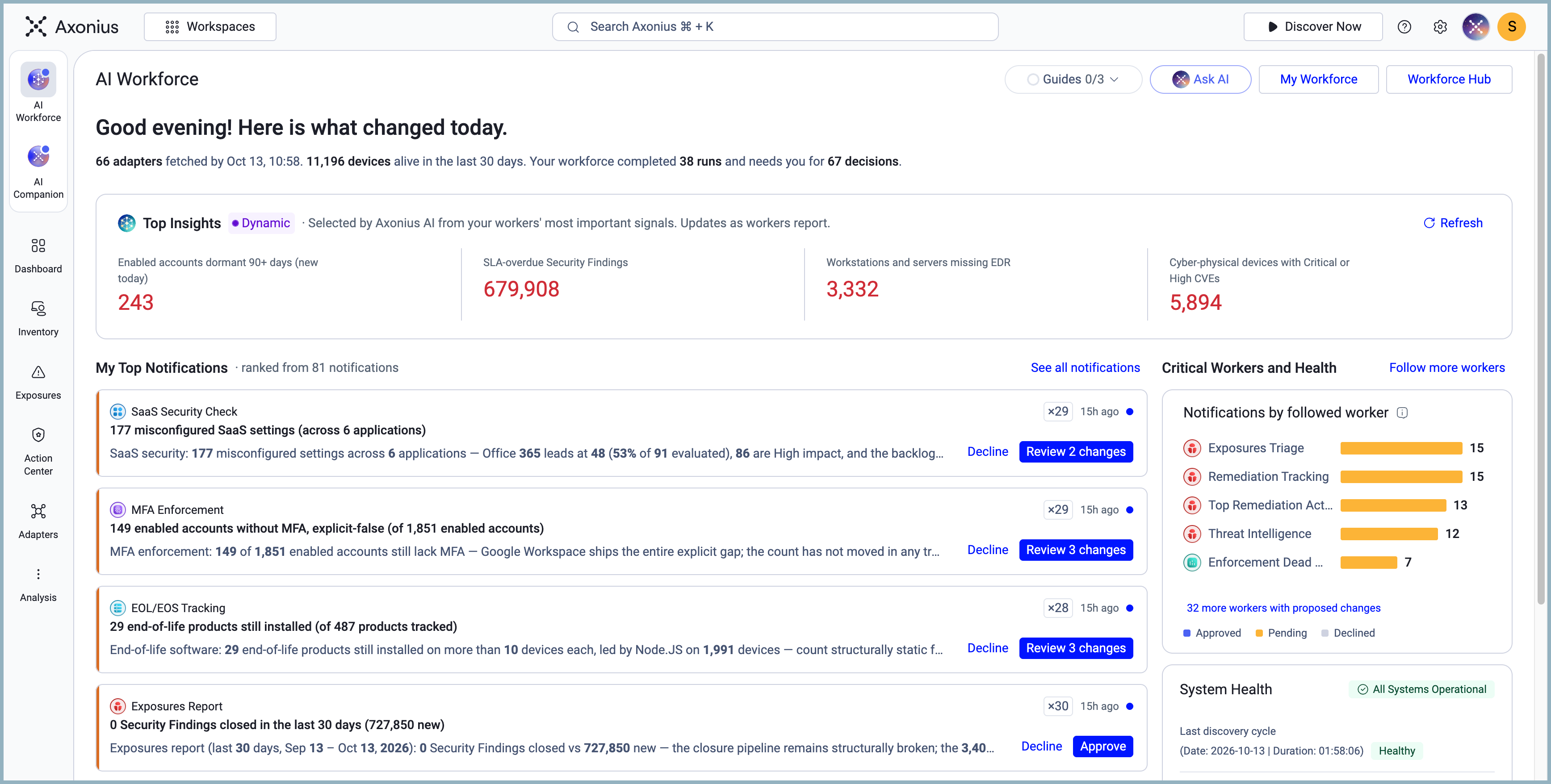
You access the AI Workforce from AI Workforce in the left navigation rail. It opens to the Home Page, which shows your top insights from the latest automated runs, notifications that need your attention, and the health of your connected sources.
What You'll Find in the AI Workforce
- Workforce Hub — All Virtual Workers organized by security department (Vulnerability Management, Endpoint Security, Identity & Access Management, Cloud & SaaS Security, and more). Each worker shows its last run result, whether it needs attention, and a headline number you can click to investigate.
- Notifications — The results of every scheduled run, newest first. Cards show what each worker found, what actions it previewed or applied, and whether anything is waiting for your approval.
- My Workforce — Your starred (favorited) workers for quick access. Star a worker by clicking the star next to its name.
- Custom Workers — Prompts you've scheduled yourself. Create one from My Workforce → Create Custom Worker, or ask Axonius AI: "Schedule a weekly check of my devices missing CrowdStrike."
Running a Worker Manually
Every worker can be run on demand — click Run now on the worker's page, or simply type its entry phrase in any chat:
- "Run my coverage check."
- "Run my system health check."
- "Run my AI Workforce Manager briefing."
The worker runs immediately and posts its findings as a new conversation, which also appears in your Notifications.
Approving Worker Actions
Some workers can take actions on your behalf — tagging assets, opening tickets, updating cases — depending on how they're configured. There are three modes:
- Off — The worker surfaces findings only; no actions are taken.
- Human in the loop — The worker previews what it would do and waits for your approval before applying anything.
- Live — The worker applies approved actions automatically.
You can review and change these settings from the worker's page under Approved Actions.
How to Talk to Axonius AI
Just describe what you want in plain English. You don't need to know query syntax, field names, or where things live in the UI.
Asking about your assets:
- "How many devices are missing CrowdStrike?"
- "Show me Windows servers last seen more than 30 days ago."
- "Which users have never logged in?"
Running automated checks:
- "Run my coverage check."
- "Run my data hygiene check."
- "What should I ask right now?"
- "What did my workforce find overnight?"
Building and saving queries:
- "Build me a query for devices with no EDR agent and a critical finding."
- "Save this as a saved query called 'Missing EDR — Critical Risk'."
Creating charts and dashboards:
- "Create a dashboard chart of my devices by OS type."
- "Add a Pivot Summary tile showing open critical findings to my Security Overview dashboard."
Learning the platform:
- "Teach me how queries work."
- "Explain the difference between Security Findings and Aggregated Security Findings."
Taking action:
- "Tag these devices as 'Missing EDR'."
- "Open a Jira ticket for the missing-agent findings."
- "Schedule a weekly check of my Windows patch backlog."
Tips for Best Results
- Be specific about what you want back — "count" vs "list" vs "break down by OS" all produce different answers.
- Name the tool or source when relevant — "devices missing CrowdStrike specifically" is more precise than "devices missing an EDR".
- Follow the chips — the clickable suggestion buttons after each answer are curated next steps, not decoration.
- Ask follow-ups freely — Axonius AI remembers the context of the current conversation, so you can refine ("now filter that to just Windows") without repeating yourself.
What Axonius AI Can Do
| Capability | Examples |
|---|---|
| Query your assets | Count, list, filter, and explore devices, users, software, vulnerabilities, SaaS apps, and more — across every module |
| Build and save queries | Translate plain-language questions into queries; save them for dashboards, enforcements, and reports |
| Create charts and dashboards | Build any chart type (field segmentation, Pivot Summary, comparison, timeline, pivot) on any dashboard |
| Run Virtual Worker checks | Trigger any of the built-in health checks on demand and read their findings |
| Schedule recurring checks | Create custom workers that run on a schedule and deliver results to your Notifications |
| Take confirm-gated actions | Tag assets, set custom data, open ITSM tickets, create cases, run or pause enforcements — with a preview and approval step before anything changes |
| Explain the platform | Answer how-to and concept questions about any Axonius feature |
| Manage your content | Save queries, organize chats into folders, rename dashboards, clean up unused content |
Axonius AI Always:
- Provides clear explanations — Relies strictly on verified data and explains any gaps if information is missing.
- Keeps you in control — Displays a preview first and waits for your explicit approval before applying any changes.
- Protects your boundaries — Strictly operates within your assigned data scope.
- Translates complex details — Presents all findings and results in clear, plain language.
Actions Require Your Approval
When you ask Axonius AI to make a change — save a query, create a chart, tag assets, open a ticket, create a case — it will show you a preview before applying anything.
Review the preview and:
- Click Accept (or type "yes" / "go ahead") to apply the change.
- Click Reject (or type "no" / "cancel") to discard it.
Nothing is changed until you approve. This applies to every write action, including actions taken by Virtual Workers in Human in the loop mode.
Some actions — particularly those that affect external systems like your ITSM, or that run enforcement sets — show an additional confirmation step and require an explicit approval before proceeding.
Managing Your Chats
Your conversation history is always available in the sidebar. You can:
- Create folders — right-click a conversation in the sidebar and choose Move to folder, or ask Axonius AI: "Move this chat to my Vulnerability folder." Axonius AI will create the folder if it doesn't already exist.
- Search your history — scroll through the sidebar to find past conversations; older ones load as you scroll.
- Rename or delete — use the conversation's menu (⋮) to rename, delete, or mark it unread.
- Open in full screen — click the full-screen icon in the side pane to expand the current conversation.
See Chat History and Managing Chats to find and manage previous conversations.
See Organizing Chats into Folders and Memory to organize conversations and understand information retained across sessions.
Updated 7 days ago