
Microsoft Azure AI
Microsoft Azure AI is Microsoft's platform for building, deploying and managing AI agents and models, and the tools, guardrails and resources they use across Azure AI Foundry and Azure OpenAI.
Note
The fetch options of this adapter are available only for Security for AI, and they are all disabled by default.
Data Retrieved through the Adapter
- AI Agents - Fields such as: name, status, version, description, definition (Hosted, Prompt, Workflow, or External), runtime status, tags, metadata, associated model and model provider, associated tools, associated knowledge sources, associated guardrails, instance principal ID, instance client ID, Foundry project, and region.
- AI Models - Fields such as: name, version, provider, family, model type, supported modalities, status, creation time, hosting platform, and region.
- Guardrails - Fields such as: name, status, hosting platform, provider resource ID, creation and last update time, tags, region, policy mode, policy type, content filter names, and custom blocklist names.
- Knowledge Sources - Fields such as: name, description, knowledge source type, hosting platform, provider resource ID, status, creation time, region, file counts, usage bytes, metadata, expiration settings, and file details (file ID, status, name, purpose, size, chunking strategy, and attributes).
Before You Begin
Ports
- TCP port 443
Network Access
The adapter must be able to reach the following hosts:
- Azure Public Cloud:
login.microsoftonline.com,management.azure.com,*.services.ai.azure.com, and*.openai.azure.com - Azure US Gov Cloud:
login.microsoftonline.us,management.usgovcloudapi.net,*.services.ai.azure.us, and*.openai.azure.us
Authentication Method
- Microsoft Entra ID (Azure AD) OAuth 2.0 client credentials, using a Tenant ID, a Client ID, and a Client Secret. For more information, see Authentication and authorization in Microsoft Foundry.
The adapter finds the Azure AI Foundry accounts and projects itself, so you do not enter them. A Foundry account must have a custom subdomain configured. Microsoft Entra ID tokens are rejected on accounts that use a regional endpoint.
APIs
Axonius uses the following APIs:
- Azure Resource Manager REST API
- Azure AI Foundry Agents API
- Azure OpenAI Vector Stores and Files API
The adapter calls the following endpoints:
POST https://login.microsoftonline.com/{tenant_id}/oauth2/v2.0/token- Gets an access token for each Azure resource.GET https://management.azure.com/subscriptions- Lists subscriptions.GET https://management.azure.com/subscriptions/{subscriptionId}/providers/Microsoft.CognitiveServices/accounts- Lists Azure AI Foundry and Azure OpenAI accounts.GET https://management.azure.com/{accountId}/projects- Lists the projects of each Azure AI Foundry account.GET https://{account}.services.ai.azure.com/api/projects/{project}/agents- Lists agents. Used by Fetch AIAgents from Agents.GET https://{account}.services.ai.azure.com/api/projects/{project}/agents/{agent_name}/versions/{agent_version}- Gets the latest version of an agent. Used by Enrich Agents with Agent Version.GET https://management.azure.com/{accountId}/deployments- Lists model deployments. Used by Fetch AIModels from Models and Enrich Agents with Deployments.GET https://management.azure.com/{accountId}/raiPolicies- Lists Responsible AI (RAI) content filter policies. Used by Fetch Guardrails from Guardrails and Enrich Deployments with RAI Policies.GET https://{account}.openai.azure.com/openai/v1/vector_stores- Lists vector stores. Used by Fetch KnowledgeSources from Vector Stores.GET https://{account}.openai.azure.com/openai/v1/vector_stores/{vector_store_id}/files- Lists the files of a vector store. Used by Enrich Vector Stores with Vector Store Files.GET https://{account}.openai.azure.com/openai/v1/files- Lists the files of the account. Used by Enrich Vector Store Files with Files.
For Azure AI Foundry accounts, the vector store endpoints use the account's Foundry host. For Azure US Gov Cloud, the adapter uses the matching hosts of that cloud.
Required Permissions
The following permissions are required for the service principal used by the adapter:
| Role | Scope | Needed for |
|---|---|---|
| Reader | The subscriptions to fetch from | Discovering Azure AI Foundry accounts and projects, and fetching model deployments and RAI policies. Required for all fetch options. |
Azure AI User (role ID 53ca6127-db72-4b80-b1b0-d745d6d5456d) | The Azure AI Foundry account or project | Fetching agents and agent versions. Required for Fetch AIAgents from Agents and Enrich Agents with Agent Version. |
| Cognitive Services OpenAI User | The Azure OpenAI account | Fetching vector stores and their files. Required for Fetch KnowledgeSources from Vector Stores and the settings under it. |
The Reader role alone cannot read agents, agent versions, vector stores, or vector store files.
Supported From Version
Supported from Axonius version 10.0.2
Connecting the Adapter in Axonius
To connect the adapter in Axonius, provide the following parameters:
Required Parameters
-
Azure Tenant ID - The ID of your Microsoft Entra ID tenant.
-
Azure Client ID - The Application (client) ID of the app registration used by the adapter.
-
Azure Client Secret - A client secret of the app registration.
-
Cloud Environment (default: Azure Public Cloud) - Select the Azure cloud to connect to: Azure Public Cloud or Azure US Gov Cloud. This selects the Microsoft Entra ID, Azure Resource Manager, and Foundry hosts. Azure China is not supported.
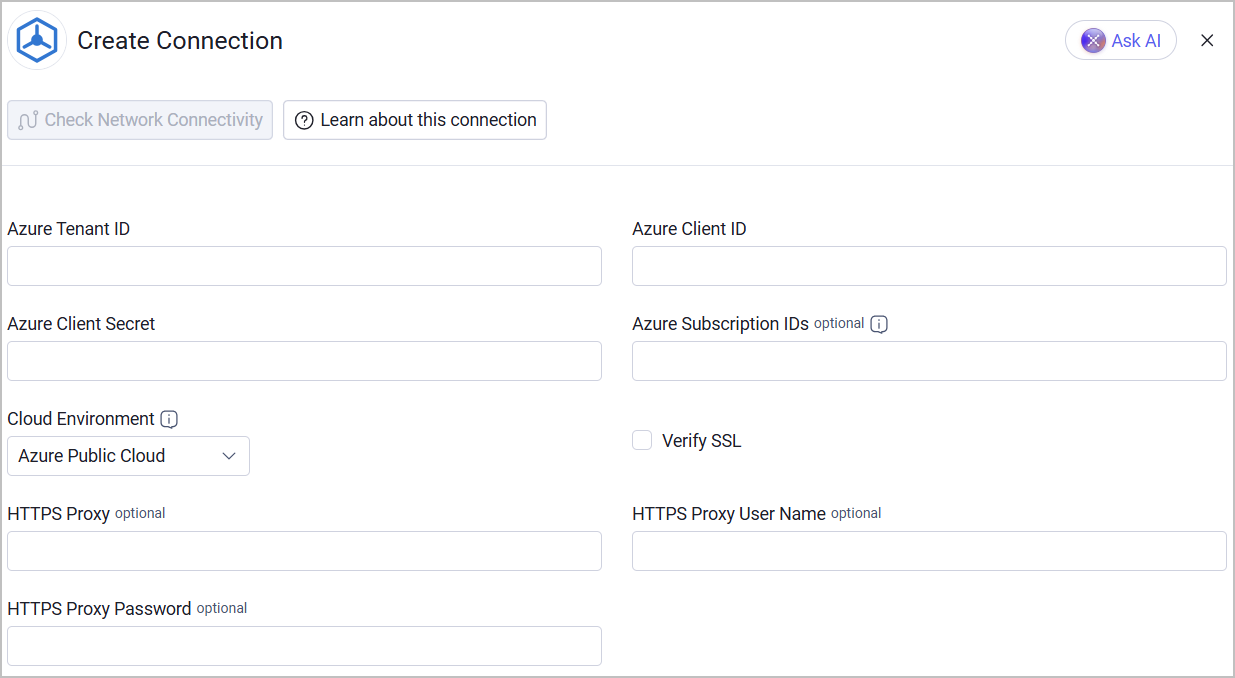
Optional Parameters
-
Azure Subscription IDs - Enter a comma-separated list of subscription IDs to fetch from. Leave empty to fetch every subscription that the service principal can read.
-
Verify SSL - Select whether to verify the SSL certificate of the server against the CA database inside of Axonius. For more details, see SSL Trust & CA Settings.
-
HTTPS Proxy - Connect the adapter to a proxy instead of directly connecting it to the domain.
-
HTTPS Proxy User Name - The user name to use when connecting to Azure via the value supplied in HTTPS Proxy.
-
HTTPS Proxy Password - The password to use when connecting to Azure via the HTTPS Proxy.
To learn more about common adapter connection parameters and buttons, see Adding a New Adapter Connection.
Advanced Settings
Note
- Advanced settings can apply to either all connections of this adapter, or to a specific connection. For more detailed information, see Advanced Configuration for Adapters.
- For more general information about advanced settings, see Adapter Advanced Settings.
All of the following settings are disabled by default. When no fetch option is enabled, the adapter does not fetch any assets. A nested setting has no effect when the setting above it is disabled.
-
Fetch AIAgents from Agents (available only for Security for AI) - Select this option to fetch Azure AI Foundry agents as AI Agent assets. The adapter sets the Hosting Platform to Azure AI Foundry. When enabled, the following settings become available:
- Enrich Agents with Agent Version - Select this option to fetch the latest version of each agent. This adds the description, definition, runtime status, tags, associated tools, and associated knowledge sources. Without this setting, the adapter uses the short version data from the agent list.
- Enrich Agents with Deployments - Select this option to fetch the model deployments of the Azure AI Foundry account. This adds the associated model and the model provider of each agent.
- Enrich Deployments with RAI Policies - Select this option to fetch the content filter (RAI) policy of each agent's model deployment. This adds the associated guardrails of each agent. This setting applies only when Enrich Agents with Deployments is enabled.
-
Fetch Guardrails from Guardrails (available only for Security for AI) - Select this option to fetch the Responsible AI (RAI) content filter policies of your Azure AI Foundry and Azure OpenAI accounts as Guardrail assets. This setting does not depend on Fetch AIAgents from Agents.
- The Hosting Platform is Azure AI Foundry or Azure OpenAI, according to the kind of the Azure account.
- The status is always Active, because Azure does not return a status for a policy.
- A policy that you create is one asset for each Azure account.
- A platform policy (policy type SystemManaged, for example
Microsoft.DefaultV2) exists in every account. Axonius shows it as one asset for all accounts, and the fields that differ between accounts (such as hosting platform, region, and provider resource ID) are empty. - Content Filter Name shows each filter name once. The per-filter settings (enabled, blocking, and severity) are not fields; they are available in the raw data.
- Version, Description, and Policy Categories are empty for Azure policies.
-
Fetch AIModels from Models (available only for Security for AI) - Select this option to fetch the model deployments of your Azure AI Foundry and Azure OpenAI accounts as AI Model assets. This setting does not depend on Fetch AIAgents from Agents.
- Axonius creates one asset for each model name. Several deployments, versions, or accounts of the same model name are one asset, and the match ignores upper and lower case (for example,
GPT-4oandgpt-4oare one model). When several deployments share a model name, the values of one deployment are shown. - A deployment that has no model name is not shown.
- Provider is the model publisher. When Azure does not return a publisher, the model format is shown.
- Family, Model Type, and Supported Modalities are derived from the model name; Azure does not return them. Model Type is one of Chat Completion (default), Embedding, Image Generation, or Audio. An unknown model name is shown as its own family.
- Status is Active (the deployment succeeded), Provisioning (accepted, being created, or being moved), Failed (failed or canceled), or Inactive (disabled or being deleted).
- First Seen is the creation date of the deployment. It is empty when Azure does not return it.
- Axonius creates one asset for each model name. Several deployments, versions, or accounts of the same model name are one asset, and the match ignores upper and lower case (for example,
-
Fetch KnowledgeSources from Vector Stores (available only for Security for AI) - Select this option to fetch the vector stores of your Azure OpenAI and Azure AI Foundry accounts as Knowledge Source assets. This setting does not depend on the other fetch options. When enabled, the following settings become available:
- Enrich Vector Stores with Vector Store Files - Select this option to fetch the files of each vector store. This adds the file ID, status, error code and message, usage bytes, chunking strategy, chunk size and overlap, and file attributes to the Files Details field.
- Enrich Vector Store Files with Files - Select this option to fetch the details of each file. This adds the file name, purpose, size, creation time, and expiration time to the Files Details field. This setting applies only when Enrich Vector Stores with Vector Store Files is enabled.
- Axonius creates one Knowledge Source asset for each vector store. Files are not separate assets. They are shown as one row for each file in the Files Details field of the vector store.
- Knowledge Source Type is always Vector Store.
- The Hosting Platform is Azure OpenAI or Azure AI Foundry, according to the kind of the Azure account.
- Status is Active (the vector store is completed), Provisioning (in progress), or Archived (expired).
- Description is empty when Azure does not return it. First Seen is the creation time of the vector store.
- Region is the Azure location of the account.
- The file name, purpose, size, creation time, and expiration time are empty when Enrich Vector Store Files with Files is disabled. The error code and message have a value only for a failed file. The chunk size and overlap have a value only for the static chunking strategy.
- Enrich Vector Stores with Vector Store Files - Select this option to fetch the files of each vector store. This adds the file ID, status, error code and message, usage bytes, chunking strategy, chunk size and overlap, and file attributes to the Files Details field.
Troubleshooting
If a fetch shows a warning that a Foundry project was skipped, the service principal cannot read agents in that project. Grant the service principal the Azure AI User role on the project. The other projects are still fetched.
Updated 1 day ago