
ARCON PAM
ARCON Privileged Access Management (PAM) secures privileged accounts and provides session control, credential vaulting, and monitoring of user and service accounts.
Use Cases the Adapter Solves
- Improve privileged-account visibility: View ARCON PAM user records alongside user data from other sources.
- Review account access details: Use user status, group, and ARCON user type data to support privileged-account reviews.
- Inventory managed servers: Compare servers managed through ARCON PAM with your wider device inventory.
Asset Types Fetched
- Users
- Devices
Data Retrieved through the Adapter
Users - fields such as: User Name, Display Name, Email ID, User Status
Devices - fields such as: Server Host Name, Server Name, Server IP, Server Type
Before You Begin
Required Ports
- TCP port 443 (HTTPS)
Authentication Methods
The adapter uses username and password authentication.
APIs
Axonius uses the ARCON PAM API. The following endpoints are called:
POST /arconToken- Request an access token.GET /api/UserDetails/GetAllActiveUserList- Retrieve active users.POST /api/ADbridging/GetAllServerDetails- Retrieve server details.
Required Permissions
Confirm the permissions required for these API calls with your ARCON PAM administrator as public documentation is not available.
Supported From Version
Supported from Axonius version 9.0.8
Setting Up ARCON PAM to Work with Axonius
Before connecting, have the credentials for a user pre-registered in ARCON PAM Client Manager (ACMO).
Connecting the Adapter in Axonius
- Navigate to the Adapter Catalog, search for ARCON PAM, and select the adapter.
- Click Add Connection.
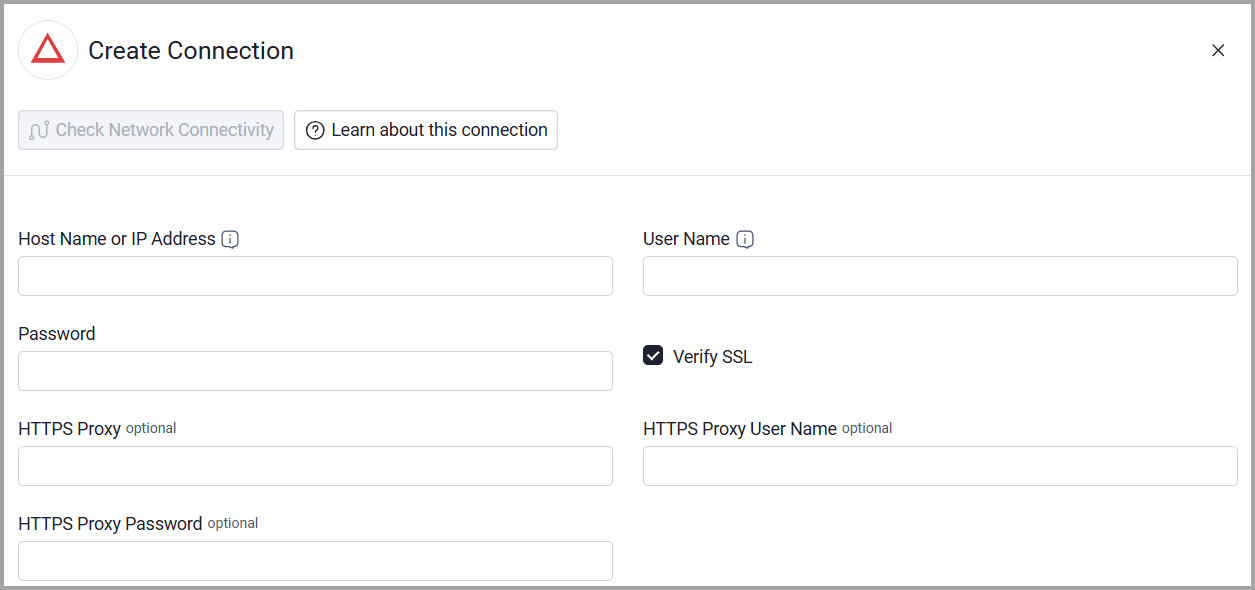
- Provide the following parameters.
Required Parameters
- Host Name or IP Address - Enter the base URL of the ARCON PAM server, including the scheme. Do not include a trailing slash or API path suffix. Example:
https://pam.example.com - User Name - Enter the user name of a user pre-registered in ARCON PAM Client Manager (ACMO).
- Password - Enter the password for the ARCON PAM user.
Optional Parameters
- Verify SSL - Select whether to verify the SSL certificate of the server against the CA database inside of Axonius. For more details, see SSL Trust & CA Settings.
- HTTPS Proxy - Connect the adapter to a proxy instead of directly connecting it to the server.
- HTTPS Proxy User Name - Enter the user name to use when connecting to the server through the HTTPS Proxy.
- HTTPS Proxy Password - Enter the password to use when connecting to the server through the HTTPS Proxy.
To learn more about common adapter connection parameters and buttons, see Adding a New Adapter Connection.
Updated 16 days ago