
Keycloak
Keycloak is an open source identity and access management solution.
Use Cases the Adapter Solves
- Enforce IAM Compliance: Monitor Keycloak realm settings such as brute-force protection, OTP policy, and SSL requirements to ensure they align with your organization's security baselines.
- Audit User Access: Track all Keycloak user accounts, their enabled status, email verification, realm roles, and federated identities from a single inventory.
- Detect Misconfigured Security Settings: Surface Keycloak application settings — including session timeouts, registration policies, and WebAuthn configurations — to identify deviations from hardening guidelines.
Types of Assets Fetched
This adapter fetches the following types of assets:
- Users
- Application Settings
Data Retrieved through the Adapter
Users - fields such as: Username, Email, Enabled, Email Verified, Realm Roles, Federated Identities
Application Settings - fields such as: SSL Required, Brute Force Protected, OTP Policy Type, WebAuthn Policy, Session Timeouts, Registration Settings
Before You Begin
Required Ports
- TCP port 443 (HTTPS) or port 8443
Authentication Methods
Username and Password. Optionally, a Client Secret can be supplied when the Keycloak client is configured as a confidential client.
APIs
Axonius uses the Keycloak Admin REST API. The following endpoints are called:
GET /admin/realms/{realm}/users— Fetch user accountsGET /admin/realms/{realm}— Fetch realm security settings (Application Settings)GET /admin/realms/{realm}/users/profile— Fetch user profile configuration (Application Settings)
Required Permissions
The value supplied in User Name must have read access to the realm that was supplied in Client ID or to master realm.
Supported From Version
Supported from Axonius version 9.0.2
Setting Up Keycloak to Work with Axonius
- Log in to the Keycloak Admin Console.
- Ensure the user account has admin or realm-management read access for the target realm.
- Note the Keycloak domain, realm name, username, and password for use in the Axonius adapter connection screen.
- If using a confidential client, note the Client ID and Client Secret.
Connecting the Adapter in Axonius
- Navigate to the Adapter Catalog, search for Keycloak, and select the adapter.
- Click Add Connection.
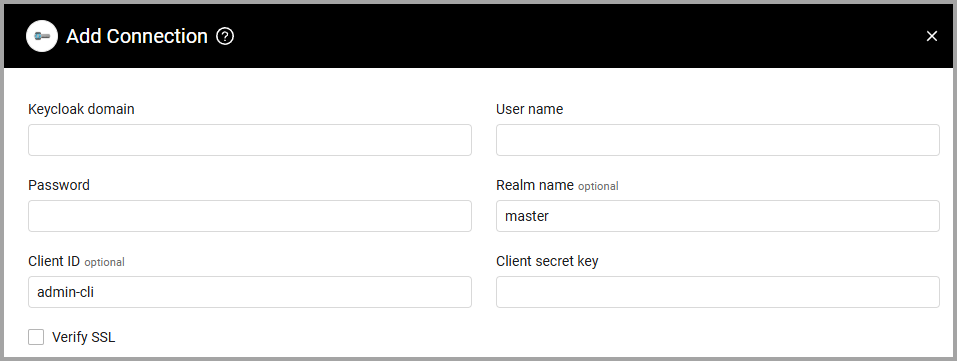
- Provide the following parameters.
Parameters
- Keycloak domain (required) - The domain or IP address of the Keycloak admin.
- User Name and Password (required) - The credentials for a user account that has the Required Permissions to fetch assets.
- Realm name (optional, default: master) - The desired realm name to fetch users.
- Client ID (optional, default: admin-cli) - The client entity associated with Keycloak admin.
- Verify SSL - Select whether to verify the SSL certificate of the server against the CA database inside of Axonius. For more details, see SSL Trust & CA Settings.
To learn more about common adapter connection parameters and buttons, see Adding a New Adapter Connection.
Advanced Settings
Note
Advanced settings can either apply to all connections for this adapter, or to a specific connection. Refer to Advanced Configuration for Adapters.
- Fetch Application Settings (default: disabled) - Select to fetch Application Settings assets.
Note
To learn more about Adapter Configuration tab advanced settings, see Adapter Advanced Settings.
Updated 25 days ago