
AI Companion Full-Screen Mode
Use the AI Companion page to interact with the Axonius AI Companion in a full-screen view, browse past conversations, and organize your chats — all from a dedicated workspace separate from the side panel.
Opening the AI Companion
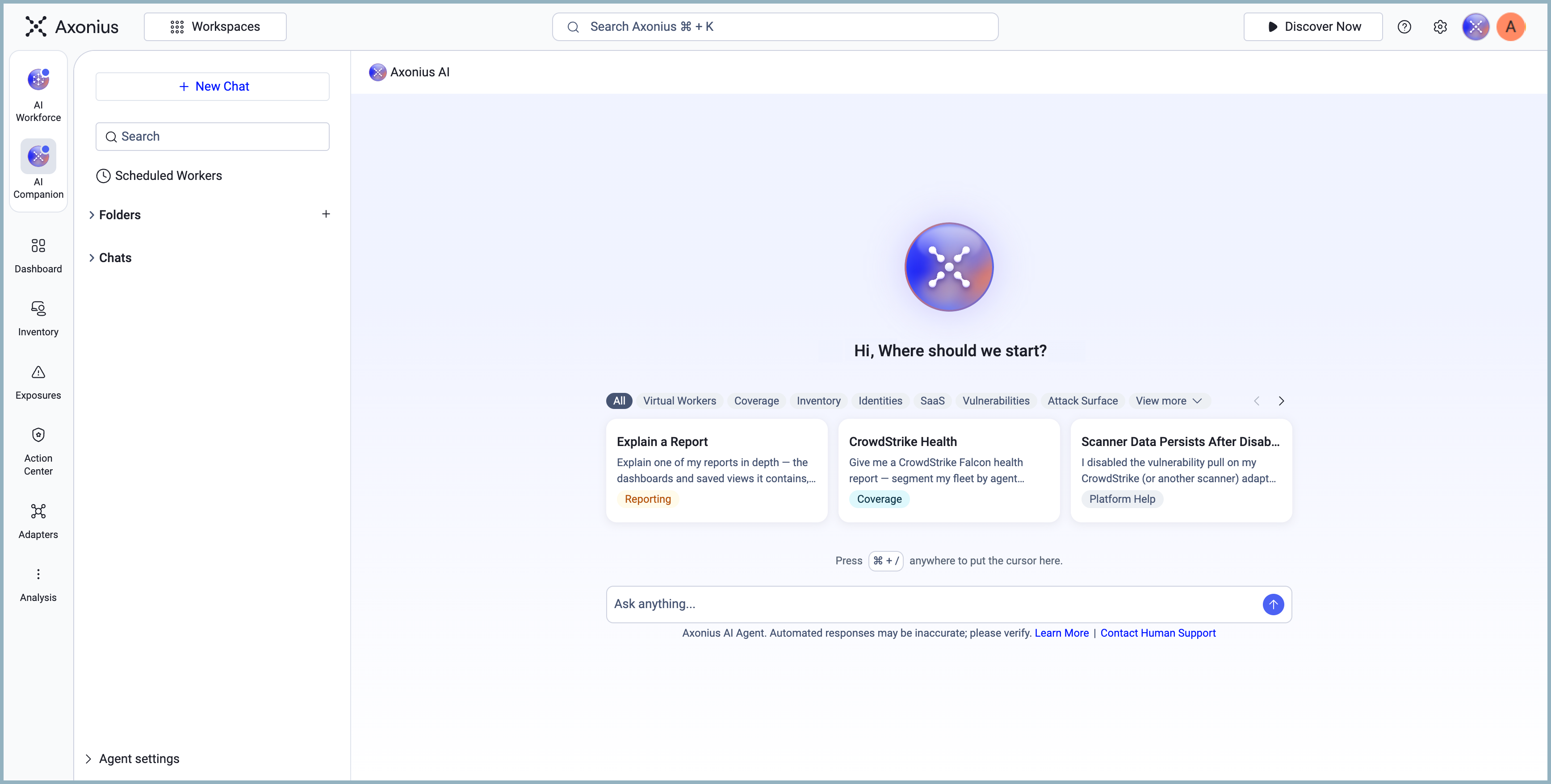
To open the AI Companion page, click the Axonius AI icon in the left navigation sidebar. The page opens with the chat list sidebar on the left and the main content area on the right.
Understanding the Page Layout
The AI Companion page has two main sections:
Chat list sidebar (left)
The sidebar displays all your past conversations and tools for organizing them. It includes:
- + New Chat button at the top — starts a new conversation with the AI Companion.
- Search field — filters your past conversations by keyword. Type any part of a conversation title to find it quickly.
- Folders section — displays folders you've created for organizing chats. Click the + button next to Folders to create a new folder.
- Chats section — lists all your past conversations with their titles and dates, for example, "Software Audit Priority Assessment — Jul 28, 2026."
Main content area (right)
When no conversation is active, the main content area displays the welcome screen. When you select a conversation from the sidebar, the full conversation history appears in the main content area.
Starting a New Chat
To start a new conversation with the AI Companion:
- Click + New Chat at the top of the chat list sidebar.
- The main content area displays the welcome screen and an input field.
- Type your question or request and press Enter or click the send button.
Opening a Past Conversation - Chat History
To return to a previous conversation, click its title in the Chats section of the sidebar. The conversation history loads in the main content area.
To return to the chat list from an open conversation, click the back arrow at the top of the main content area.
Updated 8 days ago