
Defining a Data Scope by Adapter
Use the Define by Adapters tab to control which assets and fields are available in a data scope based on adapter connections. The tab has two independent controls — you can use one, both, or neither.
- Define asset access by adapter connection — Controls which assets appear in the data scope based on which adapter fetched them. For example, if you select Active Directory, only assets that Active Directory discovered are included. However, all fields for those assets are still visible — including fields fetched by adapters you didn't select.
- Define field access by adapter connection — Controls which fields are visible for assets in the data scope, regardless of which adapter fetched the asset. For example, if you select Active Directory, only fields that Active Directory retrieves are shown — even for assets that were discovered by other adapters.
To show data exclusively from specific adapters — limiting both which assets appear and which fields are visible — use both controls together with Include only set to the same adapters. This ensures that only assets those adapters discovered are included, and only the fields those adapters retrieve are shown.
Selections on this tab combine with selections made on the Define by Assets tab.
Define asset access by adapter connection
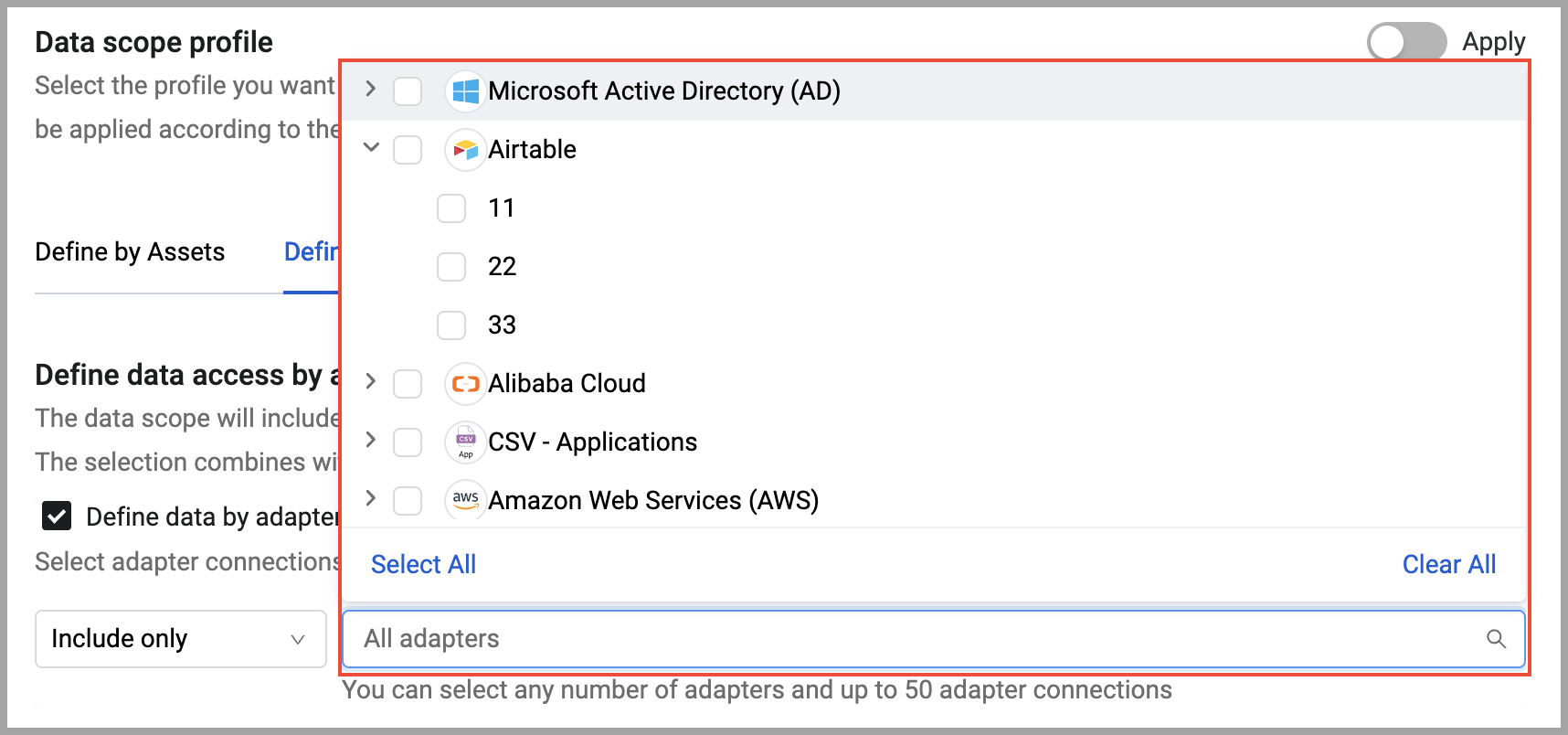
Select Define asset access by adapter connection to filter assets by the adapter connections that fetched them.
Select a mode from the dropdown:
Define asset access by adapter connection modes
-
Include only — Only assets fetched by the selected adapters appear in the data scope. Assets fetched exclusively by other adapters are not visible. For example, if you select Active Directory and CrowdStrike, a device that only Qualys discovered does not appear. A device that both Qualys and Active Directory discovered does appear, because at least one selected adapter fetched it.
-
Include all but — Assets fetched by the selected adapters are excluded. All assets fetched by any other adapter remain in the data scope. For example, if you select Qualys, any asset that Qualys discovered is excluded — even if Active Directory also discovered that same asset.
-
Exclude — All assets fetched by all adapter connections for the selected adapters are excluded.
For example, if you want to Include all but X, and then make sure that all data from X is blocked, you also need to specify exclude adapter X.
Then click the adapters list and select the adapters and/or specific adapter connections to apply the filter to.
Notes
- You can select any number of adapters and up to 50 specific adapter connections.
- This selection combines with any asset types selected on the Define by Assets tab.
Define field access by adapter connection
Select Define field access by adapter connection to filter which fields appear in the data scope based on which adapter retrieves them. Note that some fields may be retrieved through multiple adapters.
Select a mode from the dropdown:
- Include only — Only fields retrieved by the selected adapters are visible in the data scope. All other fields are hidden, regardless of which adapter fetched the asset. For example, if you select Active Directory, users in the data scope see only the fields that Active Directory provides — such as username, department, and email. Fields that CrowdStrike or Qualys retrieve, such as threat level or CVEs, are hidden even for assets that those adapters also scanned.
- Exclude — Fields retrieved by the selected adapters are hidden from the data scope. All other fields remain visible. For example, if you select Qualys, vulnerability and patch fields that Qualys retrieves are hidden — but fields from Active Directory, CrowdStrike, and all other adapters remain visible.
Then click Select adapters and select the adapters to apply the filter to.
NoteThis option is not available when a data scope profile is applied. Field access is controlled by the profile in that case. See Data Scope Profiles.
Updated 23 days ago