
OneSpan Sign
OneSpan Sign is an e-signature platform that provides secure digital signing, user management, and document transaction workflows.
Use Cases the Adapter Solves
- Review sender accounts: View OneSpan Sign user identities, account status, and activation details.
- Govern group membership: Review groups and their member identities and roles.
Asset Types Fetched
- Users
- Groups
- Application Settings
Data Retrieved through the Adapter
Users - fields such as: user ID, email address, name, account status.
Groups - fields such as: group ID, group name, member user ID, member email address.
Application Settings - raw setting value.
Before You Begin
Required Ports
- TCP port 443 (HTTPS)
Authentication Methods
The adapter uses API key authentication.
APIs
Axonius uses the OneSpan Sign API. The following endpoints are used.
-
GET /api/account/senders- Retrieve sender accounts (Users) -
GET /api/groups- Retrieve groups (Groups and Application Settings) -
GET /api/passwordPolicy- Retrieve password policy (Application Settings) -
GET /api/account/admin/accountSettings- Retrieve account settings (Application Settings) -
GET /api/account/admin/accountSettings/featureSettings- Retrieve feature settings (Application Settings) -
GET /api/account/admin/accountSettings/packageSettings- Retrieve package settings (Application Settings) -
GET /api/account/admin/accountSettings/signer-token-expiration-settings- Retrieve signer-token expiration settings (Application Settings) -
GET /api/account/admin/accountSettings/systemSettings- Retrieve system settings (Application Settings) -
GET /api/account/admin/chooseSignature- Retrieve signature settings (Application Settings) -
GET /api/account/senders/{senderId}/roles- Retrieve sender role settings (Application Settings) -
GET /api/account/roles/{accountRoleId}- Retrieve account role settings (Application Settings) -
GET /api/dataRetentionSettings/dataManagementPolicy- Retrieve data management policy (Application Settings) -
GET /api/dataRetentionSettings/expiryTimeConfiguration- Retrieve expiry time configuration (Application Settings) -
GET /api/session- Retrieve session settings (Application Settings) -
GET /api/external-authentication-options- Retrieve external authentication options (Application Settings)
Required Permissions
The API key must belong to the account owner or a user with the Administrator role. The adapter calls admin-level endpoints that are not accessible to Sender or Manager roles.
Administrator Role (Recommended)
- Account owner, or a user assigned the built-in Administrator role.
Custom Role (Minimum Permissions)
If your account has the Roles & Permissions feature enabled, you can create a custom role with the following permissions:
sender_admin.api_access— enables API access for the usersender_admin.users— required to list account sendersgroups.group_signing_management— required to list groupssender_admin.self_serve_account_settings— required to retrieve account settings
Note: The Roles & Permissions feature is disabled by default. Contact OneSpan Support to enable it.
Supported From Version
Supported from Axonius version 9.0.7
Connecting the Adapter in Axonius
- Navigate to the Adapter Catalog, search for OneSpan, and select the adapter.
- Click Add Connection.
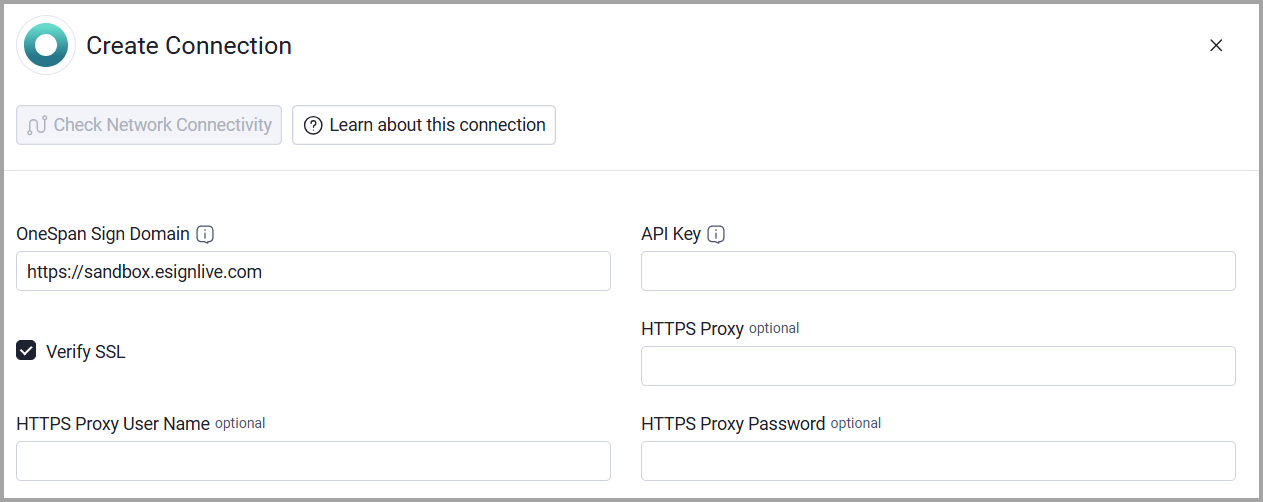
- Provide the following parameters.
Required Parameters
- OneSpan Sign Domain - Enter the base domain of the OneSpan Sign instance, including http:// or https://. Do not append an API endpoint. default:
https://sandbox.esignlive.com - API Key - Enter the API key generated in the OneSpan Sign portal under Admin > API Access.
Optional Parameters
- Verify SSL - Select whether to verify the SSL certificate of the server against the CA database inside of Axonius. For more details, see SSL Trust & CA Settings
- HTTPS Proxy - Connect the adapter to a proxy instead of directly connecting it to the OneSpan Sign domain.
- HTTPS Proxy User Name - Enter the user name for the proxy supplied in HTTPS Proxy.
- HTTPS Proxy Password - Enter the password for the proxy supplied in HTTPS Proxy.
To learn more about common adapter connection parameters and buttons, see Adding a New Adapter Connection.
Advanced Settings
Note:
Advanced settings can either apply to all connections for this adapter, or to a specific connection. Refer to Advanced Configuration for Adapters.
To learn more about Adapter Configuration tab advanced settings, see Adapter Advanced Settings.
- Fetch Application Settings - Enable this setting under Global Endpoints Config to collect Application Settings assets. It is disabled by default.
Updated 14 days ago