
Constant Contact
Constant Contact is a digital marketing platform used to manage email and digital outreach campaigns, contact lists, and engagement metrics.
Use Cases the Adapter Solves
- Detects and analyzes unmanaged marketing accounts for better digital campaign visibility.
- Verifies third-party contact list access and associations for compliance and audit readiness.
Asset Types Fetched
 Users |
Data Retrieved through the Adapter
The following data can be fetched by the adapter:
Users- Fields such as email address, status, roles.
Before You Begin
Ports
TCP port 443
Authentication Method
OAuth 2.0 Access Token
APIs
Constant Contact v3 API
GET] https://api.cc.email/v3/account/emails
Permissions
The following permissions are required:
account:readscope
Supported From Version
Supported from Axonius version 8.0.12
Setting Up Constant Contact to Work with Axonius
To Generate the Client ID (API Key), and Client Secret follow the procedure in Constant Contact Quick Start Guide 'Register Your First Application'
Connecting the Adapter in Axonius
Navigate to the Adapters page, search for Constant Contact, and click on the adapter tile.
Click Add Connection.
Required Parameters
To connect the adapter in Axonius, provide the following parameters:
- Host Name or IP Address - Enter the hostname or IP address of the Constant Contact server. For Constant Contact, this is typically
https://api.cc.email - Client ID and Client Secret - The unique identifier assigned to your Constant Contact application when you register it in the Constant Contact Developer Portal. This is required for OAuth 2.0 authentication and identifies your integration when requesting an access token. Obtainable from the Constant Contact Developer Portal when you create or view your API application.
- Client Secret - A confidential key associated with your Constant Contact application, also obtained from the Developer Portal. Available in the Constant Contact Developer Portal alongside the Client ID.
- Connection Label - A name for this connection.
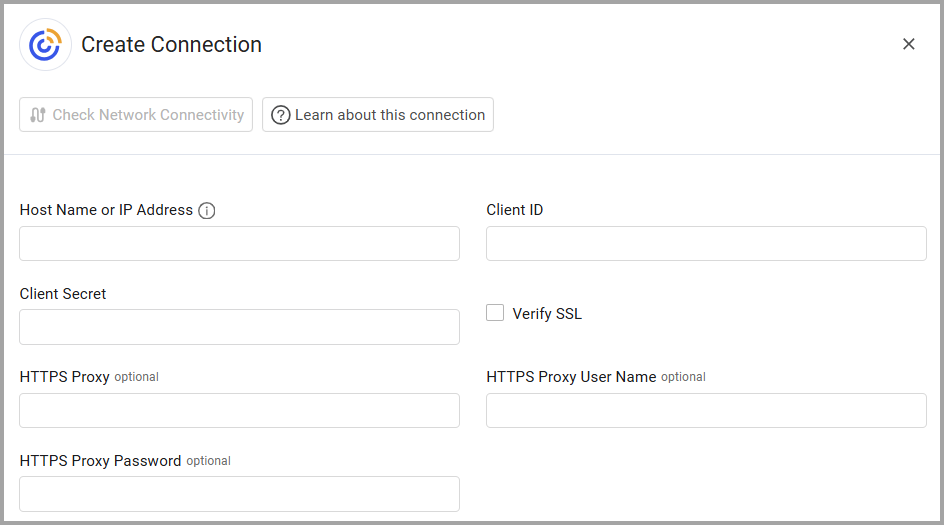
Optional Parameters
- Verify SSL - Select whether to verify the SSL certificate of the server against the CA database inside of Axonius. For more details, see SSL Trust & CA Settings.
- HTTPS Proxy - Connect the adapter to a proxy instead of directly connecting it to the domain.
- HTTPS Proxy User Name - The user name to use when connecting to the value supplied in HTTPS Proxy.
- HTTPS Proxy Password - The password to use when connecting to the server using the HTTPS Proxy.
Select Gateway – Select the Axonius Gateway to use when connecting adapters whose sources are only accessible by an internal network and not from the primary Axonius instance, which may be an Axonius-hosted (SaaS) instance or Customer-hosted (on-premises / private cloud). To use this option, you need to set up an Axonius Gateway.
To learn more about common adapter connection parameters and buttons, see Adding a New Adapter Connection.
Updated 8 months ago