
Oracle IDCS - Create User
Oracle IDCS - Create User creates a new user in Oracle IDCS for:
- Users returned by the selected query or assets selected on the relevant asset page.
See Creating Enforcement Sets to learn more about adding Enforcement Actions to Enforcement Sets.
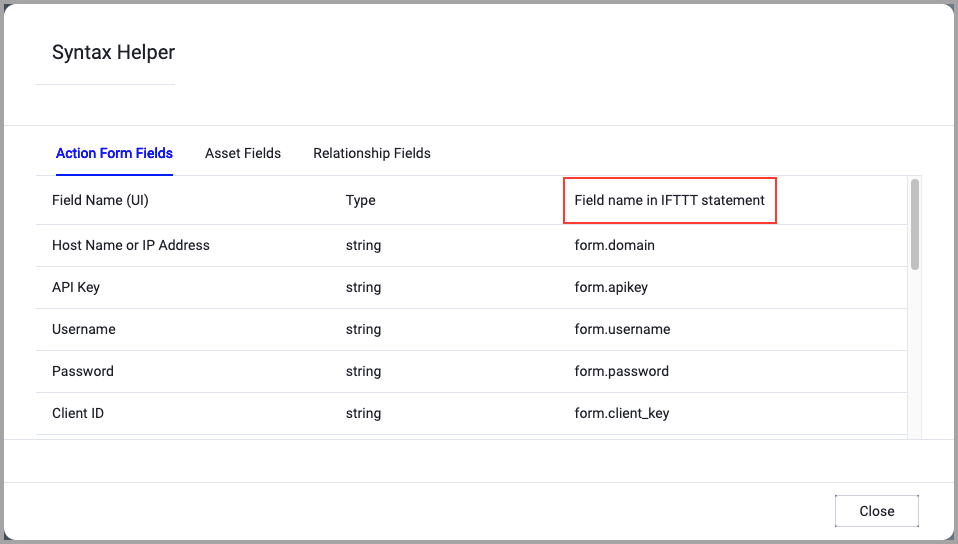
When accessing an enforcement action using the API, you must use the backend form of field names.
Use the Syntax Helper to find the correct name. In the enforcement action, enable Configure Dynamic Values and select Syntax Helper.
Note
- Not all asset types are supported for all Enforcement Actions.
- See Actions supported for Activity Logs, Adapters Fetch History, and Asset Investigation modules.
- See Actions supported for Aggregated Security Findings.
- See Actions supported for Software.
Required Fields
These fields must be configured to run the Enforcement Set.
- Action name - The name of this Enforcement Action. The system sets a default name. You can change the name.
- Configure Dynamic Values (optional) - Toggle on to enter a Dynamic Value statement. See Creating Enforcement Action Dynamic Value Statements to learn more about Dynamic Value statement syntax.
Note:
To use this enforcement action, you must successfully configure a Oracle Identity Cloud Service (IDCS) adapter connection.
- First Name - The first name of the user.
- Last Name - The last name of the user.
- User Name - Enter the user name for the new user.
- Email Address - The email address of the user.
-
Compute Node - The Axonius node to use when connecting to the specified host. For more details, see Working with Axonius Compute Nodes.
Additional Fields
These fields are optional.
-
Host Name or IP Address - The hostname or IP address of the Oracle Fusion Cloud Applications server.
-
Client ID and Client Secret - The credentials for an account that has the Required Permissions to fetch assets.
-
Scope - The scope name.
-
Verify SSL (Optional) (default: enabled) - Selects whether to verify the SSL certificate of the server against the CA database inside of Axonius. For more details, see SSL Trust & CA Settings. This setting is enabled by default on all new adapter settings. If you need to disable SSL verification, make sure you disable this setting.)
-
HTTPS Proxy (optional) - Connect the adapter to a proxy instead of directly connecting it to the domain.
-
HTTPS Proxy User Name (optional) - The user name to use when connecting to the server using the HTTPS Proxy.
-
HTTPS Proxy Password (optional) - The password to use when connecting to the server using the HTTPS Proxy.
-
Gateway Name - Select the Gateway through which to connect to perform the action.
APIs
Axonius uses the following APIs:
Required Permissions
The stored credentials, or those provided in Connection and Credentials, must have the following permission(s) to perform this Enforcement Action:
- Authentication - Requires OAuth 2.0 Client Credentials Grant with a confidential application.
- App Type - You must create a confidential client application in Oracle IDCS. It must be enabled for Client Credentials grant type.
- Roles Required - The client application must be assigned administrative roles that allow reading users, such as:
Identity Domain AdministratorUser Administrator- or custom roles with
GETpermission for the relevant APIs.
- RBAC Applies - If the associated user or client app lacks the proper role, the response will be limited or denied (403).
- API Endpoint Version - Use
/admin/v1/Users, not/v1/Users, to access admin-level attributes and filtering.
For more details about other enforcement actions available, see Action Library.
Updated 22 days ago