
Connecting the Slack Adapter in Axonius
To add a new Slack Connection in Axonius:
-
Navigate to the Adapters page, search for
Slack, and click on the adapter tile.
-
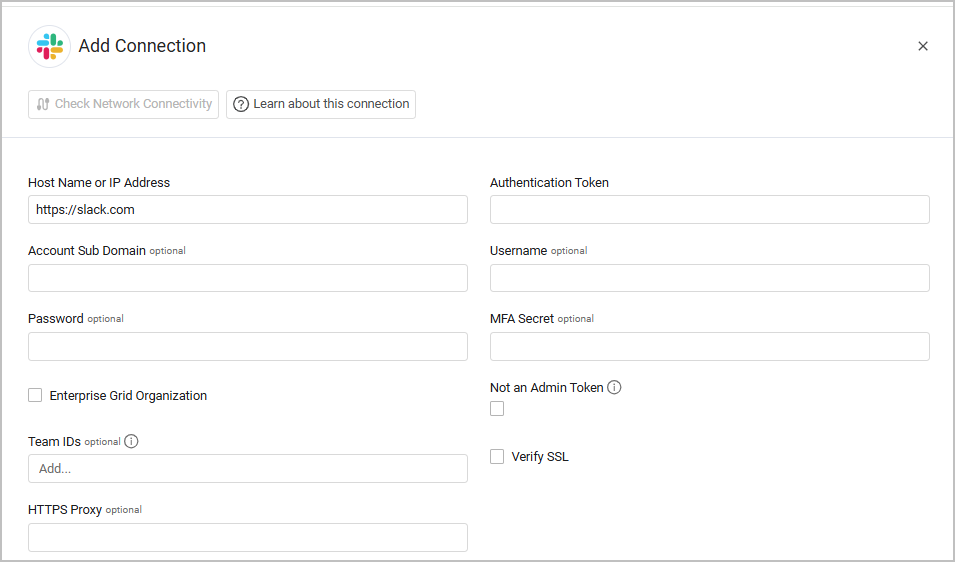
On the top right side, click Add Connection. The Add Connection drawer opens.
Required Parameters
-
Host Name or IP Address (default:
https://slack.com) - The hostname or IP address of the Slack server. -
Authentication Token - An Authentication Token associated with a user account that has the required permissions to fetch assets. For instructions on generating the Authentication Token, see admin.users.list.
-
Selecting the Token type - Select either of the following options:
Select this if you are using the Slack Enterprise Grid Organization solution. This allows Axonius to fetch data from all workspaces associated with the authentication token.
Select this option if the Authentication Token you entered is not an admin token. In this case, the Team IDs field must be populated. All admin endpoints will be skipped in the fetch.
- Copy the Team ID from the team's URL in the Slack web client. For example, if the team URL is
https://app.slack.com/client/T0123456789/A0123456789, the team ID isT0123456789. - If you leave this field empty, the team IDs will be fetched automatically from the admin.teams.list API.
- Copy the Team ID from the team's URL in the Slack web client. For example, if the team URL is
Optional Parameters
- Verify SSL - Select whether to verify the SSL certificate of the server against the CA database inside of Axonius. For more details, see SSL Trust & CA Settings.
- HTTPS Proxy - A proxy to use when connecting to the value supplied in Host Name or IP Address.
Fetching Application Settings
Attention
These parameters are required to fetch high-privilege settings that cannot be fetched with an API Token.
- Account Sub Domain - The Slack account's sub domain (.slack.com).
- User Name and Password - The credentials for a user account that has the required permissions to fetch assets.
- MFA Secret - If you access Slack through an SSO solution that requires multi-factor authentication, you will need to generate a secret key in that solution and paste it here. See Set Up Google Authenticator for the Okta adapter, for an example.
To learn more about common adapter connection parameters and buttons, see Adding a New Adapter Connection.
Updated 8 months ago