
LiveNX
LiveNX is a network and application performance monitoring platform that provides end-to-end visualization, real-time analytics, and actionable insights for enterprise network infrastructure.
Use Cases the Adapter Solves
- Network Device Inventory Management: Gains complete visibility into all network devices monitored by LiveNX, including routers, switches, and other infrastructure components, ensuring comprehensive asset tracking across your enterprise network.
- Network Device Lifecycle Management: Tracks firmware versions, device models, and vendor information from LiveNX to identify outdated network equipment requiring updates or replacement, improving network security and performance.
Asset Types Fetched
- Devices
Data Retrieved through the Adapter
The following data can be fetched by the adapter:
Devices - Fields such as Device Remote ID, Name, Hostname, Network Interfaces (IP Addresses) Physical Location.
Before You Begin
Required Ports
- TCP port 8093 (HTTPS)
Authentication Methods
API Token Authentication (Bearer Token)
APIs
Axonius uses the LiveNX API v1. The following endpoints are called:
GET /v1/devices
Required Permissions
The API user account must have:
- Access to the LiveNX Swagger page to generate an API token
- Permissions to list devices via the
/v1/devicesendpoint - Permissions to view device details (OS, serial, IP, vendor info)
Note: The exact permission names should be confirmed with your LiveNX administrator or LiveNX support, as the API documentation is not publicly available.
Supported From Version
Supported from Axonius version 8.0.16.0
Connecting the Adapter in Axonius
Navigate to the Adapters page, search for LiveNX, and click on the adapter tile.
Click Add Connection.
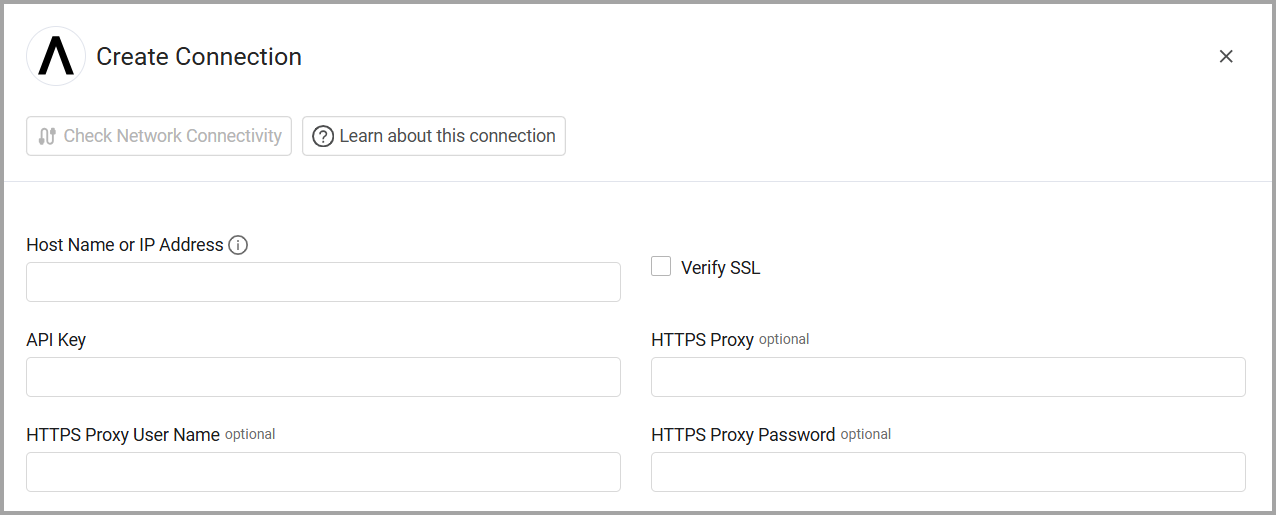
To connect the adapter in Axonius, provide the following parameters:
Required Parameters
- Host Name or IP Address - Base domain for the API, should contain a prefix of http:// or https://. Example:
https://livenx.example.com - API Key - The REST API token generated from the LiveNX Swagger page under API Token Management.
Optional Parameters
- Verify SSL - Select whether to verify the SSL certificate of the server against the CA database inside of Axonius. For more details, see SSL Trust & CA Settings.
- HTTPS Proxy - Connect the adapter to a proxy instead of directly connecting it to the domain.
- HTTPS Proxy User Name - The user name to use when connecting to the value supplied in Host Name or IP Address via the value supplied in HTTPS Proxy.
- HTTPS Proxy Password - The password to use when connecting to the server using the HTTPS Proxy.
To learn more about common adapter connection parameters and buttons, see Adding a New Adapter Connection.
Co-authored by Augment Code
Updated 8 months ago