
MicroStrategy
MicroStrategy is an analytics platform that provides data discovery, reporting, and visualization capabilities for enterprise data assets.
The MicroStrategy adapter provides Axonius with visibility into your analytics platform assets, including user and privilege data.
Asset Types Fetched
- Users, Application Settings
Data Retrieved through the Adapter
The adapter retrieves information to provide visibility into your publicly accessible assets. The retrieved data for each asset type may include:
- Users - Data such as user ID, name, description, account status (enabled/disabled), date created, and default email address.
- Privileges - Complex field data including privilege ID, name, description, categories, and level for both server and project levels.
Before You Begin
Required Ports
- TCP Port 443
Authentication Methods
- Session-Based Authentication - The adapter uses a session-based flow where it exchanges the provided username and password for an X-MSTR-AuthToken and session cookies to authenticate subsequent requests.
Required Permissions
The adapter connection requires that the user account used to connect has the following permissions within the MicroStrategy environment:
- Web User Access - Required to establish a connection session and obtain the necessary authentication tokens.
- User Management - Required to retrieve detailed user information and associated privilege data.
- User Listing - Ability to browse and enumerate users and groups within the platform.
- Privilege Auditing - Ability to view server-level and project-level permissions for specific users.
- Administrator Privileges - Required to access license audit and compliance information when the "Fetch Application Settings" advanced configuration option is enabled. The user account must be a member of the System Administrators group or have equivalent administrator-level privileges.
APIs
Axonius uses the MicroStrategy REST API to retrieve asset data.
Axonius uses the MicroStrategy REST API to fetch application settings data from the following endpoints:
/api/license/iServer/audit/result- License audit results/api/license/iServer/compliance/result- License compliance results
Supported from Version
This adapter is supported from Axonius version 8.0.12.
Connection Parameters
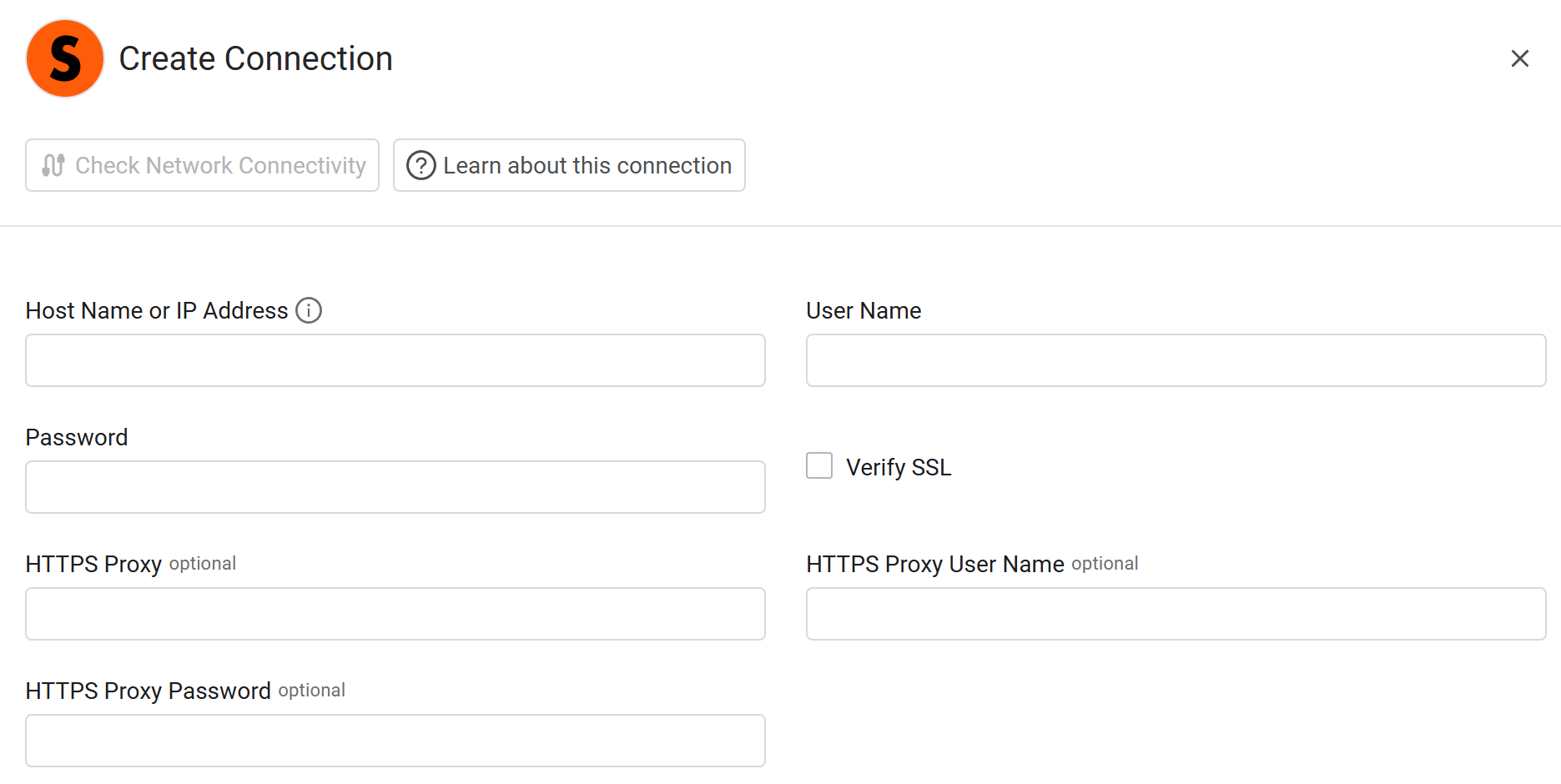
To connect the adapter in Axonius, provide the following parameters.
Required Parameters
- Host Name or IP Address - Enter the base URL of the MicroStrategy Library environment.
- User Name - Enter the username for the account with the required API privileges.
- Password - Enter the password associated with the username.
Optional Parameters
-
Verify SSL - Select whether to verify the SSL certificate of the server against the CA database inside of Axonius. For more details, see SSL Trust & CA Settings.
-
HTTPS Proxy - Enter an HTTPS proxy address to connect the adapter to a proxy instead of directly connecting it to the domain.
-
HTTPS Proxy User Name - Enter the user name to use when connecting to the value supplied in Host Name or IP Address via the value supplied in HTTPS Proxy.
-
HTTPS Proxy Password - Enter the password to use when connecting to the server using the HTTPS Proxy.
To learn about additional optional/common adapter connection parameters, see Adding a New Adapter Connection.
Advanced Settings
Note
- Advanced settings can apply to either all connections of this adapter, or to a specific connection. For more detailed information, see Advanced Configuration for Adapters.
- For more general information about advanced settings, see Adapter Advanced Settings.
Fetch Application Settings - Select this option to fetch application settings.
Updated 5 months ago