
Backblaze
Backblaze provides cloud backup and storage services.
Asset Types Fetched
 Users |
  Object Storage
Before You Begin
Required Ports
- TCP port 80/443
Authentication Methods
Standard Application Keys
APIs
Axonius uses the Blackblaze API Version 4
Required Permissions
The following permissions are required:
listBucketsandlistKeyscapabilities- read-level access to the account or specific buckets
Supported From Version
Supported from Axonius version 6.0
Setting Up Backblaze to Work With Axonius
Standard Application Keys (Recommended)
- Go to the App Keys page in the web console.
- Click the Add a New Application Key button.
- Configure the key:
- Key Name: Give it a name to remember what it's for.
- Allow Access to Bucket(s): Choose "All" or a specific bucket.
- Access Type: Choose Read Only.
- Click Create New Key.
A blue box will appear displaying your keyID (Access Key) and applicationKey (Secret Key).The Secret Key (applicationKey) is only displayed at the moment of creation. If you close the window or refresh the page without saving it, you cannot retrieve it; you will have to delete that key and create a new one.
Connecting the Adapter in Axonius
Navigate to the Adapters page, search for Backblaze, and click on the adapter tile. Click Add Connection.
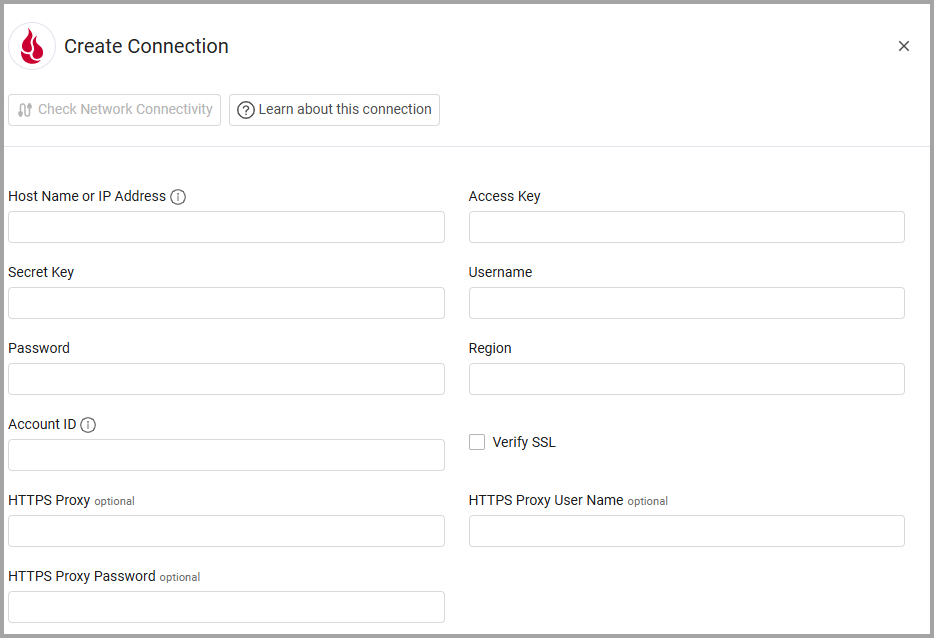
To connect the adapter in Axonius, provide the following parameters:
Required Parameters
-
Host Name or IP Address - The hostname or IP address of the Backblaze server that Axonius can communicate with via the Required Ports.
-
Access Key - This is a public identifier for your key. In S3-compatible integrations, the keyID serves as your Access Key.
-
Secret Key - This is the private key used for authentication. In S3-compatible integrations, the applicationKey serves as your Secret Key.
-
User Name and Password - Backblaze credentials that have permissions to fetch assets.
-
Region - The AWS region where the S3 bucket is stored.
-
Account ID - The account ID of the AWS account that hosts the S3 bucket.
Optional Parameters
-
Verify SSL - Select whether to verify the SSL certificate of the server against the CA database inside of Axonius. For more details, see SSL Trust & CA Settings.
-
HTTPS Proxy - Connect the adapter to a proxy instead of directly connecting it to the domain.
-
HTTPS Proxy User Name - The user name to use when connecting to the value supplied in Host Name or IP Address via the value supplied in HTTPS Proxy.
-
HTTPS Proxy Password - The password to use when connecting to the server using the HTTPS Proxy.
To learn more about common adapter connection parameters and buttons, see Adding a New Adapter Connection.
Updated 3 months ago