
New Relic
New Relic provides cloud-based software to monitor and track servers, instances and services.
Asset Types Fetched
 Devices |
  Software |
  SaaS Applications |
  Application Services |
  Load Balancers |
  Databases |
  Containers |
  Object Storage |
  Network Services |
  Serverless Functions
Before You Begin
Ports
- TCP port 443
Authentication Method
New Relic uses API Keys for authentication. Specifically, the REST API (v2) requires a User Key (personal API key) associated with a specific user account.
APIs
Axonius uses the New Relic REST API (v2).
Permissions
The following permissions are required:
- The user account associated with the API Key must have permissions to view and access entities (such as Applications, Hosts, and Services) across the accounts from which data is being fetched.
- The key inherits the permissions assigned to the user; therefore, the user must have a role (e.g., Read/View or Admin) that grants visibility into the relevant New Relic products (APM, Infrastructure, etc.).
Supported From Version
Supported from Axonius version 4.5
Connecting the Adapter in Axonius
Navigate to the Adapters page, search for New Relic, and click on the adapter tile.
Click Add Connection.
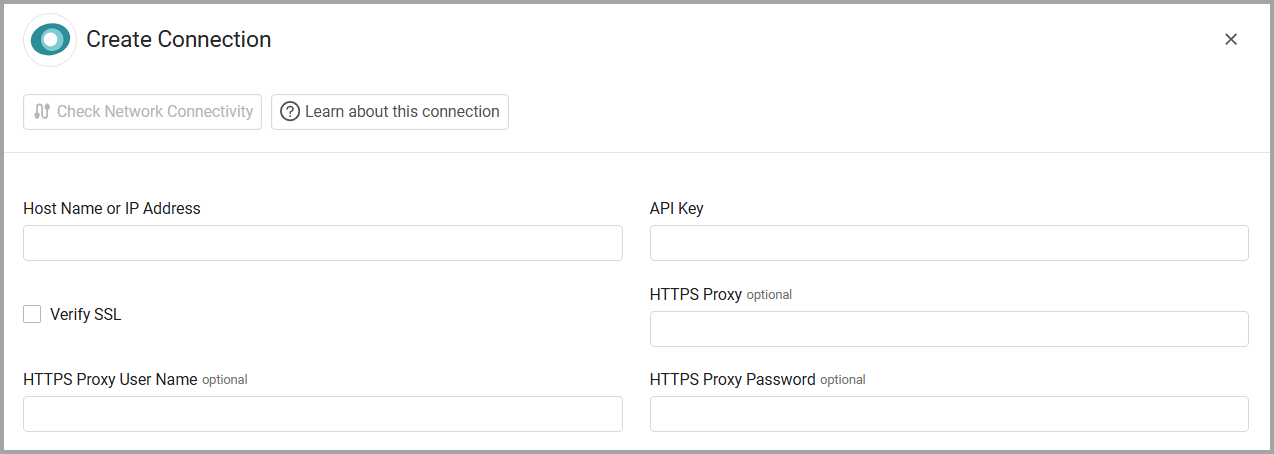
To connect the adapter in Axonius, provide the following parameters:
Required Parameters
- Host Name or IP Address - The hostname or IP address of the New Relic server.
- API Key - A User API Key (personal API key) associated with a user account that has permissions to fetch assets. To obtain an API Key, see Introduction to New Relic REST API (v2).
Optional Parameters
- Verify SSL (default: false) - Select whether to verify the SSL certificate of the server against the CA database inside of Axonius. For more details, see SSL Trust & CA Settings.
- HTTPS Proxy - Connect the adapter to a proxy instead of directly connecting it to the domain.
- HTTPS Proxy User Name - The user name to use when connecting to the value supplied in Host Name or IP Address via the value supplied in HTTPS Proxy.
- HTTPS Proxy Password - The password to use when connecting to the server using the HTTPS Proxy.
-
Select Gateway – Select the Axonius Gateway to use when connecting adapters whose sources are only accessible by an internal network and not from the primary Axonius instance, which may be an Axonius-hosted (SaaS) instance or Customer-hosted (on-premises / private cloud). To use this option, you need to set up an Axonius Gateway.
To learn more about common adapter connection parameters and buttons, see Adding a New Adapter Connection.
Advanced Settings
Note:
Advanced settings can either apply to all connections for this adapter, or to a specific connection. Refer to Advanced Configuration for Adapters.
To learn more about Adapter Configuration tab advanced settings, see Adapter Advanced Settings.
- Fetch Applications - Select this option to enrich the device with applications data.
- Device Type inclusion list - Enter a comma-separated list of values found in the “Field Segmentation” field on Relic. Devices that have this value will be included in the fetch.
- Prefer Hostname as Asset name - Select this option to use the hostname as the device name.
- Enable Asset Type Segregation - By default entities are shown as devices, select this option to segregate assets based on their asset type, rather than display them all as devices.
Updated 2 months ago