
Fortinet FortiRecon
Fortinet FortiRecon is a digital risk protection service (DRPS) that provides threat intelligence and attack surface management. The FortiRecon adapter enables Axonius to discover and inventory external-facing assets monitored by FortiRecon's External Attack Surface Management (EASM) module.
Use Cases
-
External Attack Surface Visibility - Gain comprehensive visibility into your organization's external attack surface by discovering all domains, subdomains, and IP addresses monitored by FortiRecon EASM.
-
Shadow IT Discovery - Identify unknown or unauthorized external assets that may pose security risks, including forgotten subdomains and exposed services.
Asset Types
The FortiRecon adapter discovers the following asset types:
- Domains & URLs, Network Services, Network Routes
Data Retrieved
The following data can be fetched by the adapter:
Domains & URLs - Fields such as FortiRecon Remote ID. Domain, Base URL, IP Addresses, Technologies
For Network Services - Fields such as Name, IP Prefix, Discovery Path, Ports
Required Ports
TCP port 443 (HTTPS)
Authentication Methods
The FortiRecon adapter uses API Key Authentication.
API Endpoints
Axonius uses the FortiRecon API (version 25.4):
- GET
/easm/{org_id}/assets/domains- Retrieve domain assets - GET
/easm/{org_id}/assets/subdomains- Retrieve subdomain assets - GET
/easm/{org_id}/assets/ips- Retrieve IP address assets
Required Permissions
The following permissions and requirements are needed to use the FortiRecon adapter.
Authentication:
- API Key authentication available in the FortiRecon portal under Profile Settings.
Role-Based Access Control (RBAC):
- The API key must be associated with a user or service account that has at least Read-Only permissions for the EASM module.
Requirements:
- The organization must have an active External Attack Surface Management (EASM) license.
- The user must provide their unique Organization ID.
To obtain the API Key:
- Log in to the FortiRecon portal.
- Select one of the organizations assigned to your account.
- In the top right corner, click your user name and select Profile Settings.
- Copy the API Key from the Subscription Details section.
Supported from Version
Supported from Axonius Version 8.0.14.0
Setting Up FortiRecon to Work with Axonius
Step 1: Obtain FortiRecon Credentials
- Log in to your FortiRecon portal.
- Select the organization you want to monitor.
- Note your Organization ID (visible in the portal or provided by FortiRecon).
- Navigate to Profile Settings (click your username in the top right corner).
- Copy your API Key from the Subscription Details section.
Connecting the Adapter in Axonius
Navigate to the Adapters page, search for FortiRecon, and click on the adapter tile.
Click Add Connection.
To connect the adapter in Axonius, provide the following parameters:
Required Parameters
Connection Parameters
Required Parameters
-
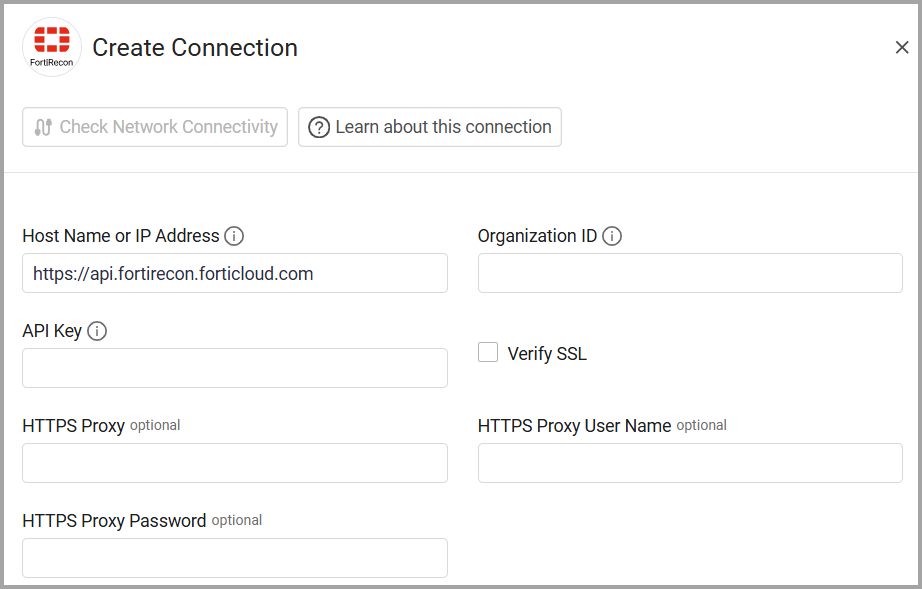
Host Name or IP Address - The base domain for the FortiRecon API. Default: [https://api.fortirecon.forticloud.com
](https://api.fortirecon.forticloud.com) -
Organization ID - The unique Organization ID provided by FortiRecon.
-
API Key - API Key available in the FortiRecon portal under Profile Settings.
Optional Parameters
-
Verify SSL - Select whether to verify the SSL certificate of the server against the CA database inside of Axonius. For more details, see SSL Trust & CA Settings.
-
HTTPS Proxy - Enter an HTTPS proxy address to connect the adapter to a proxy instead of directly connecting it to the domain.
-
HTTPS Proxy User Name - Enter the user name to use when connecting to the value supplied in Host Name or IP Address via the value supplied in HTTPS Proxy.
-
HTTPS Proxy Password - Enter the password to use when connecting to the server using the HTTPS Proxy.
Updated 8 months ago