
Creating and Editing Asset Scope Queries
Creating Asset Scope Queries
An asset scope query can be used to define the assets included in a data scope. The assets returned by the query are included in the data scope. For example, they can be determined by installed OS, IP addresses, or tagged assets or any other queryable data.
Note
Existing saved queries cannot be used as data scope queries.
An asset scope query can use only other asset scope queries. See Using an Asset Scope Query in Another Asset Scope Query.
- Use the Query Wizard to create a new query according to the criteria you require.

-
Click Search, all relevant assets are displayed.
-
Click Save As to save this query.
-
The Save As New Query dialog opens.
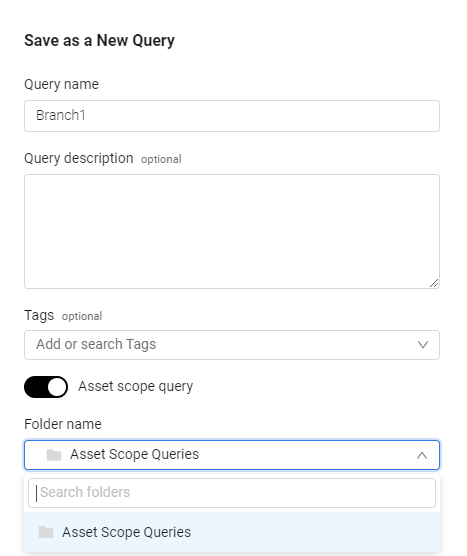
- Enable Asset scope query to save this query as an asset scope query, select a folder to save the query and click Save. By default asset scope queries are saved in the Asset Scope folder.
Note
The Asset Scope query toggle is only visible for users with relevant permissions.
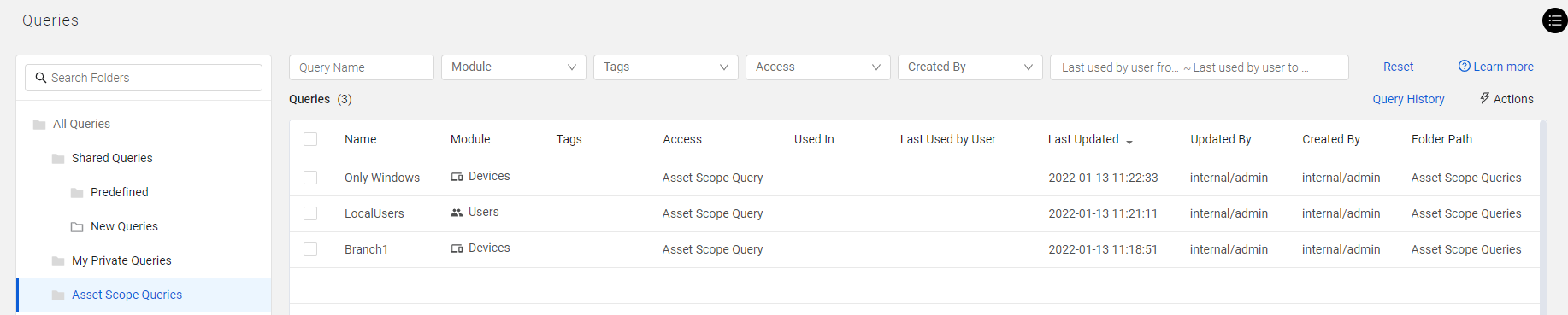
When you open the Queries page, this query appears in the Asset Scope Query folder. The results of an asset scope query define the set of data included within a data scope and on which a user can perform all Axonius activities.
Note
Users who have Manage data scope permissions can use asset scope queries like any other saved query (for instance, when creating dashboard charts, etc.).
Creating an Asset Scope Query from the New Data Scope Drawer
You can also create a new Asset Scope query directly from the New Data Scope drawer. To create a new Asset Scope query
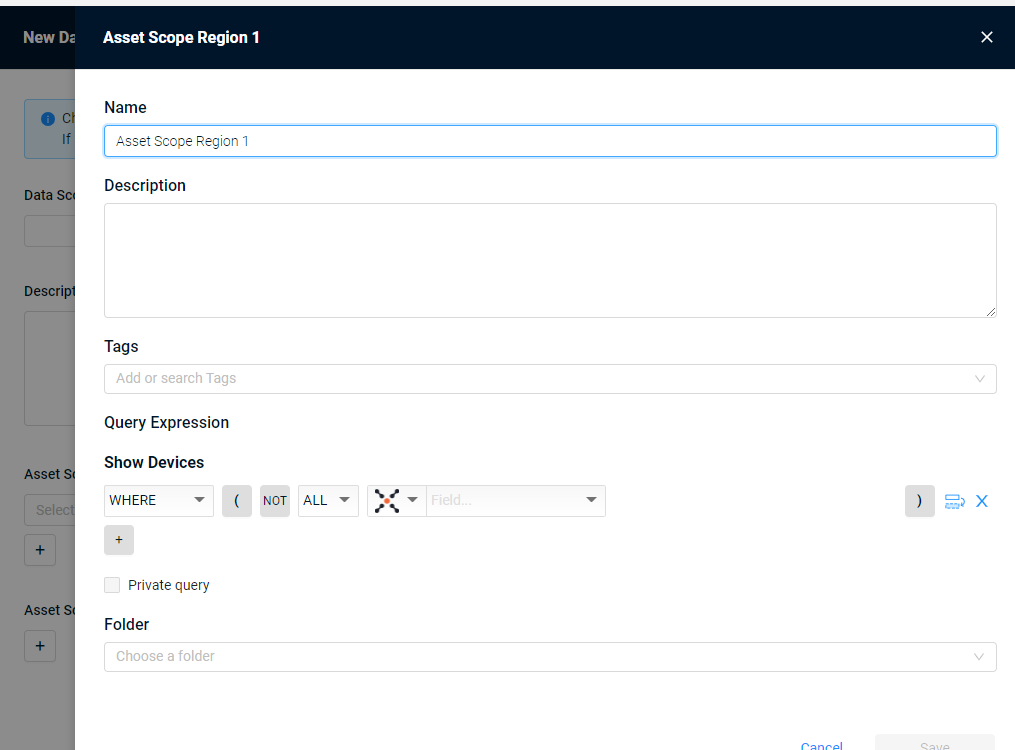
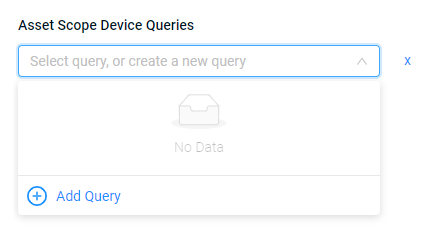
- Click Add Query; the Query Wizard opens.
-
In Name, enter a name for the new query.
-
In Description, enter a description that includes what assets the query returns.
-
In Tags, add tags if necessary.
-
In Cache Settings, select whether to Always keep cached or deselect to not keep cached. When selected, query results are updated and stored in cache. This makes the query run faster.
Note
This option only appears when the Enable caching on recently used queries option is enabled in the Cache and Performance settings.
- In Query Expression, select the query parameters. For more about using the Query Wizard, see Creating Queries with the Query Wizard.
- Select a folder to save the query and click Save. By default asset scope queries are saved in the Asset Scope folder.
The new query appears as an asset scope query on the Queries page.
The query drawer closes and you are returned to the New Data Scope drawer.
- Click Save, the new Data Scope you created appears in the Data Scope list.
You can edit/delete the data scope as required.
Note
If you do not choose any asset scope queries at all, then the assigned users will have access to all assets on the system.
Using an Asset Scope Query in Another Asset Scope Query
Use a Saved Query condition to build an asset scope query on top of another asset scope query. The link is live: when the filter of a used query changes, each asset scope query that uses it gets the new filter.
Required Permissions
- Manage data scopes - to create or change an asset scope query.
To use an asset scope query in another asset scope query:
- Open the Query Wizard of an asset scope query.
- Add a condition and select Saved Query.
- In the value list, select an asset scope query. The list shows only asset scope queries of the same asset type. In a relationship condition, the list shows the asset scope queries of the related asset type.
- Select Save.
For example, the asset scope query Prod Linux servers uses the asset scope query Prod servers and adds a condition on the operating system. When Prod servers changes, Prod Linux servers follows.
Limits and Behavior
- A regular saved query can't be used. An archived query, a query that isn't found, and a query of another asset type can't be used either. Axonius refuses the save and shows the message A data scope query can use only other data scope queries.
- A chain can have up to 50 levels. A loop, in which a query uses itself through other queries, isn't allowed.
- You need access to every query in the chain.
- If a used query becomes invalid, for example because you delete it, archive it, or it changes asset type, the asset scope query that uses it matches no assets, and Axonius removes the asset tags it added.
- An asset scope query of a sub-device asset type doesn't have the Saved Query field.
- You can't delete a used asset scope query, move it out of the Asset Scope Queries folder, or change it back to a regular query. Remove it from the asset scope queries that use it first. The same applies to deleting a folder that holds used queries. Axonius lists the names of the asset scope queries that use it in the message.
Editing Asset Scope Queries
When you edit an asset scope query, the set of assets available to the users associated with the data scope is updated accordingly.
Note
Be careful when you change an asset scope query. This affects the scope of the assets included in dashboard charts, Reports, Enforcement Actions, etc. that the users assigned to the data scope have created.
Asset Scope Queries that Involve Security Findings
While a data scope limits only the asset types that it has a query for, Security Findings are an exception, because Security Findings don't function as independent assets - each Security Finding is attributed to a specific asset it exists on. See Defining a Data Scope for Security Findings[] for more information.
Updated 8 days ago