
Park Place Technologies Central Park
Park Place Technologies Central Park is a data center maintenance platform that provides asset management, contract management, ticketing, and hardware monitoring through a unified support portal.
Use Cases the Adapter Solves
- Track covered assets: View contract assets alongside their contract status and service-level information.
- Review asset inventory: Identify devices by hostname, serial number, and part number.
- Monitor contract lifecycle: Find assets with active or inactive contract status to support maintenance planning.
Asset Types Fetched
- Devices
Data Retrieved through the Adapter
Devices - fields such as: Hostname, Serial Number, Contract Status, Service Level Agreement
Before You Begin
Required Ports
- TCP port 443 (HTTPS)
Authentication Methods
OAuth 2.0 client credentials.
APIs
Axonius uses the Park Place Technologies Central Park API. The following endpoints are called:
POST [OAuth 2.0 Token URL]- Obtains an OAuth 2.0 access token by using the client-credentials grant.GET /contract-assets- Retrieves contract assets as Devices.
Required Permissions
To create Central Park Public API credentials, the user must have the Customer Administrator role or the API Credential Manager role. Customer Administrators can assign the API Credential Manager role to other users on their account.
Confirm that the credentials can access the GET /contract-assets endpoint with your Park Place Technologies administrator.
Supported From Version
Supported from Axonius version 10.0.1
Setting Up Park Place Technologies Central Park to Work with Axonius
- Obtain an OAuth 2.0 Client ID, Client Secret, and token endpoint URL from Park Place Technologies.
- Confirm that the client credentials can request an access token through the token endpoint.
- Confirm that the authenticated client can access the
GET /contract-assetsendpoint.
Connecting the Adapter in Axonius
- Navigate to the Adapter Catalog, search for Park Place Technologies Central Park, and select the adapter.
- Click Add Connection.
- Provide the following parameters.
Required Parameters
- API Base URL - The Central Park API base URL, including the
/central-park/v2prefix. Do not add a specific endpoint. Default:https://api.parkplacetechnologies.com/central-park/v2 - OAuth 2.0 Token URL - The full token-endpoint URL provided by Park Place Technologies for the client-credentials grant.
- Client ID - The OAuth 2.0 client identifier provided by Park Place Technologies.
- Client Secret - The OAuth 2.0 client secret associated with the Client ID.
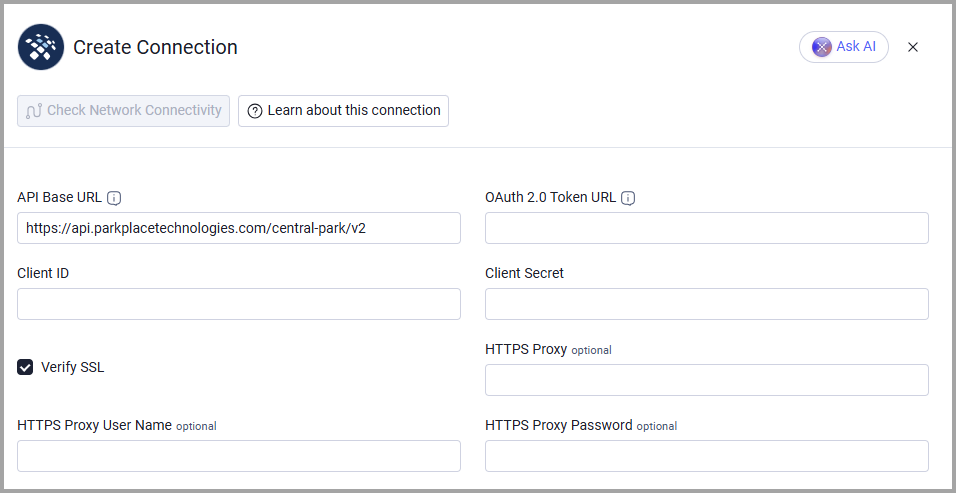
Optional Parameters
- Verify SSL - Select whether to verify the SSL certificate of the server against the CA database inside of Axonius. For more details, see SSL Trust & CA Settings.
- HTTPS Proxy - Connect the adapter to a proxy instead of directly connecting to the API Base URL.
- HTTPS Proxy User Name - The user name to use when connecting to the API Base URL through HTTPS Proxy.
- HTTPS Proxy Password - The password to use when connecting to the server through HTTPS Proxy.
To learn more about common adapter connection parameters and buttons, see Adding a New Adapter Connection.
Advanced Settings
Note:
Advanced settings can either apply to all connections for this adapter, or to a specific connection. Refer to Advanced Configuration for Adapters.
To learn more about Adapter Configuration tab advanced settings, see Adapter Advanced Settings.
- Include Component Assets - Select whether to retrieve serialized component assets on contract. This setting is disabled by default.
- Fetch Assets by Status Code - Select the contract-asset status codes to retrieve. The adapter requests each selected status separately. The default is ACTIVE; INACTIVE and FUTURE are also available.
Updated 21 minutes ago