
ManageEngine Log360 Cloud
ManageEngine Log360 Cloud is a unified security analytics platform that provides log management, threat detection, correlation, and compliance reporting across network, server, and application sources.
Use Cases the Adapter Solves
- Identify Log Sources and Collection Status: Gain visibility into all log sources being monitored by ManageEngine Log360 Cloud, including their collection status, last event time, and configuration details.
- Monitor Agent Health and Coverage: Track the status and health of ManageEngine Log360 Cloud agents deployed across your infrastructure to ensure comprehensive log collection coverage.
Asset Types Fetched
- Devices
Data Retrieved through the Adapter
The following data can be fetched by the adapter:
Devices - Fields such as Display Name, Log Source ID, Log Type Name
Before You Begin
Required Ports
- TCP port 443 (HTTPS)
Authentication Methods
OAuth 2.0 Authentication
The adapter uses OAuth 2.0 authentication with Zoho Accounts to access the ManageEngine Log360 Cloud API. You must obtain OAuth 2.0 credentials (Client ID, Client Secret, and Refresh Token) from the Zoho Developer Console.
APIs
Axonius uses the ManageEngine Log360 Cloud API v2. The following endpoints are called:
POST /oauth/v2/token- Obtains access token using OAuth 2.0 refresh tokenGET /v2/log-sources- Retrieves log source informationGET /v2/log-sources/agents- Retrieves agent information and enriches log sources
Required Permissions
The OAuth 2.0 application requires the the following OAuth scopes;
logs360cloud.logsources.READ
logs360cloud.agents.READ
Supported From Version
Supported from Axonius version 8.0.21
Setting Up ManageEngine Log360 Cloud to Work with Axonius
To configure ManageEngine Log360 Cloud for integration with Axonius, you need to create an OAuth 2.0 application in the Zoho Developer Console and obtain the required credentials.
- Log in to the Zoho Developer Console at the appropriate regional URL (e.g., https://accounts.zoho.com, https://accounts.zoho.eu, https://accounts.zoho.in)
- Navigate to the API Console and create a new Self Client application
- Note the Client ID and Client Secret provided
- Generate a Refresh Token by following the OAuth 2.0 authorization flow (authorization code grant)
- Obtain your Account ID from the ManageEngine Log360 Cloud console (typically found in account settings or API documentation)
- Note the ManageEngine Log360 Cloud domain (e.g., https://log360cloud.manageengine.com)
- Note the Zoho Accounts domain for your region (e.g., https://accounts.zoho.com for US, https://accounts.zoho.eu for EU)
Connecting the Adapter in Axonius
Navigate to the Adapters page, search for ManageEngine Log360 Cloud, and click on the adapter tile.
Click Add Connection.
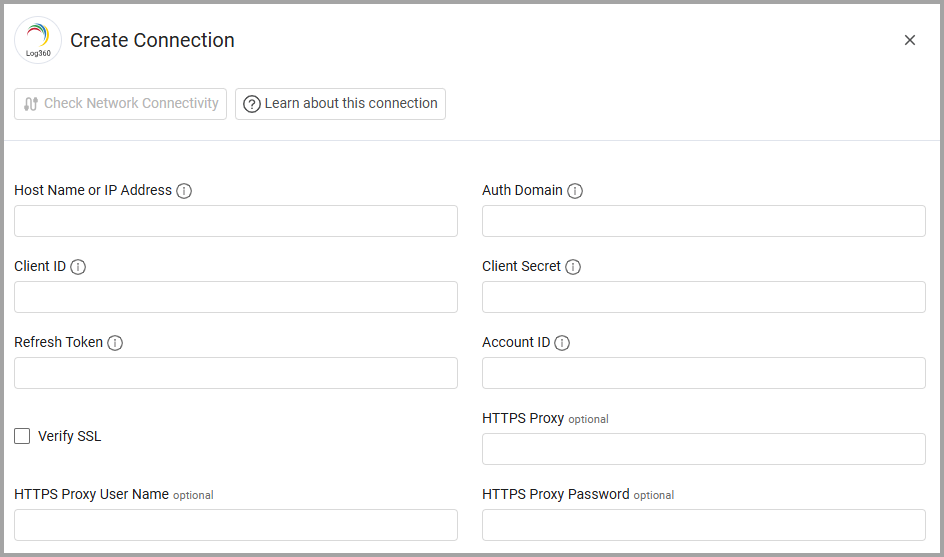
To connect the adapter in Axonius, provide the following parameters:
Required Parameters
- Host Name or IP Address - Base URL for the ManageEngine Log360 Cloud API. Should contain a prefix of http:// or https://. Do not add any specific endpoints after the domain. Example:
https://log360cloud.manageengine.com - Auth Domain - Zoho Accounts URL for OAuth token generation. Use the appropriate regional URL if needed. Example:
https://accounts.zoho.com,https://accounts.zoho.eu,https://accounts.zoho.in - Client ID - OAuth 2.0 Client ID obtained from the Zoho Developer Console.
- Client Secret - OAuth 2.0 Client Secret obtained from the Zoho Developer Console.
- Refresh Token - OAuth 2.0 Refresh Token obtained from the Zoho token exchange. This token is permanent and used to generate new access tokens.
- Account ID - The account_id header value required for all API requests.
Optional Parameters
- Verify SSL - Select whether to verify the SSL certificate of the server against the CA database inside of Axonius. For more details, see SSL Trust & CA Settings.
- HTTPS Proxy - Connect the adapter to a proxy instead of directly connecting it to the domain.
- HTTPS Proxy User Name - The user name to use when connecting to the value supplied in Host Name or IP Address via the value supplied in HTTPS Proxy.
- HTTPS Proxy Password - The password to use when connecting to the server using the HTTPS Proxy.
To learn more about common adapter connection parameters and buttons, see Adding a New Adapter Connection.
Updated about 1 month ago