
Axonius - Add Global Variables
slug chaged here to hide the page
Axonius - Add Global Variables does either of the following for assets returned by the selected query or assets selected on the relevant asset page:
- Add a global variable (name and value) to the assets.
- Add or replace a value of a global variable that already exists on the assets.
Once added, you can use the global variable in future queries.
See Creating Enforcement Sets to learn more about adding Enforcement Actions to Enforcement Sets.
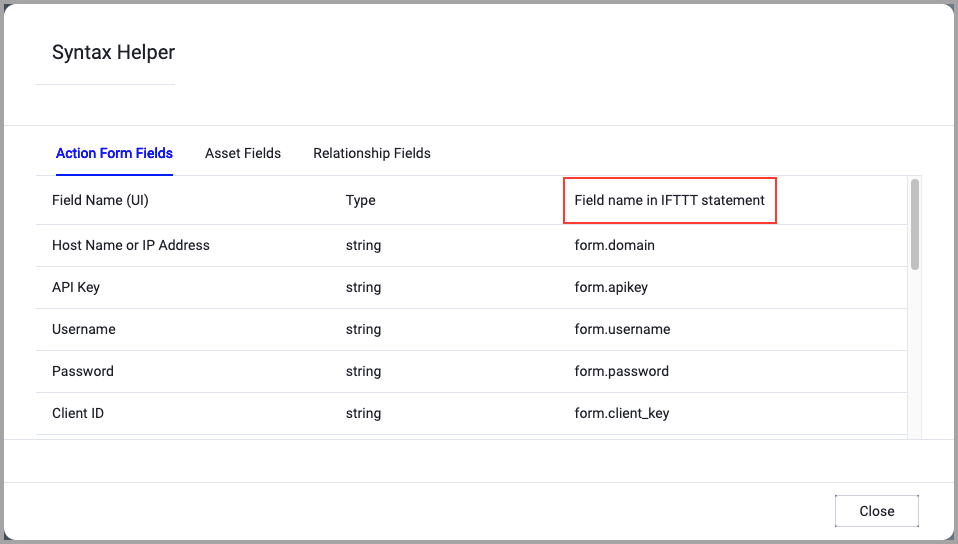
When accessing an enforcement action using the API, you must use the backend form of field names.
Use the Syntax Helper to find the correct name. In the enforcement action, enable Configure Dynamic Values and select Syntax Helper.
Note
- Not all asset types are supported for all Enforcement Actions.
- See Actions supported for Activity Logs, Adapters Fetch History, and Asset Investigation modules.
- See Actions supported for Aggregated Security Findings.
- See Actions supported for Software.
Required Fields
These fields must be configured to run the Enforcement Action.
- Action name - The name of this Enforcement Action. The system sets a default name. You can change the name.
- Configure Dynamic Values (optional) - Toggle on to enter a Dynamic Value statement. See Creating Enforcement Action Dynamic Value Statements to learn more about Dynamic Value statement syntax.
- Variable name - Here you can either create a new custom variable or select a predefined variable. If the predefined variable name already exists, you can replace its value or add to its values.
- Field type - From the dropdown, select one of the following:
- Single Value - Creates a single-value field.
- Multiple Values - Creates a list field.
- Value type - From the dropdown, select a value type according to the field type that you selected in the previous step. The value types are:
- String - Contains letters, numbers, special symbols (such as % or #), or any other printable character.
- Date - Learn about Adding Dates
- Float - Any number with a decimal point.
- Integer -Any number without a decimal point.
- Boolean - Contains a value that is either True or False. Available only for Single Value fields.
- Type a value into the Field value box.
- When the Field type is Single Value, type a value.
- For a String, Float, or Integer value type, in the Field value box, type a free-text value for the custom field.
- For a Boolean value type, from the Field value (True/False) dropdown, select either Yes or No.
- For a Date value type, select the current date or a specific date.
- When the Field type is Multiple Values, in the Field Value box, type a list of field values.
- For a String, Float, or Integer value type, in the Field value (list [field type]) box, type a value, and then press Enter, comma, or semicolon to add it to the list. You can also paste a comma separated list into the field. Learn more about Adding a List String.
- For a Date value type, in the Field Value (list date) box, select the current date or specific dates.
- When the Field type is Single Value, type a value.
Adding Dates or a List String
The functions of adding date fields or list strings when creating a global variable are identical to Axonius - Add Custom Data to Assets.
- Compute Node - The Axonius node to use when connecting to the specified host. For more details, see Working with Axonius Compute Nodes.
Required Permissions
The stored credentials, or those provided in Connection and Credentials, must have the following permission(s) to perform this Enforcement Action:
- Admin, or asset permissions
For more details about other enforcement actions available, see Action Library.
Updated 21 days ago