
HCL AppScan on Cloud
HCL AppScan on Cloud is an application security testing platform that provides static, dynamic, interactive, and software composition analysis to identify vulnerabilities in web and mobile applications.
Use Cases the Adapter Solves
- Application security visibility: Identify business applications and their security findings in Axonius.
- Vulnerability risk review: Review issue severity, CVSS information, CWE values, and finding status for applications.
- Scan monitoring: Track application scans, their latest execution status, and scheduled runs.
Asset Types Fetched
- Business Applications
- Application Resources
- Aggregated Security Findings
- SaaS Applications
Data Retrieved through the Adapter
Business Applications - fields such as: Name, Business Unit, Risk Rating, Software CVEs
Application Resources - fields such as: Name, Application Name, Technology, Latest Execution
Vulnerabilities - fields such as: Source Vulnerability ID, CVE ID, CVSS, CWE ID
Before You Begin
Required Ports
- TCP port 443 (HTTPS)
Authentication Methods
API key authentication
APIs
Axonius uses the HCL AppScan on Cloud v4 API. The following endpoints are called:
GET /api/v4/Apps- Retrieves applications.GET /api/v4/Issues/Application/{appId}- Retrieves issues for an application.GET /api/v4/Scans- Retrieves scans.GET /api/v4/Scans/{scanId}/Executions- Retrieves executions for a scan.
Required Permissions
Generate the API key with a user that has one of the predefined HCL AppScan on Cloud roles. All predefined roles (Administrator, Manager, Application Manager, Tester, and Report Viewer) can generate API keys. For read-only access, use the Report Viewer role.
The Administrator role can access all asset groups. All other roles can access only the asset groups they are assigned to. Make sure the user is assigned to the asset groups that contain the applications you want to fetch.
Supported From Version
Supported from Axonius version 10.0.1
Connecting the Adapter in Axonius
- Navigate to the Adapter Catalog, search for HCL AppScan on Cloud, and select the adapter.
- Click Add Connection.
- Provide the following parameters.
Required Parameters
- Host Name or IP Address - The HCL AppScan on Cloud host, including the
https://prefix. Usehttps://cloud.appscan.comfor the US region orhttps://eu.cloud.appscan.comfor the EU region. Do not include a specific API endpoint. - Key ID - The Key ID from the API key pair created in HCL AppScan on Cloud.
- Key Secret - The Key Secret from the API key pair created in HCL AppScan on Cloud.
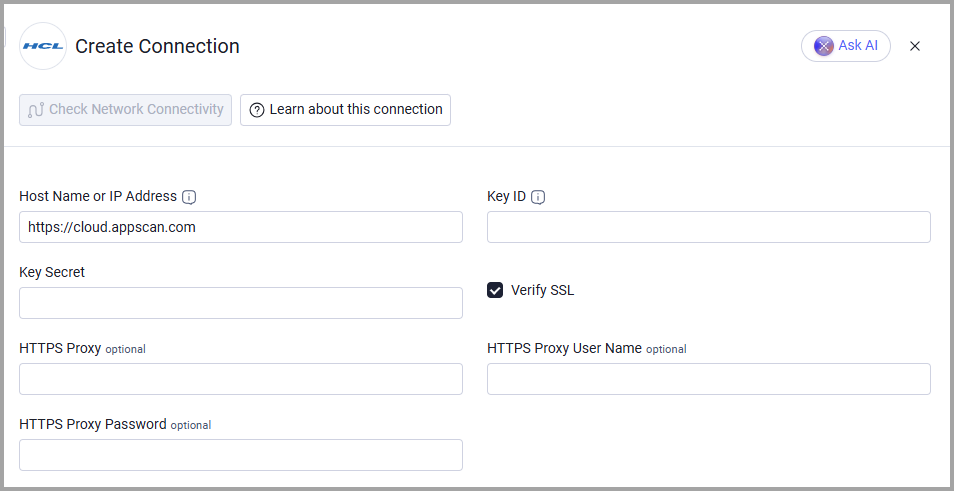
Optional Parameters
- Verify SSL - Select whether to verify the SSL certificate of the server against the CA database inside of Axonius. For more details, see SSL Trust & CA Settings.
- HTTPS Proxy - Connect the adapter to a proxy instead of directly connecting it to the host.
- HTTPS Proxy User Name - The user name to use when connecting to the value supplied in Host Name or IP Address via the value supplied in HTTPS Proxy.
- HTTPS Proxy Password - The password to use when connecting to the server using the HTTPS Proxy.
To learn more about common adapter connection parameters and buttons, see Adding a New Adapter Connection.
Advanced Settings
Note:
Advanced settings can either apply to all connections for this adapter, or to a specific connection. Refer to Advanced Configuration for Adapters.
To learn more about Adapter Configuration tab advanced settings, see Adapter Advanced Settings.
- Fetch only open issues - Enabled by default. Fetches issues with a status of New, Open, In Progress, or Reopened. Disable it to also fetch Fixed, Passed, and Noise issues.
- Execution history in days - Set the number of days of scan execution history to fetch. The default is 30 days. Set this value to 0 to fetch the full execution history; the maximum is 365 days.
Updated 14 minutes ago