
Right-Hand Cybersecurity
Right-Hand Cybersecurity is a Human Risk Management platform that offers security awareness training, phishing simulations, and behavior-based user risk scoring to reduce human cyber risk.
Use Cases the Adapter Solves
- Assess user risk: Review user risk scores alongside phishing-campaign activity and training results.
- Measure phishing resilience: Identify users who received, opened, clicked, or reported phishing emails.
- Track security training: Monitor assigned training, completion status, and training scores for users.
Asset Types Fetched
- Users
Data Retrieved through the Adapter
Users - fields such as: Email, Display Name, Risk Score, Phishing Campaigns
Before You Begin
Required Ports
- TCP port 443 (HTTPS)
Authentication Methods
The adapter uses a Tenant Token and Service Account Email to obtain a user token.
APIs
Axonius uses the Right-Hand Cybersecurity API. The following endpoints are called:
POST /public/authentications- Obtains a user token using the Tenant Token and Service Account Email.GET /public/companies/{company_id}/employees- Retrieves employees for the configured company.POST /public/reports/v1/phishing-export- Retrieves phishing campaign data for users.POST /public/reports/v1/export- Retrieves training data for users.
Required Permissions
Confirm the exact permissions required to access the API endpoints listed above with your Right-Hand Cybersecurity administrator.
Supported From Version
Supported from Axonius version 10.0.1
Connecting the Adapter in Axonius
- Navigate to the Adapter Catalog, search for Right-Hand Cybersecurity, and select the adapter.
- Click Add Connection.
- Provide the following parameters.
Required Parameters
- Host Name or IP Address - Enter the Right-Hand public API host, including the
https://prefix and without a path. Default:https://api.right-hand.ai. - Reports Host Name - Enter the Right-Hand reports host for phishing and training exports, including the
https://prefix. Default:https://rh-prd-shared.right-hand.ai. - Tenant Token - Enter the tenant token provided by the Right-Hand support team.
- Service Account Email - Enter the email address of the admin or service account with API access enabled. Example:
[email protected]. - Company ID - Enter the ID of the Right-Hand company whose employees the adapter retrieves.
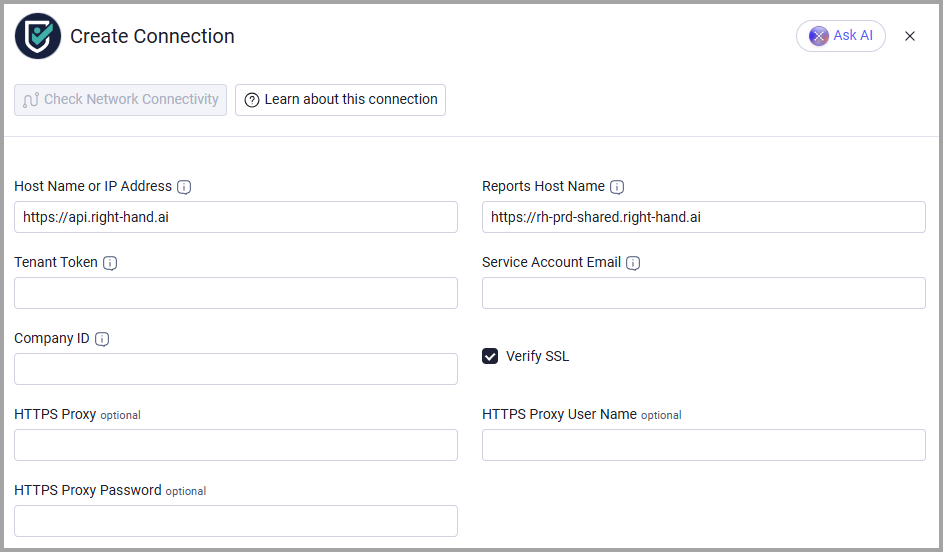
Optional Parameters
- Verify SSL - Select whether to verify the SSL certificate of the server against the CA database inside of Axonius. For more details, see SSL Trust & CA Settings.
- HTTPS Proxy - Connect the adapter to a proxy instead of directly connecting to the hosts.
- HTTPS Proxy User Name - Enter the user name for the configured HTTPS Proxy.
- HTTPS Proxy Password - Enter the password for the configured HTTPS Proxy.
To learn more about common adapter connection parameters and buttons, see Adding a New Adapter Connection.
Advanced Settings
Note:
Advanced settings can either apply to all connections for this adapter, or to a specific connection. Refer to Advanced Configuration for Adapters.
To learn more about Adapter Configuration tab advanced settings, see Adapter Advanced Settings.
- Enrich Employees with Phishing Campaigns - Enable or disable retrieval of phishing campaign data. This setting is enabled by default.
- Phishing history in days - Set the number of days of phishing campaigns to retrieve. The default is 90; accepted values range from 1 to 3650 days.
- Enrich Employees with Trainings- Enable or disable retrieval of training data. This setting is enabled by default.
Updated about 1 hour ago