
Avaya Experience Platform
Avaya Experience Platform is a contact center and unified communications platform that provides voice, chat, email, and messaging services along with agent and device management.
Use Cases the Adapter Solves
- Review contact-center identities: Identify Avaya Experience Platform users and their roles to support access reviews.
- Track voice-service devices: Maintain visibility of Avaya Aura Device Services devices, including their hostnames and status.
Asset Types Fetched
- Devices
- Users
Data Retrieved through the Adapter
Devices - fields such as: Device Name, Hostname, Port, AADS Status
Users - fields such as: Username, Email, Display Name, Admin Roles
Before You Begin
Required Ports
- TCP port 443 (HTTPS)
Authentication Methods
The adapter uses OAuth 2.0 client credentials authentication.
APIs
Axonius uses the Avaya Experience Platform API. The following endpoints are called:
POST /api/auth/v1/{accountId}/protocol/openid-connect/token- Obtain an access token using client credentials.GET /api/admin/user/v1/accounts/{accountId}/users- Retrieve users.GET /api/admin/voice/v1/accounts/{accountId}/avaya-aura-device-services- Retrieve Avaya Aura Device Services devices.
Required Permissions
Avaya provisions the client credentials with the roles and permissions that match the APIs listed in the Scope field of the OneCare Client Access Request. In the request, list the User Management API and the Voice Admin API so that the client can access the endpoints listed above.
The User APIs require the Account Administrator role. Confirm the role required to access Avaya Aura Device Services through the Voice Admin API with your Avaya administrator.
Supported From Version
Supported from Axonius version 10.0.1
Setting Up Avaya Experience Platform to Work with Axonius
- Obtain the Client ID, Client Secret, and Application Key through the OneCare Client Access Request for AXP APIs.
- Record the six-character Account ID.
- Identify the regional Avaya Experience Platform API host, including the
https://prefix.
Connecting the Adapter in Axonius
- Navigate to the Adapter Catalog, search for Avaya Experience Platform, and select the adapter.
- Click Add Connection.
- Provide the following parameters.
Required Parameters
- Host Name or IP Address - Enter the regional Avaya Experience Platform API host, including the
https://prefix. Do not add a specific API endpoint. Example:https://us.api.avayacloud.com - Account ID - Enter the six-character Avaya Experience Platform account ID.
- Client ID - Enter the client ID for the OAuth 2.0 client credentials flow.
- Client Secret - Enter the client secret for the OAuth 2.0 client credentials flow.
- Application Key - Enter the application key issued with the client credentials.
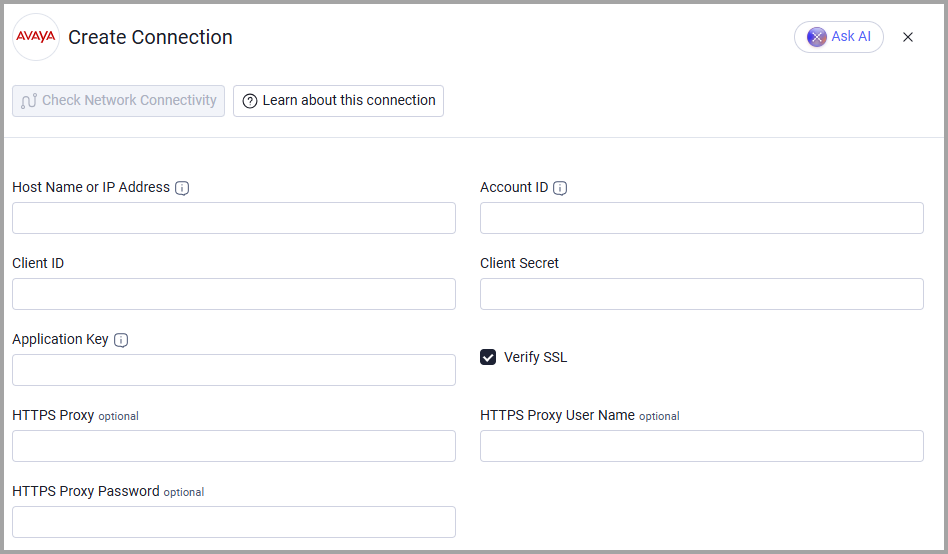
Optional Parameters
- Verify SSL - Select whether to verify the SSL certificate of the server against the CA database inside of Axonius. For more details, see SSL Trust & CA Settings.
- HTTPS Proxy - Connect the adapter to a proxy instead of directly connecting it to the host.
- HTTPS Proxy User Name - Enter the user name to use when connecting through HTTPS Proxy.
- HTTPS Proxy Password - Enter the password to use when connecting through HTTPS Proxy.
To learn more about common adapter connection parameters and buttons, see Adding a New Adapter Connection.
Updated 15 minutes ago