
Viewing Device Scan Fetch History
Use the Device Scan Fetch History tab to review a detailed log of all fetch operations performed by your device scan jobs. The tab displays the status, timing, and results of each fetch, helping you monitor scan performance and troubleshoot issues.
To open the Device Scan Fetch History tab, navigate to the Device Intelligence Hub and click the Device Scan Fetch History tab.
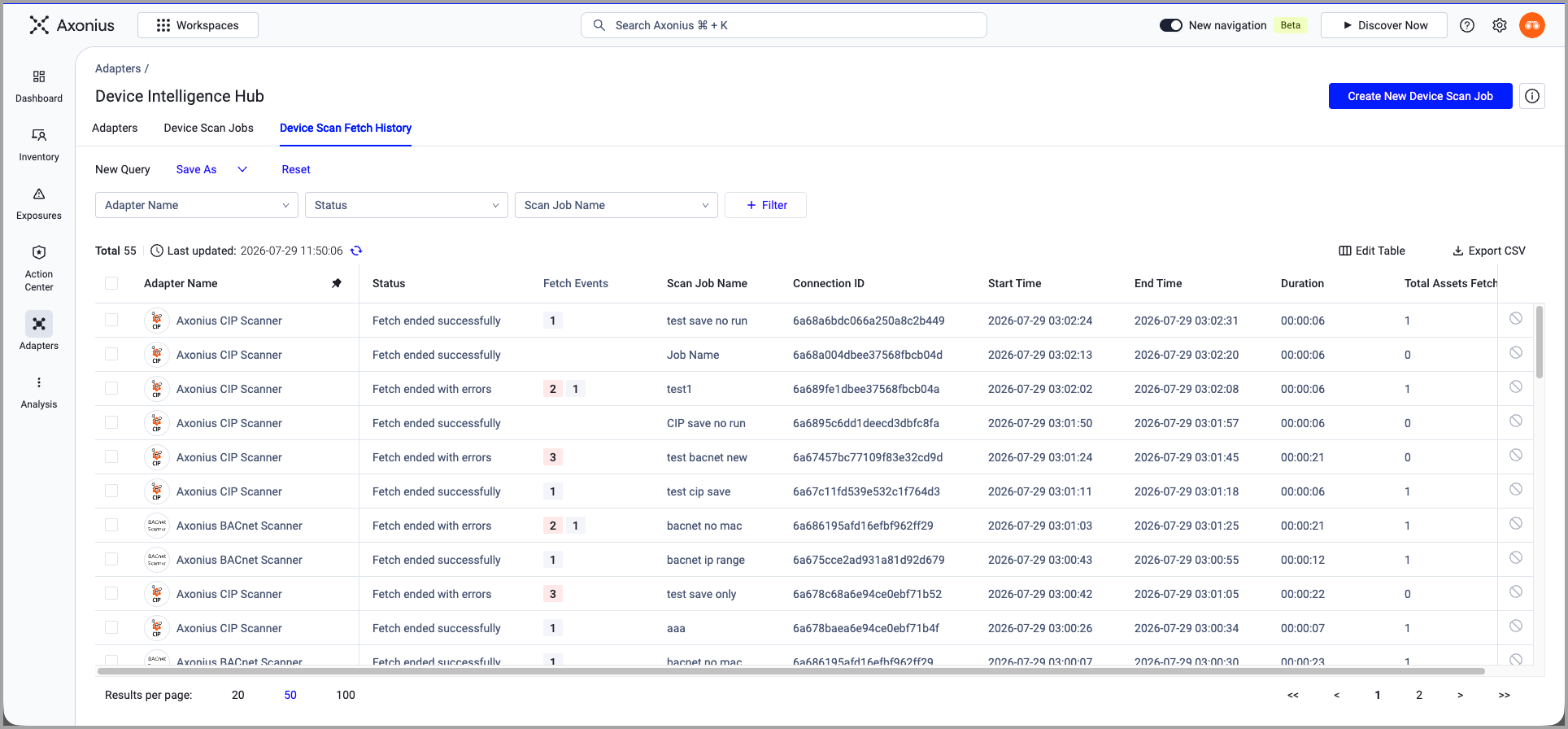
The total number of fetch records and the last updated timestamp are displayed at the top left of the table. Click the refresh icon next to the timestamp to refresh the data.
Search and Filter Fetch History
You can filter the fetch history displayed in the table using the following options:
-
Adapter Name - Select one or more adapter names from the dropdown list to filter by adapter.
-
Status - Select a fetch status to filter by result (for example, "Fetch ended successfully", "Fetch ended with errors").
-
Scan Job Name - Select one or more scan job names from the dropdown list to filter by scan job.
-
+ Filter - Click to add additional filter criteria.
Saving Filter Configurations
You can save and manage filter configurations:
-
New Query - Click to create a new filter configuration.
-
Save As - Click to save the current filter configuration with a name for future use.
-
Reset - Click to clear all filters and return to the default view.
Device Scan Fetch History Table
The following information is displayed for each fetch record:
-
Adapter Name - The name of the scanning adapter that performed the fetch (for example, Axonius CIP Scanner, Axonius BACnet Scanner). Click the pin icon to pin an adapter to the top of the list.
-
Status - The result of the fetch operation. Possible values include "Fetch ended successfully" and "Fetch ended with errors".
-
Fetch Events - The number of events generated during the fetch. If errors occurred, the error count is displayed in a separate indicator. Click the event count to view event details.
-
Scan Job Name - The name of the scan job that triggered the fetch.
-
Connection ID - The unique identifier for the connection used during the fetch.
-
Start Time - The date and time (UTC) the fetch started.
-
End Time - The date and time (UTC) the fetch completed.
-
Duration - The total time elapsed for the fetch operation (in HH:MM:SS format).
-
Total Assets Fetched - The number of assets discovered during the fetch.
Exporting Device Scan Fetch History to CSV
You can export the device scan fetch history to CSV.
To export the scan history to CSV:
- Click Export CSV. The file is downloaded to your downloads folder.
Updated about 1 month ago