
Saved Views
Note
Saved views apply to Assets tables, Adapter Connections page and Adapters Fetch History page.
Views are column arrangements displayed in tables. Use Saved Views to create views tailored to specific use cases or your workflow preferences.
Use Views to define and save column arrangements. You can:
- Create a collection of Saved Views for Assets table and Adapter table columns and switch between them according to your needs.
- Display fields most relevant to your current task.
- Define different view sets for each asset type or Adapter Connection/Fetch History page.
Each user can create their own set of Views, however, users cannot share a view.
Views also keep your field refinements. When you select a view that has refinements, Axonius applies them. When you save a query, Axonius keeps the column widths you set.
Creating a View
To create a view:
-
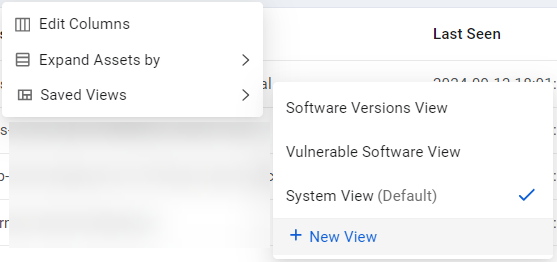
Select Edit Table.
-
From Saved Views, select + New View.
-
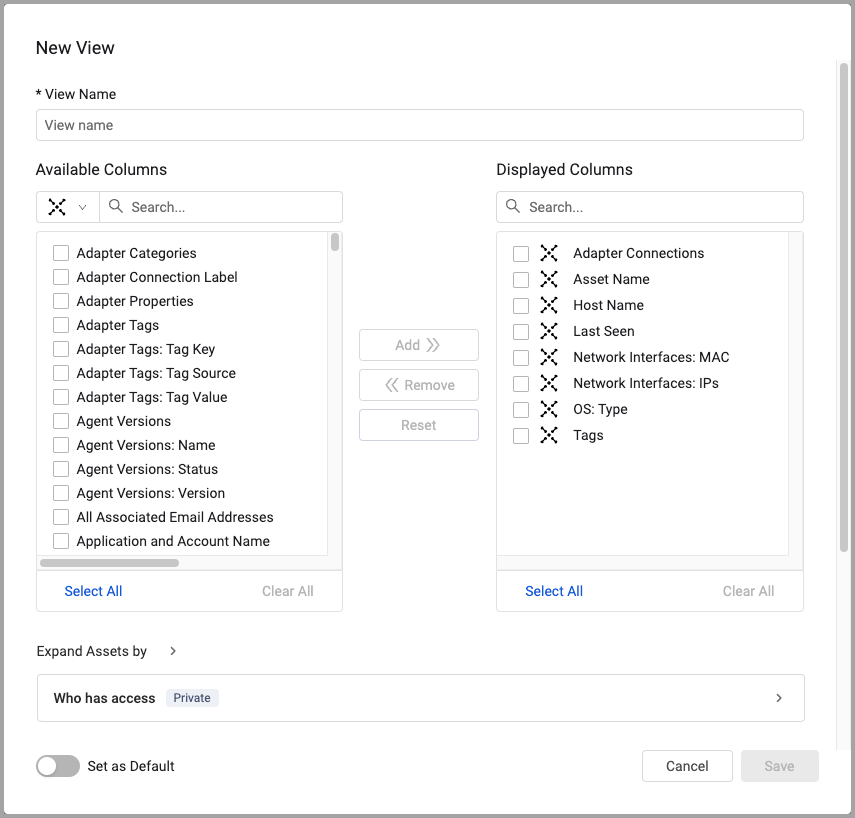
The New View dialog opens. Enter a name for your view. You can only save the view after naming it.
-
Select columns from the Available Columns pane, then click Add to move them to the Displayed Columns pane. For where added columns appear, see Setting Page Columns Display.
Note
While there is no technical limitation on the number of columns you can add to a table, It is not recommended to add more than 50 columns, as this may affect optimal table display and behavior.
- To remove columns from the Displayed Columns pane, select them and click Remove. Note that the columns available change according to the adapter you select. For more information, see Setting Page Columns Display.
- To change the column display order, drag the columns up and down. To make this the default view, enable Set as Default. To move several columns at once, see Setting Page Columns Display.
- Under Expand Assets by, select whether to expand rows in the view by a complex field. See Expanding Assets by a Complex Field for more information.
- Under Access, define which user roles can access this view. See Sharing a Saved View for more information.
- Save the View.
After you save the view, the system notifies you and loads the new view. On each Assets page, you can select a view and set it as default.
Note
The view is only saved to the Asset Type/Adapter table it was created from.
Loading a View
-
From Edit Table, hover over Saved Views. All available views for this asset/adapter table are listed.
-
Select the view you want to load.
The System View contains the default columns that Axonius provides for each asset type. You can set any view as your personal default. When set, your default view loads automatically each time you open that specific table.
Editing a View
-
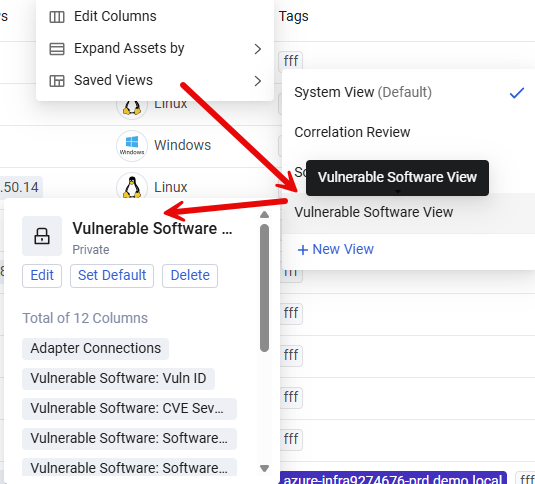
From Edit Table, hover over Saved Views.
-
Hover over the relevant view. A popup displaying the view's details appears. Click Edit.
-
Edit the view as required, then click Save to load the edited view.
Editing the System View (Admins Only)
Admins can also edit the default System View (but not rename it). This creates a new System View for all users.
Sharing a Saved View
You can share a saved view by managing access to selected roles. See Managing Roles for more information about assigning permissions to roles at the system level.
Notes
Only users with the Manage saved views permission can share views. This section is not available to users without this permission.
Users with the Manage saved views permission who are not admins can share views but cannot modify role permissions. Only admins can edit role permissions.
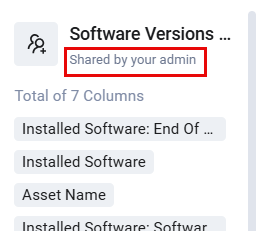
When you hover over a view, you can see an indication whether it is shared by your admin or shared by you with others. Unshared views are listed as Private.
To share a saved view:
- Hover over the relevant view and click Edit.
- Scroll to the bottom of the Edit View dialog and expand Who has access.
- Under Who has access, configure the access privileges for the saved view.
- Save your changes.
Deleting a View
Note
You can only delete private views. You can't delete views shared by your admin.
Hover over the relevant view and click Delete. The system asks you to confirm before deleting the view.
- If you delete your default view, the System View becomes the new default for that Assets page. The System View cannot be deleted.
- After deleting a view, the current column view continues to be displayed, but this arrangement is no longer saved as a view.
Setting a View as Default
The system includes a default System View for each table. You can set any view as your personal default. That default view displays automatically when you open an asset/adapter table, and you can set different defaults for each table type.
To set a view as default, hover over the relevant view and click Set Default. You can also do this from the Edit View dialog.
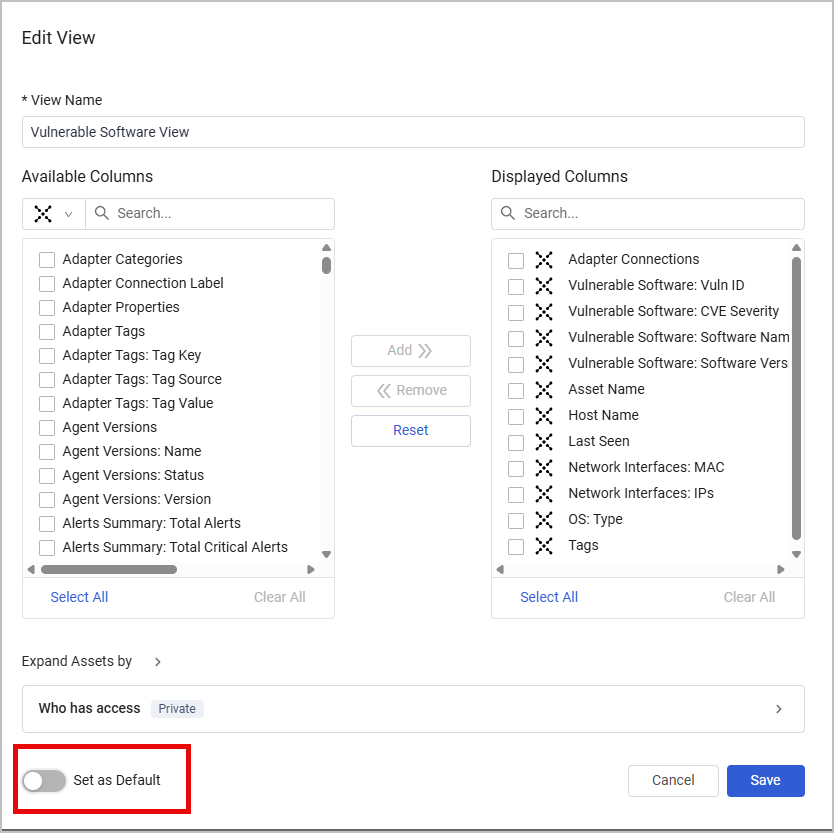
Setting a View as Default for Specific User Roles
Admins can set any view on any Assets page as default per user role. The selected view is applied automatically when a user with the relevant role opens this specific Assets page, reducing the number of steps needed for specific roles to reach their preferred configuration.
To set a view for specific user roles:
-
Hover over the relevant view and click Edit.
-
Scroll to the bottom of the Edit View dialog and expand Who has access.
-
Expand Set view as default for and select roles from the list.
-
Click Save.
Additional Predefined Views
Axonius supplies various column arrangements for search for specific parameters for Assets pages. These include:
- System search (Host Name) (Default)
- System search (Last Used Users) (Default)
- System search (IP Address) (Default)
- System search (Installed Software Name) (Default)
See System Search Default to set the columns to be displayed in system searches. For more information, see Free Text Search in Table.
Updated 12 days ago